Running a WooCommerce store often requires a delicate balance between showcasing your products and capturing lead information. For many store owners—especially those in B2B, wholesale, or members-only niches—showing the price to everyone isn’t always the best strategy.
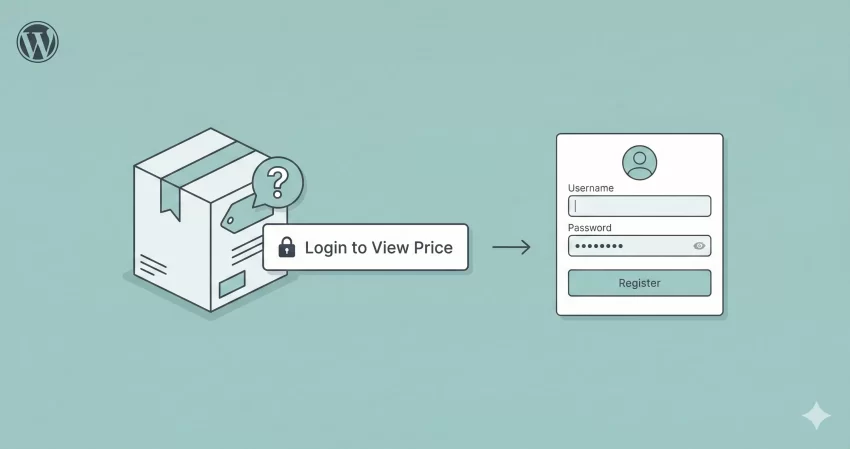
Sometimes, the smartest move you can make is to Hide Price in WooCommerce functionalities for non-logged-in users. By doing this, you create a “velvet rope” effect. You aren’t just selling a product; you are selling membership to an exclusive club.
In this comprehensive guide, we will walk through exactly why you should consider this strategy and provide you with a high-performance, bloat-free code snippet to get the job done. No heavy plugins required.
Why You Should Hide Price In WooCommerce for Guests
Before we dive into the code, it is essential to understand the strategy behind the decision to Hide Price in WooCommerce elements. Why would you add friction to the buying process?
- Lead Generation and Email Marketing
When a user sees a product they love but sees “Login to View Price,” they have a compelling reason to register. Once they register, you have their email address. Even if they don’t buy immediately, you can nurture that lead through email marketing. - Protecting Wholesale Pricing
If you run a wholesale store, you likely offer prices significantly lower than MSRP. You don’t want retail customers (or your competitors) seeing these low margins. When you Hide Price in WooCommerce displays, you protect your pricing structure. - Creating Exclusivity
Luxury brands often use the “Price on Request” model. Hiding the price creates an aura of exclusivity and high value. It forces the customer to engage with your brand rather than just window shopping.
The Problem with Heavy Plugins
If you search for “How to Hide Price in WooCommerce,” you will find dozens of plugins. While plugins are great, they often come with downsides:
- Bloat: They load extra CSS and JS files on every page, slowing down your site.
- Cost: Many “simple” plugins charge a monthly subscription for this basic feature.
- Security: Every plugin is a potential entry point for vulnerabilities.
As a WordPress developer, I always recommend a custom code snippet for simple logic changes like this. It keeps your site lightweight and gives you total control.
You might also like:

Step-by-Step Guide to Hide Prices
We are going to implement a solution that does three things for non-logged-in users (guests):
- Removes the price tag.
- Removes the “Add to Cart” button.
- Replaces both with a “Login to View Price” link.
Prerequisites
Before editing any code, ensure you have a backup of your site. We will be editing the functions.php file. Ideally, you should use a Child Theme or a code snippets plugin (like WPCode) to ensure your changes aren’t lost when your theme updates.
The Code Snippet
Copy the following code and paste it into your child theme’s functions.php file. Note that we are using the prefix pnet_ to prevent conflicts with other themes or plugins.
/**
 * Hide Price and Add to Cart for Non-Logged-In Users
 * * This snippet checks if the user is a guest. If so, it removes
 * the price hooks and the add-to-cart buttons, replacing them
 * with a custom message.
 */

// 1. Hide Price WooCommerce for Guest Users
add_filter( 'woocommerce_get_price_html', 'pnet_hide_price_guest_users', 10, 2 );

function pnet_hide_price_guest_users( $price, $product ) {
    if ( ! is_user_logged_in() ) {
        return ''; // Return empty string to hide price
    }
    return $price;
}

// 2. Hide "Add to Cart" Button for Guest Users
add_action( 'init', 'pnet_remove_add_to_cart_interface' );

function pnet_remove_add_to_cart_interface() {
    if ( ! is_user_logged_in() ) {
        // Remove Add to Cart from Single Product Page
        remove_action( 'woocommerce_single_product_summary', 'woocommerce_template_single_add_to_cart', 30 );

        // Remove Add to Cart from Shop/Archive Pages
        remove_action( 'woocommerce_after_shop_loop_item', 'woocommerce_template_loop_add_to_cart', 10 );
    }
}

// 3. Add "Login to View Price" Link
add_action( 'woocommerce_single_product_summary', 'pnet_add_login_link_single', 31 );
add_action( 'woocommerce_after_shop_loop_item', 'pnet_add_login_link_loop', 11 );

function pnet_add_login_link_single() {
    if ( ! is_user_logged_in() ) {
        echo '<div class="pnet-login-message"><a href="' . get_permalink( wc_get_page_id( 'myaccount' ) ) . '" class="button">Login to View Price</a></div>';
    }
}

function pnet_add_login_link_loop() {
    if ( ! is_user_logged_in() ) {
        echo '<div class="pnet-loop-login"><a href="' . get_permalink( wc_get_page_id( 'myaccount' ) ) . '">Login to View Price</a></div>';
    }
}
Note: This code automatically retrieves your WooCommerce “My Account” page URL, so you don’t need to hardcode links.
How It Looks
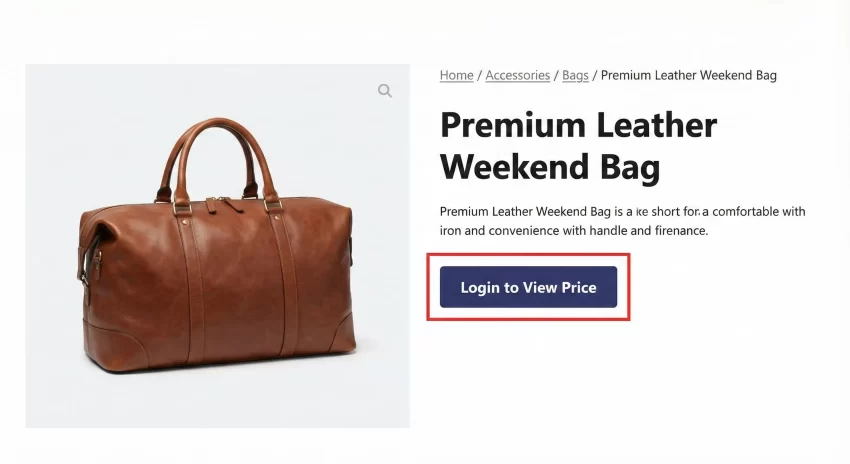
Once implemented, your single product page will transform. Instead of seeing the price and a purchase button, visitors will see a clean call to action.
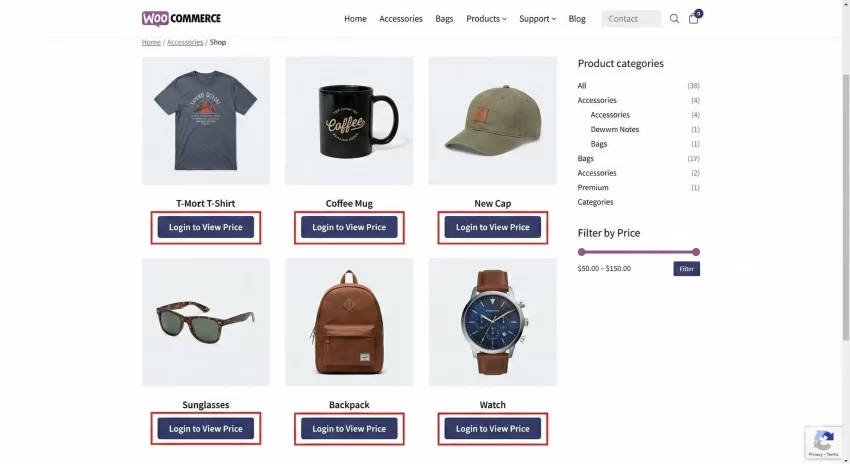
Similarly, your Shop Archive (category) pages will also reflect this change, ensuring consistency across the entire site.
Styling the Login Message
Now that we have successfully managed to Hide Price in WooCommerce data, we need to make sure the replacement link looks attractive. By default, it might look like standard text.
Since we added the class pnet-login-message in our PHP code, we can target this class in your CSS. Go to Appearance > Customize > Additional CSS and add the following:
/* Styling for Single Product Page Message */
.pnet-login-message {
    margin-top: 20px;
    margin-bottom: 20px;
}

.pnet-login-message a.button {
    background-color: #333; /* Change to your brand color */
    color: #fff;
    padding: 10px 20px;
    text-decoration: none;
    border-radius: 5px;
    font-weight: bold;
}

.pnet-login-message a.button:hover {
    background-color: #555;
    color: #fff;
}

/* Styling for Shop Loop Message */
.pnet-loop-login a {
    font-size: 14px;
    color: #333;
    font-weight: 600;
    text-decoration: underline;
}
This CSS will ensure that your “Login” link looks like a primary call-to-action button, increasing the click-through rate to your registration page.
You might also like:
Troubleshooting Common Issues
Even with a perfect code snippet, WordPress environments vary. Here are common issues you might face when you attempt to Hide Price in WooCommerce features and how to fix them.
1. The Price is Still Showing
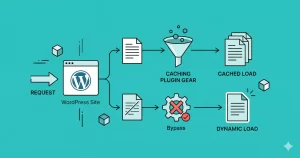
If you added the code but still see the price, Clear Your Cache.
- Browser Cache: Hard refresh (Ctrl+F5).
- Server Cache: If you use WP Rocket, W3 Total Cache, or server-side NGINX caching, purge all caches.
- WooCommerce Transients: Sometimes WooCommerce stores price HTML in the database. Go to WooCommerce > Status > Tools and clear “WooCommerce transients.“
2. Variable Products
Variable products can be tricky because the price is often generated via JavaScript when a user selects an option (like Size or Color). However, the snippet provided above removes the woocommerce_template_single_add_to_cart action. This usually removes the variation dropdowns entirely for guests, which effectively hides the variation prices as well.
3. Theme Overrides
Some themes (like Divi or Elementor Pro) build their own product templates and might not use standard WooCommerce hooks. If the snippet doesn’t work, your theme might be hard-coding the price. In this case, you may need to override the theme template files in your child theme.
Customizing the Experience Further
The ability to Hide Price in WooCommerce is just the beginning. You can expand this logic using the same functions we created earlier.
Changing the Message
Perhaps you don’t want to force a login; maybe you want them to call you? Simply change the HTML in the pnet_add_login_link_single function:
echo '<div class="pnet-contact-message">Call us at 555-XXXX-XXXX for pricing!</div>';
Hiding Prices Only for Specific Categories
You can wrap the code inside a conditional check. For example, if you only want to hide prices for the “Wholesale” category:
function pnet_hide_price_guest_users( $price, $product ) {
    if ( ! is_user_logged_in() && has_term( 'wholesale', 'product_cat', $product->get_id() ) ) {
        return '';
    }
    return $price;
}
This flexibility is why using code is often superior to plugins. You can tailor the Hide Price in WooCommerce logic to your exact business requirements.
Conclusion
Implementing a “members-only” pricing strategy can significantly alter the trajectory of your online store. It turns casual browsers into registered users and builds a database of leads you can market to indefinitely.
By using the code provided above, you can Hide Price in WooCommerce elements safely, efficiently, and without the bloat of third-party plugins.
Remember, the goal of any eCommerce site is not just traffic – it is conversion. Sometimes, hiding information is the best way to get that conversion started.
Do you have a specific theme that is refusing to hide the price? Drop a comment below with your theme name, and I’ll help you troubleshoot the correct hooks!