Every developer eventually faces a common dilemma: you need to work on a live site, but you don’t want visitors to see the mess while you develop. The standard solution is often to install a heavy plugin just to put up a simple splash page. However, relying on third-party plugins for such a trivial task adds unnecessary bloat, potential security risks, and extra database queries. The professional, lightweight alternative is to build a custom WordPress coming soon mode programmatically.
By implementing a code-based WordPress coming soon mode, you gain total control over the design, the HTTP response headers (vital for SEO), and access permissions without slowing down your site. This guide will walk you through creating a lightweight, robust maintenance system using native WordPress hooks. You will learn how to restrict access to non-logged-in users while allowing administrators and developers to work uninterrupted.
Prerequisites
Before we dive into the code, ensure your environment meets the following requirements. This guide assumes you have a working knowledge of PHP and the WordPress file structure.
- PHP 7.4 or higher (PHP 8.0+ recommended for better performance).
- Access to your theme’s
functions.phpfile or a site-specific plugin. - FTP/SFTP or cPanel File Manager access to create template files.
- A backup of your current site (Always backup before editing core theme files).
- Basic understanding of HTML/CSS to style the splash page.
Backup Required
Step 1: Create the Maintenance Template File
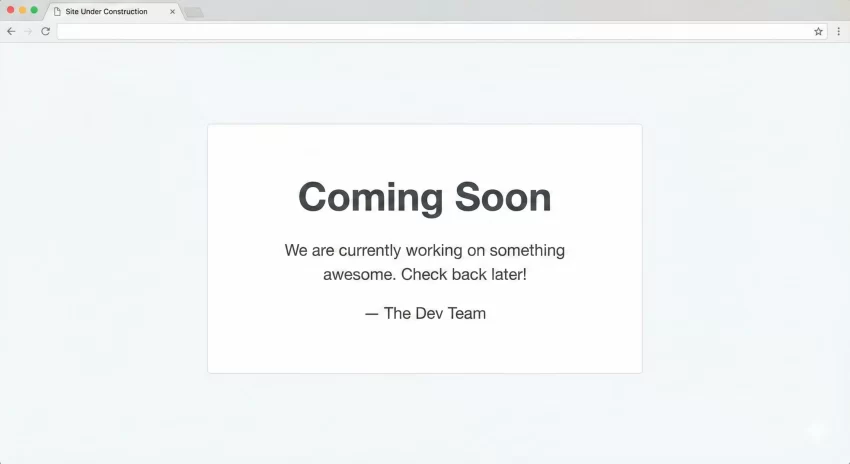
The first step in establishing a custom WordPress coming soon mode is creating the visual file that visitors will see. Unlike plugins that store HTML in the database, we will use a standard PHP file located in your theme folder. This keeps your database clean and allows for version control of your design.
Create a new file in the root of your active theme folder (e.g., /wp-content/themes/your-theme/) and name it maintenance.php. You can name this anything, but maintenance.php is semantically clear.
Designing the Interface
This file acts as a standalone HTML page. Because we are bypassing the standard WordPress template hierarchy for this specific view, you should include your own <html>, <head>, and <body> tags. This ensures the coming soon page doesn’t inherit broken styles from the theme you are currently debugging.
<?php
/**
* Template Name: Maintenance Page
* Description: Custom layout for WordPress coming soon mode.
*/
?>
<!DOCTYPE html>
<html lang="en">
<head>
<meta charset="UTF-8">
<meta name="viewport" content="width=device-width, initial-scale=1.0">
<title>Site Under Construction</title>
<style>
body { text-align: center; padding: 150px; font-family: sans-serif; background: #f4f4f4; }
h1 { font-size: 50px; color: #333; }
p { font-size: 20px; color: #666; }
.container { max-width: 700px; margin: 0 auto; background: #fff; padding: 50px; border-radius: 8px; box-shadow: 0 4px 6px rgba(0,0,0,0.1); }
</style>
</head>
<body>
<div class="container">
<h1>Coming Soon</h1>
<p>We are currently working on something awesome. Check back later!</p>
<p>— The Dev Team</p>
</div>
</body>
</html>
Step 2: Hooking into Template Redirect
To activate the WordPress coming soon mode, we need to intercept the user’s request before WordPress loads the standard theme templates. The best hook for this is template_redirect. This hook fires before the template is determined but after the main query is set up, making it the perfect checkpoint to reroute traffic.
We will write a function that checks specific conditions—such as whether the user is logged in—and redirects them to our custom template if they don’t meet the criteria. This code should be placed in your theme’s functions.php file or a custom site-specific plugin.
Writing the Conditional Logic
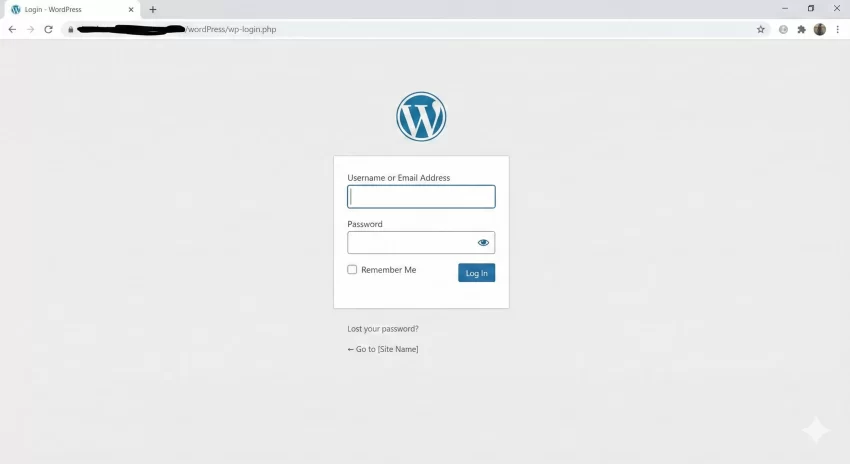
The logic is straightforward: If the user is NOT logged in, stop the standard loading process and serve the maintenance.php file. We must also ensure we don’t accidentally block the login page (wp-login.php) or the admin dashboard area, otherwise, you will lock yourself out.
function pnet_activate_coming_soon_mode() {
    // 1. Allow access to Admin Dashboard and Login Screen
    if ( is_admin() || in_array( $GLOBALS['pagenow'], array( 'wp-login.php', 'wp-register.php' ) ) ) {
        return;
    }

    // 2. Allow access to Logged-in Users (Administrators/Developers)
    if ( is_user_logged_in() ) {
        return;
    }

    // 3. Load the custom template for everyone else
    $protocol = $_SERVER['SERVER_PROTOCOL'] ?? 'HTTP/1.0';

    // Send 503 Service Unavailable header for SEO
    header( "$protocol 503 Service Unavailable", true, 503 );
    header( 'Retry-After: 3600' ); // Tell Google to check back in 1 hour

    // Locate the template
    $template_path = get_template_directory() . '/maintenance.php';

    if ( file_exists( $template_path ) ) {
        include( $template_path );
        exit(); // Stop further execution
    }
}
add_action( 'template_redirect', 'pnet_activate_coming_soon_mode' );
Intermediate Tip
exit() after including the template is crucial. If you omit this, WordPress might continue executing background scripts or attempt to load the footer from the original theme, breaking your layout. Step 3: Handling SEO with HTTP Headers
One of the biggest mistakes developers make when creating a WordPress coming soon mode is ignoring HTTP status codes. If you simply display a “Coming Soon” page with a standard “200 OK” status, Google will index that “Coming Soon” page as your actual site content. This can be disastrous for your SEO rankings.
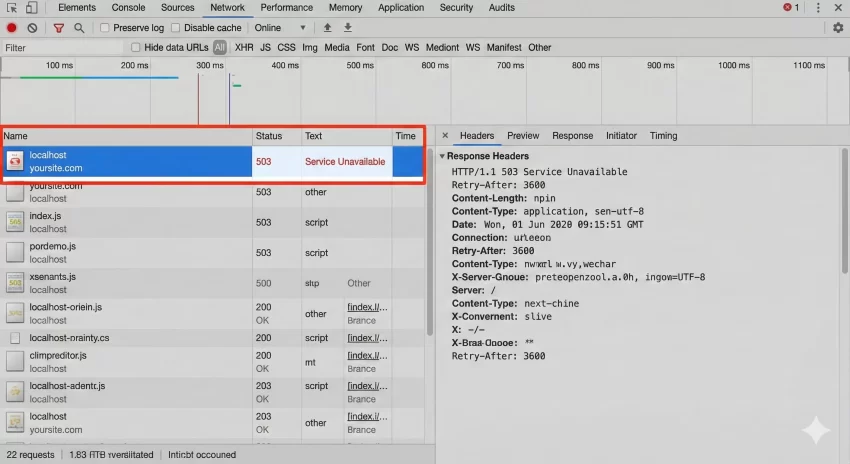
To prevent this, we must send a 503 Service Unavailable header. This specific code tells search engine crawlers: “The site is temporarily down for maintenance, do not index this content, and please come back later.”
Implementing the 503 Header
In the code block provided in Step 2, you will notice these lines:
header( "$protocol 503 Service Unavailable", true, 503 );
header( 'Retry-After: 3600' );
The Retry-After header provides a timeframe (in seconds) for when the crawler should return. Setting this to 3600 seconds (1 hour) is a standard practice for active development. This ensures that once you launch the site and remove the WordPress coming soon mode logic, Google will promptly recrawl your site and index your real content.
Step 4: Advanced Access Control (IP Whitelisting)
Sometimes, giving client access via a user account isn’t feasible, or you want to allow a specific office IP address to view the site without logging in. Adding IP whitelisting to your WordPress coming soon mode creates a seamless experience for stakeholders.
We can extend our previous function to check the visitor’s IP address against a list of allowed IPs. If there is a match, the function returns early, bypassing the maintenance screen.
Adding IP Verification
Update the pnet_activate_coming_soon_mode function to include an IP check. Be aware that retrieving the correct IP can be tricky if your site is behind a proxy like Cloudflare.
function pnet_check_user_ip() {
    // Check for Cloudflare IP or standard Remote IP
    if ( ! empty( $_SERVER['HTTP_CF_CONNECTING_IP'] ) ) {
        $ip = $_SERVER['HTTP_CF_CONNECTING_IP'];
    } elseif ( ! empty( $_SERVER['HTTP_X_FORWARDED_FOR'] ) ) {
        $ip = $_SERVER['HTTP_X_FORWARDED_FOR'];
    } else {
        $ip = $_SERVER['REMOTE_ADDR'];
    }
    return $ip;
}

function pnet_activate_coming_soon_mode_advanced() {
    // Whitelisted IP addresses
    $allowed_ips = array(
        '123.456.789.000', // Client Office
        '192.168.1.1',     // Developer Home
    );

    $current_ip = pnet_check_user_ip();

    // Bypass if IP is whitelisted
    if ( in_array( $current_ip, $allowed_ips ) ) {
        return;
    }

    // ... (rest of the logic from Step 2: Login check, Admin check, etc.)

    if ( is_admin() || in_array( $GLOBALS['pagenow'], array( 'wp-login.php', 'wp-register.php' ) ) ) {
        return;
    }

    if ( is_user_logged_in() ) {
        return;
    }

    $protocol = $_SERVER['SERVER_PROTOCOL'] ?? 'HTTP/1.0';
    header( "$protocol 503 Service Unavailable", true, 503 );
    header( 'Retry-After: 3600' );

    $template_path = get_template_directory() . '/maintenance.php';
    if ( file_exists( $template_path ) ) {
        include( $template_path );
        exit();
    }
}
add_action( 'template_redirect', 'pnet_activate_coming_soon_mode_advanced' );
For Developers
Troubleshooting Common Errors
Even with clean code, environment variables can cause issues when implementing a WordPress coming soon mode. Here are the most frequent problems developers encounter and how to solve them.
1. “Too Many Redirects” Error
This usually happens if your template_redirect logic accidentally redirects the login page back to itself. Ensure your conditional check includes ! in_array( $GLOBALS['pagenow'], array( 'wp-login.php' ) ). If you are stuck, access your server via FTP and rename the functions.php file temporarily to regain access.
2. Styles Not Loading on Maintenance Page
If you linked to a stylesheet in your maintenance.php file using a relative path, it might break on sub-pages (e.g., site.com/about/). Always use absolute paths or the get_template_directory_uri() function if you are enqueuing assets properly. However, for a simple splash page, inline CSS in the <head> is often safer and faster.
3. Admin Bar Showing on Frontend
Sometimes, even if the maintenance page loads, the WordPress Admin Bar might appear at the top for logged-out users if caching is misconfigured. To ensure it is removed for the maintenance view, you can add add_filter('show_admin_bar', '__return_false'); inside your maintenance conditional logic, just before the include statement.
Conclusion
Creating a WordPress coming soon mode without plugins is a hallmark of an efficient developer. You save server resources, improve security by reducing third-party dependencies, and maintain strict control over how search engines index your site during development. By utilizing the template_redirect hook, checking for user capabilities, and serving a correct 503 header, you ensure a professional “under construction” experience.
This approach allows you to build completely custom designs in your maintenance.php file without being restricted by a plugin’s limited settings. Implement this code in your next project to keep your workflow clean and your site performance optimized.



