A critical font or visual asset can be discovered too late by the browser, delaying text or imagery and sometimes contributing to layout shifts. You can address that discovery gap by using a WordPress hook to add a targeted Preload Resources hint to the document head, then checking in browser developer tools that the browser requests and reuses the intended file.
Preloading is a hint for a small number of important resources—not a way to make every asset load sooner. This guide covers a font and a hero image, explains how to limit each hint to the pages that need it, and includes troubleshooting steps for mismatched URLs, duplicate requests, and unused-preload warnings. Before adding code, identify a resource that is needed early and confirm it is not already discovered promptly through the page’s HTML or stylesheets.
- PHP 8.0 or later recommended: Check the examples against the PHP version supported by your site.
- WordPress 6.1 or later: The
wp_preload_resourcesfilter used in this guide is available in WordPress 6.1 and later. - A safe place for custom PHP: Use a child theme or, preferably for site-specific functionality, a site-specific plugin. Do not edit WordPress core.
- A backup and staging site: Back up your site and test changes on staging before deploying them to production.
- The resource details and browser tools: Find the exact font or asset URL and file type, and have access to browser developer tools to inspect the page head and network requests.
Step 1: Identify a resource that is worth preloading
Start by finding a file the browser needs to render important content near the top of the page but cannot discover early enough. Common candidates include the font used for above-the-fold text and a hero image loaded from a CSS background, since the browser may not learn about that image until it has downloaded and parsed the stylesheet. A preload can shorten this discovery delay, but it does not make the file smaller or guarantee a faster page.
Inspect the actual page template before adding a hint. In your browser’s developer tools, review the Network panel and its request waterfall, then confirm the exact URL, when the request begins, and what initiated it. Check the rendered HTML and loaded stylesheets too: an image present in an early <img> element or a font referenced by an promptly discovered stylesheet may already be requested quickly. Preloading such a file can add little benefit and may compete with more important work.
Choose the resource type and scope
Match the preload’s as value to how the browser will use the file: use font for a font file and image for an image. Where you specify a MIME type, make it accurate—for example, font/woff2 for a WOFF2 font. The later implementation must also use the exact URL the page requests; a different file, URL, or responsive image candidate may trigger a second download instead of reusing the preload.
Keep the candidate list short. Do not preload every font weight, below-the-fold images, files used only on unrelated templates, or resources the browser already discovers promptly. Ordinarily, enqueue stylesheets and scripts through WordPress as usual; add a preload only when inspection shows a meaningful discovery gap for a critical resource on the page being viewed.
Pro Tip
Did you know: You can use WordPress Plugin Load Order to control the execution sequence of custom WordPress components, resolve plugin dependency conflicts, and build a more predictable initialization process without modifying WordPress core files.
Step 2: Add a font preload with a WordPress filter
WordPress 6.1 and later provides the wp_preload_resources filter for adding resource hints to the generated document head. Add the callback below to a site-specific plugin or your child theme’s functions.php; do not modify WordPress core. This example assumes the font is needed on the front page. Replace the sample URL with the exact URL of a font that is actually used for above-the-fold text on that page.
function pnet_preload_brand_font( $preloads ) {
    if ( ! is_front_page() ) {
        return $preloads;
    }

    $preloads[] = array(
        'href'        => 'https://example.com/wp-content/themes/your-child-theme/assets/fonts/site-sans.woff2',
        'as'          => 'font',
        'type'        => 'font/woff2',
        'crossorigin' => 'anonymous',
    );

    return $preloads;
}
add_filter( 'wp_preload_resources', 'pnet_preload_brand_font' );
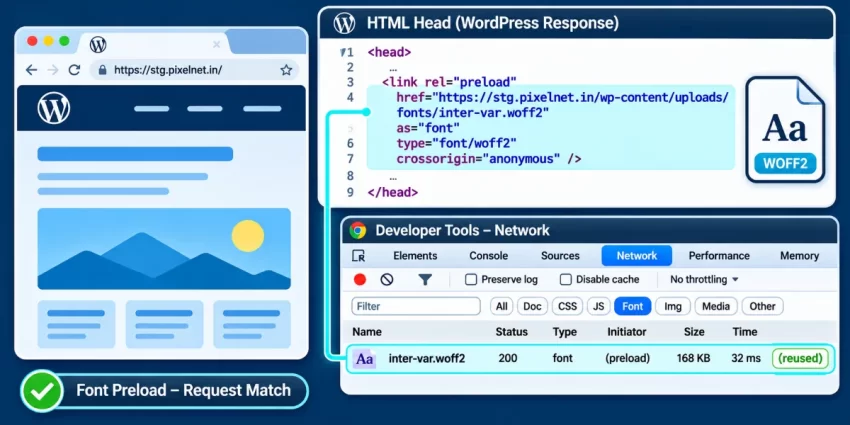
The filter receives an array of existing preload definitions, so append your entry and return the array rather than replacing it. The as value identifies this as a font, while type declares the WOFF2 MIME type. Fonts require crossorigin set to anonymous for the preload request to match the later CSS font request—even when the font is hosted on the same origin. Without a matching CORS mode, the browser may download the file again when it applies the stylesheet.
Choose one maintainable code location
Use either the child theme or a site-specific plugin, not both. Registering this same callback in both places can add duplicate hints, and copying the function under the same name can cause a PHP redeclaration error. A site-specific plugin is a good choice when the behavior should remain active if the theme changes; a child theme is appropriate when the preload is tied directly to that theme’s font. Keep the callback registered once.
Load the hint only where the font is needed
The is_front_page() condition makes the example return the incoming preload array unchanged on other pages. Replace it with a reliable WordPress conditional or template context that matches where your font is used; remove the condition only if the font is genuinely critical across the site. Avoid guessing from broad URL fragments. See the official WordPress reference for the wp_preload_resources filter for the filter’s details.
You might also like:

Step 3: Preload a critical hero image or other asset selectively
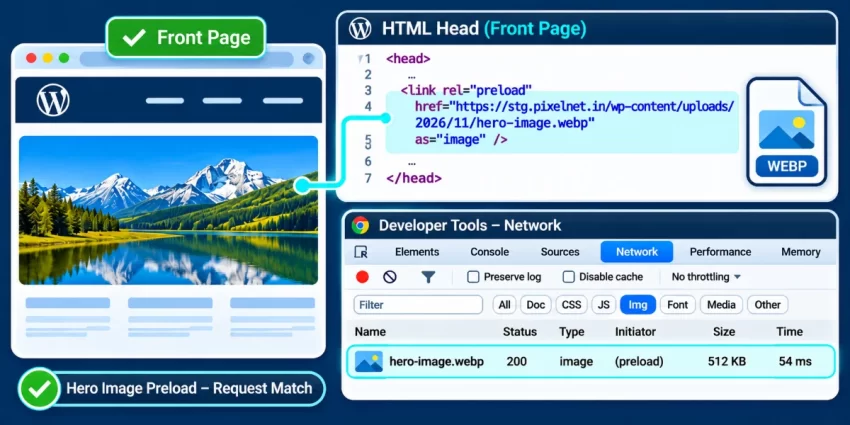
A hero image is a strong preload candidate when it is important to the initial viewport but the browser discovers it late—for example, when CSS reveals it only after a stylesheet has loaded. If the image is already requested promptly from an early HTML element, a preload may not help and can compete with other important downloads. Use the Network panel to confirm the delay before adding a hint.
The example below adds an image preload only on the front page. Replace the sample URL with the exact URL of the hero image the page actually renders. If the URL or image variant differs, the browser may download both the preloaded file and the image used by the page.
function pnet_preload_front_page_hero( $preloads ) {
    if ( ! is_front_page() ) {
        return $preloads;
    }

    $preloads[] = array(
        'href' => 'https://example.com/wp-content/uploads/2025/04/homepage-hero.webp',
        'as'   => 'image',
        'type' => 'image/webp',
    );

    return $preloads;
}
add_filter( 'wp_preload_resources', 'pnet_preload_front_page_hero' );
Append the entry to the array received by the filter and return that array so other components’ resource hints are preserved. The conditional keeps this request off unrelated pages. Change the URL and MIME type to match your actual file; do not declare image/webp if the rendered image is a JPEG or another format.
Account for responsive images
Do not blindly preload one fixed image when the rendered element uses srcset and sizes to select a candidate for the visitor’s viewport. The browser may choose a different file based on screen width or pixel density, leaving the fixed preload unused. If you add responsive preload attributes such as imagesrcset and imagesizes, make them agree with the rendered image’s candidate list and sizing rules. Verify the selected URL in the generated HTML and Network panel on both mobile and desktop conditions.
Handle CSS, JavaScript, and other assets carefully
A preload is not a substitute for normally enqueueing stylesheets or scripts in WordPress. Continue to register and enqueue those files through the appropriate WordPress APIs; only consider an additional hint when testing confirms a critical resource has a discovery delay. Use the correct as value for the resource—such as style, script, or image—and provide an accurate MIME type when needed. A speculative or mismatched hint can waste bandwidth and delay more valuable requests.
Pro Tip
Step 4: Verify the generated head and browser behavior
Confirm that WordPress outputs the hint on the intended template and that its attributes match the resource the page will use. Open the page’s source or use the browser’s Elements panel, then inspect the document’s <head> for a <link rel="preload"> element. Check the full href, the as value, and any required type or crossorigin attribute. Make sure the hint appears only on pages that need the resource; a correctly formed preload can still be wasteful if it is emitted site-wide unnecessarily.
Next, test the actual browser request rather than relying on the presence of markup alone. Clear page, CDN, and optimization-plugin caches, then load the relevant template in a clean browser session. In developer tools, open the Network panel, disable the browser cache, reload, and inspect the resource’s request timing, initiator, and final URL. A successful preload should match the file the page uses and should not cause a duplicate download. For responsive images, repeat the check with mobile and desktop viewport sizes so you can see whether the browser selects a different candidate.
- Check that the generated head contains the intended hint and no unintended duplicates.
- Confirm that the font or image is requested once and reused by the page.
- Look for console messages about unused preloads, CORS failures, or request mismatches.
- Compare results before and after using the same repeatable lab test, and monitor real-user performance after deployment.
A preload does not guarantee a better performance score. Compare the loading sequence and relevant measurements, and remove the hint if it does not improve discovery or if it competes with more important work. For the filter’s supported behavior and accepted resource definitions, see the official WordPress developer reference for wp_preload_resources.
You might also like:
Common Errors: Diagnose preload problems
A preload can appear in the page source yet still fail to help. Diagnose it by comparing the generated hint with the request the browser actually makes; adjust or remove the hint rather than adding more preloads.
Font downloads twice
Check that the preload’s href exactly matches the font URL requested by the stylesheet, including the protocol, hostname, path, and any query string. Font preloads also need crossorigin="anonymous", including for same-origin files. If the CORS mode is missing or differs from the eventual font request, the browser may not reuse the preloaded response. Confirm in the Network panel that the CSS requests the same font file and that it is not downloaded a second time.
The browser reports an unused preload
This warning usually means the resource was not used soon after the page loaded, or the page requested a different file. Check whether the font is applied to visible text or whether the image is actually the rendered hero asset. For responsive images, compare the selected srcset candidate with the URL in the hint. Remove a preload for a resource that is below the fold, unused on that template, or discovered promptly without the hint; an unnecessary request can compete with more important assets.
The preload does not appear in the head
Verify that the callback is registered once in the active child theme or site plugin, and that it returns the incoming resource array on every path. Check the page condition on the exact template being tested: a conditional that is too broad emits hints unnecessarily, while one that evaluates differently than expected can suppress the hint. Clear page, CDN, and optimization-plugin caches before inspecting the generated source. If an optimization plugin rewrites or combines asset URLs, compare its final output with the preload URL before changing the callback.
WordPress ignores the filter or the request does not match
The wp_preload_resources filter is available in WordPress 6.1 and later. On older versions, do not assume the filter runs; upgrading is the preferred fix. If upgrading is not possible, a carefully tested fallback can print a valid preload link through wp_head, but first ensure it does not duplicate output from core, a theme, or a plugin. Also check that as and any declared MIME type match the actual file—for example, font and font/woff2 for a WOFF2 font.
Finally, remove the hint if testing shows no discovery delay, no reuse, or competition with more important resources. A small, verified set of hints is more useful than preloading assets speculatively.
Conclusion: Keep preloads focused and measurable
When a critical font or visual asset is discovered too late, a targeted WordPress preload can help the browser request it earlier. Identify a real discovery delay, add the hint through a maintainable WordPress hook, and make sure the URL, resource type, MIME type, and any required attributes match the request the page will ultimately make. Scope the hint to the templates that need it, then verify in browser developer tools that the browser reuses the resource without making a duplicate request.
Keep the number of hints small: preloading files the browser already finds promptly, or resources that are not used on the page, can waste bandwidth and compete with more important work. Measure the loading sequence before and after deployment, remove hints that do not help, and keep **Preload Resources** focused on assets that genuinely matter early in the page load.