Posts without a selected featured image can look incomplete in archive pages, cards, and other theme layouts. A WordPress Default Featured Image solves that gap: you can display a fallback wherever the theme requests a featured image, or choose an alternative that assigns a real thumbnail to the post. The recommended display-only approach leaves the post’s saved featured-image value unchanged, so it will not replace the editor’s selection or make WordPress treat an unselected post as though it has a thumbnail.
To set this up, upload a suitable image to the Media Library, note its numeric attachment ID, and add prefixed PHP to a child theme’s functions.php file or a site-specific plugin. Then test a post with an existing featured image and one without it. The display-only method is less invasive and is usually the right choice when the goal is simply to make layouts look complete. Use save-time assignment only when the default must become the post’s actual selected thumbnail in WordPress.
Prerequisites and the Two Fallback Behaviors
Before choosing an implementation, decide whether the image only needs to appear on the front end or must be saved as the post’s actual featured image. These approaches solve a similar visual problem, but they change WordPress in different ways. The display-only fallback supplies image markup when a theme requests a thumbnail and none is selected; it does not save a thumbnail value to the post.
- PHP 8.0 or later and access to edit a child theme’s
functions.phpfile or a site-specific plugin. - A current site backup and a staging environment where you can test changes before deploying them.
- A suitable image uploaded to the WordPress Media Library. Choose dimensions that fit the relevant layout and provide meaningful alternative text when appropriate.
- A theme or template that outputs featured images using WordPress functions such as
get_the_post_thumbnail()orthe_post_thumbnail(). - The numeric Media Library attachment ID for the image you want to use; an image URL is not a substitute when the code expects an attachment ID.
With display-only behavior, the post editor remains unchanged, and has_post_thumbnail() continues to return false for a post with no selected image. This is generally the safest option when the requirement is to prevent empty-looking cards, archives, or other image areas without modifying editorial data. It only affects templates that request featured-image output, so it cannot fill image areas rendered through unrelated custom markup.
Save-time assignment is different: when an eligible post is saved without a thumbnail, code can attach the default image as its real featured image. WordPress then stores the thumbnail relationship, the editor can show the selection, and thumbnail checks can return true. That persistence may be useful for workflows that require every post to have an assigned image, but it should not be enabled merely to improve presentation.
Choose the Least Invasive Behavior
Step 1: Prepare the Default Image and Find Its Attachment ID
Choose an image that works in the locations where your theme displays featured images. A wide archive-card image may crop differently from a portrait-oriented image on a single-post page, so check the theme’s layout and thumbnail sizes before selecting the fallback. Upload the image to the WordPress Media Library, or use an existing image there. Keep it in the library: the implementations in this guide rely on a WordPress image attachment, not a remote file URL.
Upload and check the image
In the WordPress dashboard, go to Media → Add New to upload the file, or open Media → Library to select an existing image. Review the dimensions and preview how it fits the relevant card or post layout. Add concise, accurate alternative text in the attachment’s details when the image conveys information. If it is purely decorative, avoid alt text that describes it as meaningful content; the theme’s output and accessibility needs should determine how decorative images are handled.
Locate the numeric attachment ID
Open the image’s edit screen from the Media Library. In the browser address bar, find the number following post= in the edit URL—for example, post=246 means the attachment ID is 246. Depending on the WordPress version and screen, selecting the image and opening its attachment details may not show this number directly, so use the edit link if necessary. Record the number exactly. The code will pass this ID to WordPress image functions; pasting the image’s URL instead will not work.
Before continuing, confirm that the ID belongs to an image attachment and that the image remains available in the Media Library. You will use this same ID whether you choose a display-only fallback or the optional save-time assignment method.
You might also like:

Step 2: Display a Fallback Without Changing the Post
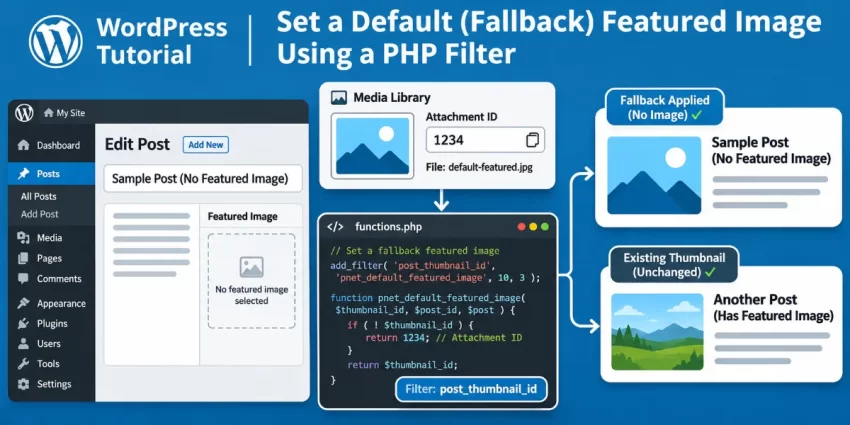
Use the post_thumbnail_html filter to supply image markup when a theme requests a featured image but the post has none. This is a presentation-only approach: it preserves existing thumbnail output and does not save a featured-image selection or change the result of has_post_thumbnail().
Define the default image attachment ID
Add the code below to your child theme’s functions.php file or a site-specific plugin. Replace 246 with the numeric ID you recorded for your image. The constant guard lets the code coexist with another definition of the same setting.
Register the fallback filter
The callback limits the fallback to posts and pages, skips admin requests, and checks that the configured attachment is a valid image. It also leaves existing thumbnail markup and selected images untouched.
if (!defined('PNET_DEFAULT_FEATURED_IMAGE_ID')) {
    define('PNET_DEFAULT_FEATURED_IMAGE_ID', 246);
}

function pnet_filter_default_featured_image($html, $post_id, $post_thumbnail_id, $size, $attr) {
    if (is_admin() || !empty($html) || absint($post_thumbnail_id) > 0) {
        return $html;
    }

    $post_id = absint($post_id);
    if (!$post_id || !in_array(get_post_type($post_id), array('post', 'page'), true)) {
        return $html;
    }

    $default_image_id = absint(PNET_DEFAULT_FEATURED_IMAGE_ID);
    if (!$default_image_id || !wp_attachment_is_image($default_image_id)) {
        return $html;
    }

    $fallback_html = wp_get_attachment_image($default_image_id, $size, false, $attr);
    return $fallback_html ? $fallback_html : $html;
}
add_filter('post_thumbnail_html', 'pnet_filter_default_featured_image', 10, 5);
The filter applies only when the theme uses WordPress thumbnail output, such as the_post_thumbnail() or get_the_post_thumbnail(). A custom template, page builder, or block that outputs image markup through another route may bypass it. For function details, see the official WordPress Developer Resources reference for post_thumbnail_html.
Display Only
Step 3: Assign the Default Image When a Post Is Saved
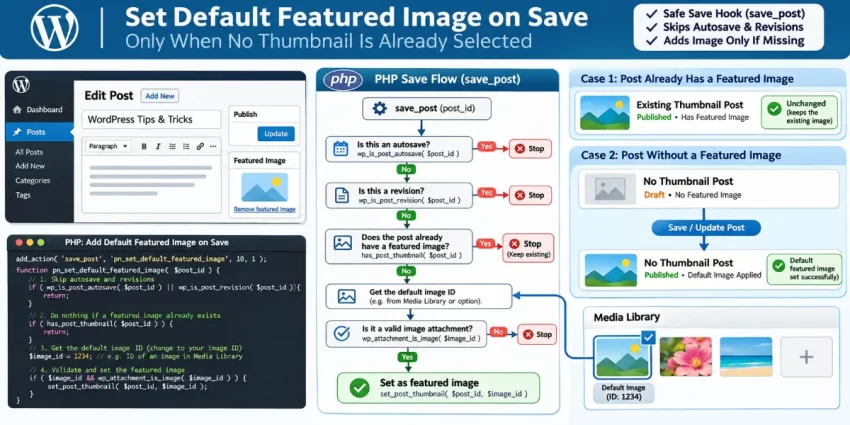
This is an alternative to the display-only filter, not a required second part of it. Use save-time assignment only when the default must become the post’s actual featured image. Once assigned, WordPress stores the thumbnail relationship, the image can appear as selected in the editor, and has_post_thumbnail() will return true.
Register a guarded save callback
The example below applies to standard posts. It skips autosaves and revisions, keeps any existing featured image, and confirms the configured attachment is an image before assigning it. It reuses PNET_DEFAULT_FEATURED_IMAGE_ID from the previous step. If you use this method by itself, retain the guarded constant definition and replace 246 with your Media Library image ID.
if (!defined('PNET_DEFAULT_FEATURED_IMAGE_ID')) {
    define('PNET_DEFAULT_FEATURED_IMAGE_ID', 246);
}

function pnet_assign_default_featured_image_on_save($post_id, $post, $update) {
    if (wp_is_post_revision($post_id) || wp_is_post_autosave($post_id)) {
        return;
    }

    if (!$post instanceof WP_Post || 'post' !== $post->post_type) {
        return;
    }

    if (has_post_thumbnail($post_id)) {
        return;
    }

    $default_image_id = absint(PNET_DEFAULT_FEATURED_IMAGE_ID);
    if (!$default_image_id || !wp_attachment_is_image($default_image_id)) {
        return;
    }

    set_post_thumbnail($post_id, $default_image_id);
}
add_action('save_post_post', 'pnet_assign_default_featured_image_on_save', 10, 3);
The save_post_post hook targets the built-in post post type; it does not automatically cover pages or custom post types. For another type, use its specific hook—for example, save_post_product for a product type—and adjust the callback’s post-type check. Confirm that the type supports featured images, and review any custom save workflow before enabling the behavior.
Do not add this assignment code if you only want a visual fallback: it changes saved post data and may affect editorial workflows. Test on staging by saving a post with no thumbnail and another with an existing thumbnail; verify that only the empty post receives the default. Keep a backup and remove the hook if you need to disable the assignment.
You might also like:

Step 4: Test the Fallback in the Theme
Test the implementation on staging before deploying it to your live site. Use two eligible posts: one with a deliberately selected featured image and one with no featured image. Inspect the places where your theme displays thumbnails, including archive pages, post cards, and single-post templates. The post with its own image should continue to show that image; the other should show the configured default.
For the display-only method, confirm that the default appears for the post without an image while has_post_thumbnail() still returns false. That is expected: the filter changes the rendered thumbnail output, not the post’s saved data. For save-time assignment, save an eligible post that has no thumbnail, then reopen it in the editor and verify that the default is selected. Also save or update a post with an existing featured image and confirm that its selection remains unchanged.
Check image output across layouts
Review the image at desktop and mobile widths. Confirm that the selected image size fits the layout, the image loads without errors, and its alternative text is appropriate for its use. If you have page caching or a CDN, clear the relevant caches before judging the result; cached markup can make a successful change appear not to work.
If the fallback appears in one template but not another, check how that template creates its image. The post_thumbnail_html filter only runs when WordPress generates featured-image markup through the relevant thumbnail functions. A custom block, page builder, or template that writes image markup directly may bypass the filter and need its own fallback handling.
Disable the behavior if needed
To turn off display-only behavior, remove or comment out the add_filter() registration and its callback. To stop automatic assignment, remove or comment out the add_action() registration. If the code is in a site-specific plugin, revert the change there; if it is in a child theme, restore the previous version of the file. Disabling the callback does not automatically remove featured images already assigned by the save-time method, so review those posts separately if you want to clear them.
Did you know: You can keep your media library organized and protect privacy by limiting each account to its own uploads? Learn how WordPress Media Library Access prevents users from browsing or managing files added by others.
Common Errors
If the fallback does not behave as expected, first identify whether you are using the display-only filter or save-time assignment. The two methods affect different parts of WordPress: one changes generated thumbnail output, while the other saves an actual featured-image relationship. Use the checks below to narrow down the cause before changing the implementation.
Fallback image does not appear
Confirm that the theme requests featured-image output with functions such as the_post_thumbnail() or get_the_post_thumbnail(). The post_thumbnail_html filter will not run if a template, block, or page builder outputs an image using separate markup. Also check that the affected post type is allowed by the callback and that the request is on the front end; the example deliberately skips admin requests.
Image is blank, broken, or incorrect
Verify that the configured value is the numeric Media Library attachment ID, not an image URL, and that the attachment still exists and is an image. The callback uses wp_attachment_is_image() to reject an invalid attachment. If the wrong image appears, check the value of PNET_DEFAULT_FEATURED_IMAGE_ID and confirm that the post does not already have a selected thumbnail. Existing selected images should be preserved, not replaced by the fallback.
Fallback appears in only some templates
Different templates may render images through different paths. A theme archive can use WordPress thumbnail functions while a custom block or builder uses direct image markup, so the filter may affect one layout but not another. Check each affected template’s rendering method and add fallback handling to its own output path if necessary.
Image is not selected in the editor
This is expected with display-only behavior: it supplies rendered markup but does not change the saved post data, so has_post_thumbnail() remains false. Use the save-time method only when the image needs to become the post’s actual selected featured image.
PHP error occurs after editing
Restore the backup or revert the latest change to recover the site, then check for missing punctuation, mismatched braces, or a function-name collision. Test corrections on staging before deploying them. If using a site-specific plugin, disable or revert that change rather than editing a parent theme that could be overwritten during an update.
Conclusion
A missing featured image can leave archive cards, post layouts, and other theme components looking unfinished. The filter-based approach fills that visual gap when WordPress generates featured-image markup, while preserving the post’s saved state. A post without a selected image remains without one in the editor, and functions such as has_post_thumbnail() continue to report that no thumbnail is assigned.
If your workflow requires every post to have an actual featured image, the optional save-time callback provides a different solution: it assigns the default attachment when an eligible post is saved without an existing thumbnail. That behavior changes post data and may affect editorial workflows, so use it only when a saved selection is specifically required. The two methods are alternatives; choose the least invasive option that meets your site’s needs.
Before deploying either method, confirm that the configured value is the correct numeric attachment ID and that the Media Library item is a valid image. Test on staging with posts both with and without selected images, and check each relevant archive, card, and single-post layout. Also verify responsive sizing and appropriate alternative text. With those checks in place, a carefully chosen WordPress Default Featured Image can make image layouts more consistent without unexpectedly replacing an editor’s existing selection.