
WPForms totals can be wrong or incomplete when a form combines conditional options, quantities, discounts, or custom fees. To build a reliable WPForms Calculate Total setup, define the pricing rule, connect its result to a supported payment field, and test the amount from the customer selection through to the payment provider. This guide explains how to distinguish a calculated value shown on the form from the amount that is actually included in the charge.
WPForms calculation features and the field types they can affect depend on your installed plan and add-ons. The calculation should express your pricing rules, while a compatible billable field and the form Payment Total should carry the amount to a configured provider such as Stripe or PayPal. Do not treat a front-end display or hidden field by itself as authoritative: verify the payment configuration and confirm the provider receives the expected amount in test mode before accepting live payments.
- A current WPForms installation and a plan or add-on that supports the calculation features you need.
- A payment provider configured for the form, such as Stripe or PayPal, if you will collect payments online.
- Administrator access to the WordPress dashboard and permission to edit the target form.
- A staging site or safe payment-provider test mode. Back up the site before adding custom PHP.
- The IDs of relevant form fields, recorded in the form builder for formula setup and any optional PHP validation.
Step 1: Map the pricing rules and payment fields
Before editing the form, write down every choice that can change the amount due. Include each product or service price, quantity, optional fee, discount, and condition that activates or removes a charge. Record whether prices can combine or whether a customer must choose between them. This simple inventory prevents a formula from counting the same selection twice or overlooking a fee.
Next, distinguish information that is only displayed from amounts that must be charged. A calculated field can show a useful estimate, but that display alone does not make the value part of the payment. In general, the WPForms Payment Total reflects billable payment fields in the form. The custom calculation therefore needs to feed a supported billable field and be included in that total for the provider to receive it.
| Scenario | Example inputs | Expected total |
|---|---|---|
| Base quantity | Three items at $12 each | $36 |
| Optional fee | Base total of $36 plus a $5 service fee | $41 |
| No selection | Quantity is zero and no optional service is selected | $0, or the defined minimum charge |
Use a small test matrix like this to define expected results before building the formula. Add rows for discounts, conditional selections, quantity limits, and any minimum charge that applies. State the currency and the rounding rule as well, particularly if a percentage discount or other fractional calculation is involved. These expected amounts will become your reference when checking the form preview, saved entry, and provider test transaction.
Pro Tip
Step 2: Build the form inputs and calculated price
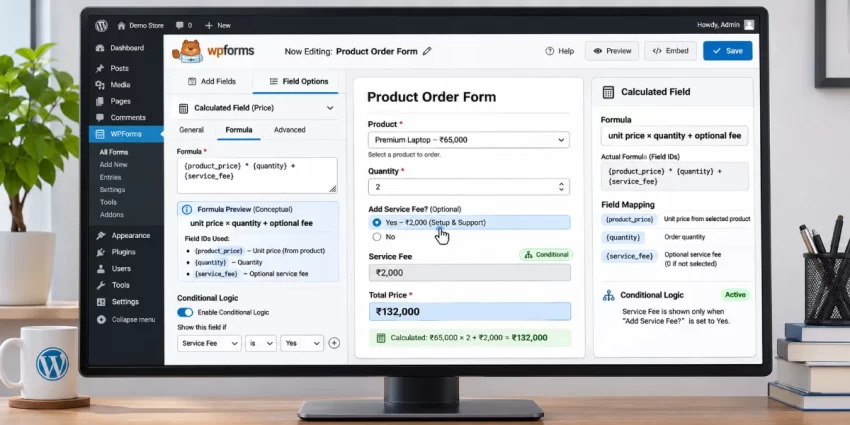
Edit the target form in the WPForms builder and add the fields that represent each price input: for example, a product or service choice, a quantity field, and an optional-fee choice. Use clear labels so customers understand what they are selecting. In the field settings, note each relevant field ID; formula references depend on the actual IDs in your form, not just the visible labels. Keep IDs stable where possible, because changing a field later may require updating formulas and any related configuration.
Add or configure a calculation field using the calculation feature available to your WPForms plan and the field type you selected. Express the rule in the supported formula editor. For a straightforward case, the intended logic is unit price multiplied by quantity, plus the optional fee when selected. Use the editor controls or its supported field-reference syntax to insert the inputs; do not assume that a formula copied from another form uses the same IDs or syntax. If the builder does not allow the calculation to use a particular field type, revise the form design rather than relying on a value that cannot be calculated reliably.
- Use numeric inputs for quantities and keep their minimum and maximum values aligned with your pricing rules.
- Represent optional fees as explicit choices with a defined price, and make sure an unselected choice contributes zero.
- For mutually exclusive services, configure the choices so only the selected price contributes. Do not add separate price values together unless the options are intentionally combinable.
- When conditions show or hide fields, verify that hidden or unselected choices do not leave an unintended charge in the result.
Preview the form and check at least two cases: a basic selection with a quantity greater than one, then a conditional selection that adds or removes a fee. Compare each displayed result with the pricing matrix from Step 1. If a value is unexpected, check the referenced field IDs, the formula operators, and the conditional rules before connecting the result to a payment field.
Did you know: You can add a WooCommerce Buy Now Button beside Add to Cart in WooCommerce, helping customers skip unnecessary cart steps and reach checkout faster with a simple PHP solution.
Step 3: Connect the calculated amount to payment
Now make sure the calculated price is part of the amount WPForms sends to the payment provider. A calculation field may update correctly in the form preview and still remain a display-only value. The amount becomes billable only when it is represented by a supported payment field and included in the form’s Payment Total.
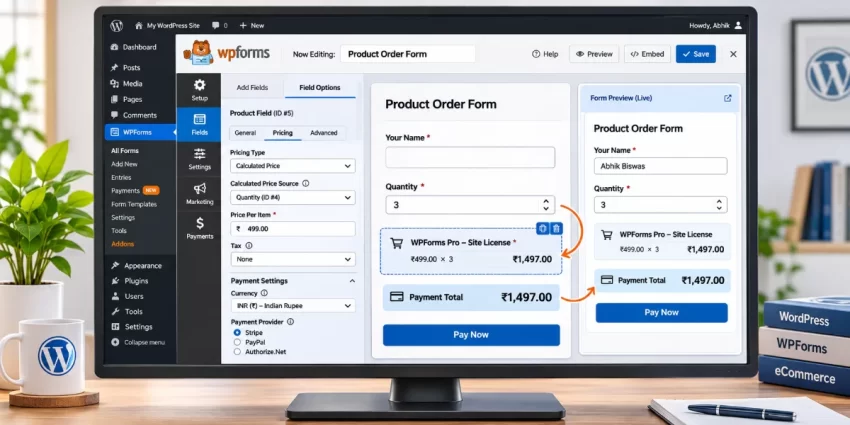
In the builder, add or configure the payment field supported by your provider and calculation setup. Depending on the available WPForms plan, add-ons, and field type, you may be able to set the billable price using a calculation or calculated-pricing option. Select that option and use the formula result as the price source where the builder permits it. Then add or retain the Payment Total field so customers can review the combined amount before submitting. Check that the payment field is enabled for the intended provider and that its currency matches your pricing rules.
Keep these three values distinct while configuring the form:
- Calculated display value: the result shown to the customer; it may not be charged.
- Billable payment field: the product, service, or supported calculated price that contributes an amount to payment processing.
- Payment Total: the aggregate of the form’s billable payment fields, which should match the amount submitted to the provider.
After configuring the field, preview the form and change a price-affecting selection. Confirm that both the billable amount and Payment Total update as expected, not just a separate calculated display. If your current plan or field type cannot use a formula as a billable price, do not try to make a cosmetic total or hidden field stand in for payment configuration. Use a WPForms-supported combination of calculation and payment fields, or redesign the pricing inputs so the provider receives a valid billable amount.
You might also like:

Step 4: Add an optional server-side total check
A server-side check is useful when pricing rules are complex, another system consumes the form entry, or you need to detect a mismatch between submitted selections and the amount calculated by the browser. Recalculate from validated inputs and trusted server-side prices; never use a customer-submitted total as the source of truth. The helper below is an adaptation example, not a drop-in WPForms hook implementation. It returns an integer amount in cents, or a WP_Error if the inputs are invalid.
Replace the example price and option values with your actual business rules. In your form integration, map the relevant WPForms field IDs to the helper arguments, then compare its result with the expected billable amount. The field IDs and extraction method depend on the form and the installed WPForms version.
<?php
/**
 * Recalculate a sample order from trusted prices and validated selections.
 * Returns total cents or WP_Error. Adapt the rules before production use.
 */
function pnet_expected_total_cents($raw_quantity, $raw_option) {
    if (!is_scalar($raw_quantity) || !preg_match('/^\d+$/', (string) $raw_quantity)) {
        return new WP_Error('invalid_quantity', 'Enter a valid whole-number quantity.');
    }

    $quantity = (int) $raw_quantity;
    if ($quantity  20) {
        return new WP_Error('quantity_out_of_range', 'Quantity must be between 1 and 20.');
    }

    if (!is_string($raw_option)) {
        return new WP_Error('invalid_option', 'Select a valid service option.');
    }

    $option_fees_cents = array(
        'none' => 0,
        'setup' => 500,
        'rush' => 1200,
    );

    if (!array_key_exists($raw_option, $option_fees_cents)) {
        return new WP_Error('unknown_option', 'The selected service option is not allowed.');
    }

    $unit_price_cents = 1200;
    return ($unit_price_cents * $quantity) + $option_fees_cents[$raw_option];
}
This example treats the quantity and option as untrusted inputs, enforces a quantity range, and accepts only explicitly allowed options. A real integration should retrieve those values from the appropriate WPForms submission data, call the helper, and use the result to validate the expected amount before payment processing. If the result differs from the configured billable amount, reject or flag the submission using a supported validation path. Confirm the processing hook name, arguments, and error-handling behavior against the installed WPForms version before connecting code; do not guess a hook signature. See the official WordPress guidance on securing input for the principle of validating untrusted values.
Changing a displayed calculated field or hidden value does not, by itself, change the amount charged. Verify the payment field configuration and inspect the provider request or test transaction to confirm the amount sent matches the server-side expectation.
For Developers
Step 5: Test the calculation from selection to payment
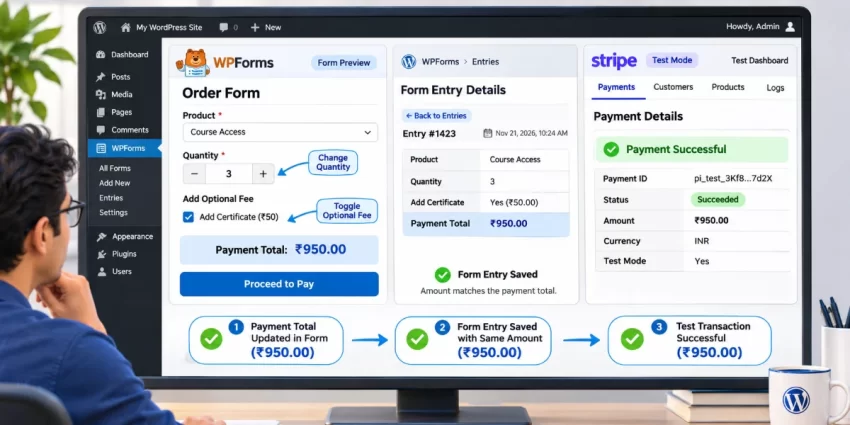
Before accepting real payments, test the complete journey in WPForms preview and your payment provider’s test mode. Do not use live charges to validate formulas. A correct-looking number in the form is only one checkpoint: the displayed Payment Total, saved entry, and provider-side transaction should all agree.
Run pricing test cases
Work through the test matrix you prepared earlier, changing one price-affecting input at a time. Include the minimum and maximum allowed quantities, each conditional branch, optional fees both selected and unselected, and an empty or invalid input where the form permits it. Confirm that hidden or unselected options do not contribute a charge, and that each quantity change updates the billable amount as expected.
| Test | Verify |
|---|---|
| Base selection and quantity | Line price and Payment Total match the expected calculation. |
| Conditional choice or optional fee | Only the applicable fee is included, once. |
| Minimum, maximum, and empty inputs | Validation and allowed quantity rules behave as intended. |
| Decimal price, discount, or percentage | Rounding follows the defined currency rule consistently. |
Compare the entry and provider records
Submit each case in test mode, then compare the total shown before submission with the payment details saved in the WPForms entry and the amount recorded in the provider’s test dashboard. Check the currency as well as the numeric amount. For percentage-based discounts or fractional calculations, define one rounding policy and confirm the result at the smallest currency unit; a one-cent difference can indicate inconsistent rounding or an unexpected price source.
If any checkpoint differs, do not enable live payments. Recheck the formula references, field IDs, billable payment field, conditional logic, and currency configuration. Repeat the full test set after changing a field ID, formula, payment method, or condition so the saved entry and provider request remain aligned.
You might also like:

Common Errors: Diagnose a wrong or missing payment total
When a form shows one amount but charges another—or shows no total at all—trace the value through the formula, billable payment field, Payment Total, and provider transaction. Change one setting at a time and retest in payment-provider test mode so you can identify where the values first diverge.
Calculated result displays but is not charged
A calculation field may be display-only. Confirm that its result supplies a supported billable payment field and that the field is included in Payment Total. Then inspect the provider test transaction; a number on the form does not prove it was sent for payment.
Formula remains at zero
Check that calculations are enabled for the field and that the formula references the correct field IDs. Confirm the referenced fields contain numeric values and are supported by the calculation feature available in your WPForms plan. Also test with a valid selection and quantity; an empty or nonnumeric input may evaluate as zero.
Conditional prices are added together
Review whether the choices are meant to be mutually exclusive or combinable. Check conditional logic and the price assigned to each option, then test each branch separately—including an unselected option. Ensure hidden or inactive choices contribute zero rather than retaining a price.
Entry total differs from provider amount
Compare the billable payment fields and Payment Total in the entry with the provider-side test record. Verify the selected payment method, currency, discounts, and any provider-specific settings. If only the displayed calculated value matches, return to the payment-field configuration; the display value may not be the amount processed.
Total differs by one cent
Set one rounding rule for the form and any custom server-side calculation, especially for percentages or fractional values. Where PHP validation is used, convert monetary values to integer cents before calculating and comparing totals instead of relying on floating-point arithmetic.
Custom validation prevents submission
On staging, disable the snippet to restore the form, then inspect the PHP error log. Confirm the form ID guard and verify the WPForms hook name, arguments, and error-handling behavior for the installed version before re-enabling it. Retest valid and invalid cases in test mode before deploying the change.
Conclusion: Keep the calculation and charge in sync
A dependable custom payment amount starts with explicit pricing rules: identify every charge, quantity, condition, and optional fee before building the formula. Configure the calculation with the correct WPForms fields, then connect its result to a supported billable payment field so it contributes to Payment Total. A calculated number displayed in the form is useful for customers, but it does not prove that the same amount will be charged. The payment field and provider configuration determine what is submitted for processing.
Use calculation features supported by your installed WPForms plan and field type, and confirm that the currency and rounding rules match your pricing model. Before accepting live payments, test representative selections in provider test mode and compare the form total with the saved entry and provider-side transaction. Include quantities, conditional choices, optional fees, and boundary cases—not just the default selection. If you add custom server-side validation, adapt it to your actual field IDs and verify the WPForms processing hook before deployment. Retest whenever pricing logic, field IDs, payment settings, or conditional rules change. A careful WPForms Calculate Total setup keeps the amount customers see aligned with the amount your payment provider receives.