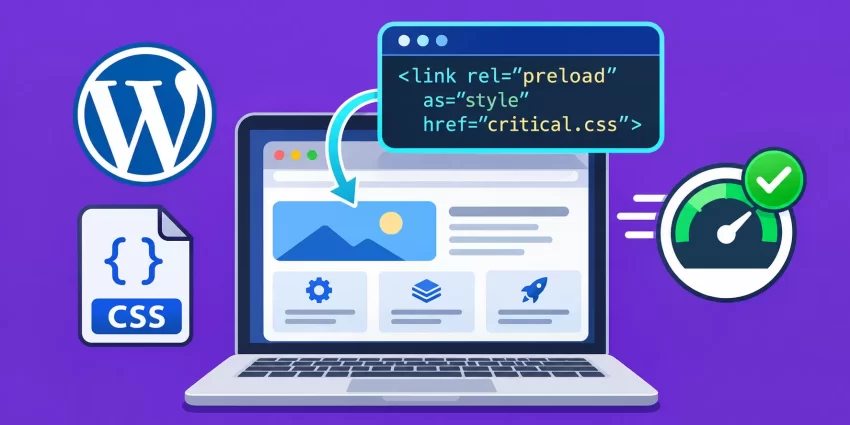
Slow-loading page templates can negatively affect your website’s Largest Contentful Paint (LCP), First Contentful Paint (FCP), and overall user experience. When browsers discover important CSS too late, they may delay rendering visible content, resulting in a flash of unstyled content (FOUC) or a blank screen during initial loading. Fortunately, you can Preload Critical CSS selectively in WordPress using native PHP hooks, conditional template detection, and the WordPress resource loading API. This approach allows you to prioritize essential stylesheets for specific page templates without unnecessarily loading them across your entire website.
In this tutorial, you will learn how to identify specific WordPress page templates, register their critical CSS files, preload those stylesheets in the document head, and optimize stylesheet delivery without introducing unnecessary requests. We will implement a lightweight solution using your theme’s functions.php file, making it suitable for custom themes and child themes.
Understanding Critical CSS and Why Preloading Matters
Critical CSS refers to the minimum CSS required to render the above-the-fold content of a webpage. It typically includes styles responsible for the header, navigation, hero section, typography, layout, and other elements immediately visible when a visitor opens a page.
Browsers generally treat stylesheets as render-blocking resources. When a browser encounters an external stylesheet, it may need to download and process that stylesheet before displaying the page. This can delay the initial rendering, particularly when the stylesheet is large, hosted on a slow server, or discovered late in the HTML document.
Preloading tells the browser that a particular resource is important and should be requested early. When you Preload Critical CSS, the browser can begin downloading the required stylesheet before it would otherwise discover it during normal document processing.
However, preloading and applying CSS are two different operations. A resource loaded using rel="preload" is not automatically applied as a stylesheet. You must also provide the corresponding stylesheet reference, such as a normal WordPress-enqueued stylesheet.
For example, consider a website with the following templates:
- Homepage: Requires homepage-specific hero and navigation styles.
- Landing page: Requires campaign-specific typography and layout styles.
- Services page: Requires service-grid and feature-section styles.
- Blog archive: Requires article-listing and pagination styles.
- Single post: Requires article typography, content, and related-post styles.
Instead of loading every critical stylesheet globally, you can Preload Critical CSS only when the corresponding template is being rendered. This reduces unnecessary resource requests and helps keep template-specific assets organized.
Prerequisites
Before implementing this solution, make sure you have the following requirements in place:
- WordPress 6.1 or later for the
wp_preload_resourcesfilter used in this tutorial. - PHP 8.0 or later (the implementation is also compatible with supported earlier PHP versions).
- Access to your active WordPress theme or child theme.
- Basic knowledge of PHP, CSS, and WordPress theme development.
- A code editor such as Visual Studio Code or PhpStorm.
- FTP, SFTP, or hosting File Manager access if required.
- A complete backup of your website before modifying theme files.
- At least one existing custom page template or a template you can create for testing.
Backup Required
Step 1: Identify the WordPress Page Templates
The first step is to determine which page templates require prioritized CSS. WordPress provides conditional functions that allow developers to identify the currently requested page, post, archive, or custom template.
For this tutorial, we will use a custom services page template. You can apply the same approach to landing pages, homepage layouts, custom post type templates, and other template-specific layouts.
1.1. Understand the is_page_template() Function
WordPress provides the is_page_template() conditional function to check whether a page is using a particular custom page template. It accepts a template filename or relative template path.
Suppose your theme has the following directory structure:
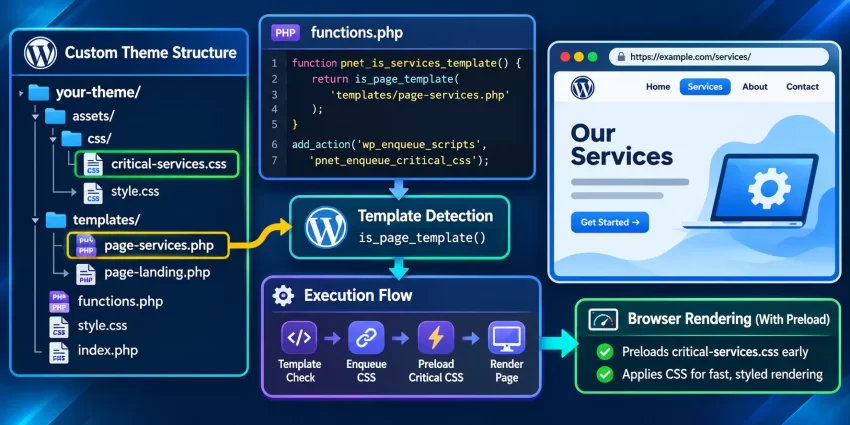
your-theme/
├── assets/
│   └── css/
│       └── critical-services.css
├── templates/
│   └── page-services.php
├── functions.php
└── style.css
The services page template is located inside the templates directory. You can identify it using the following condition:
is_page_template('templates/page-services.php')
This condition returns true when WordPress renders a page assigned to that specific template. It allows you to Preload Critical CSS without affecting unrelated pages.
1.2. Choose the Correct Conditional Function
Different WordPress page types require different conditional functions. Select the appropriate condition based on your theme architecture.
is_page_template()– Detects a custom page template.is_front_page()– Detects the site’s front page.is_home()– Detects the posts index.is_single()– Detects individual posts.is_singular('product')– Detects individual WooCommerce products or another custom post type when the specified post type is used.is_archive()– Detects archive pages.is_category()– Detects category archives.
Remember that is_home() and is_front_page() are not interchangeable. Their behavior depends on the homepage configuration under Settings > Reading. Use the condition that matches the actual template you want to optimize.
Pro Tip
Step 2: Create a Template-Specific Critical CSS File
After identifying the target template, create a dedicated CSS file containing the styles required to render its initial visible content. Keeping critical styles separate from the main theme stylesheet makes it easier to manage template-specific optimization.
For our example, create a file named critical-services.css inside your theme’s assets/css/ directory.
2.1. Identify the Above-the-Fold Elements
Before writing CSS, inspect the target template and identify the elements visitors see immediately after opening the page. These elements usually include:
- Header and primary navigation.
- Logo and navigation layout.
- Hero section and headline.
- Primary call-to-action buttons.
- Above-the-fold images and content containers.
- Essential typography and responsive layout rules.
Include only the CSS required to render these elements correctly. Avoid copying your entire theme stylesheet into the critical CSS file because doing so increases the amount of data that must be downloaded and processed.
2.2. Add Critical Styles to the CSS File
For demonstration purposes, assume your services page contains a header, a hero section, and a primary call-to-action button. Add the following CSS to assets/css/critical-services.css:
/* Services Page - Critical CSS */

.site-header {
    display: flex;
    align-items: center;
    justify-content: space-between;
    width: 100%;
    padding: 16px 5%;
    background-color: #ffffff;
}

.primary-navigation {
    display: flex;
    align-items: center;
    gap: 24px;
}

.services-hero {
    display: flex;
    align-items: center;
    justify-content: space-between;
    min-height: 520px;
    padding: 60px 5%;
    background-color: #f5f8fc;
}

.services-hero__content {
    max-width: 620px;
}

.services-hero h1 {
    font-size: clamp(32px, 5vw, 56px);
    line-height: 1.15;
    margin: 0 0 24px;
    color: #172b4d;
}

.services-hero__button {
    display: inline-block;
    padding: 14px 28px;
    border-radius: 6px;
    background-color: #0d6efd;
    color: #ffffff;
    text-decoration: none;
}

@media (max-width: 768px) {
    .services-hero {
        flex-direction: column;
        align-items: flex-start;
        min-height: auto;
        padding: 40px 20px;
    }

    .primary-navigation {
        gap: 12px;
    }
}
This example provides the essential layout and typography for the services page. Replace these selectors with the actual classes used in your theme. The critical CSS must match the HTML structure of the target template to prevent layout shifts and unstyled content.
2.3. Keep Critical and Non-Critical CSS Separate
Do not treat every stylesheet as critical. Your critical CSS file should contain only the minimum rules needed for the initial viewport. Styles for elements below the fold, footer widgets, animations, secondary sections, and interactive components can remain in your regular stylesheet when they are not required for the initial rendering.
Also, remember that a critical CSS file is not a replacement for your complete stylesheet. Your page still needs its remaining styles to render correctly as visitors scroll, interact with components, or resize their browser windows.
Best Practice
You might also like: Better WordPress Cron Job for Superior Site Performance
Step 3: Enqueue Critical CSS Conditionally in WordPress
Now that the CSS file is ready, the next step is registering it with WordPress. The wp_enqueue_style() function is the recommended way to load stylesheets because it allows WordPress to manage dependencies, versions, and stylesheet output.
We will use the wp_enqueue_scripts action hook and the is_page_template() conditional function to enqueue the stylesheet only when the services template is being displayed.
3.1. Add the Conditional Enqueue Function
Open your active child theme’s functions.php file and add the following code:
function pnet_is_services_template() {

    return is_page_template('templates/page-services.php');

}

function pnet_enqueue_critical_css() {

    if (!pnet_is_services_template()) {
        return;
    }

    $css_path = get_theme_file_path(
        'assets/css/critical-services.css'
    );

    $css_url = get_theme_file_uri(
        'assets/css/critical-services.css'
    );

    if (!file_exists($css_path)) {
        return;
    }

    wp_enqueue_style(
        'pnet-critical-services',
        $css_url,
        array(),
        filemtime($css_path),
        'all'
    );

}

add_action(
    'wp_enqueue_scripts',
    'pnet_enqueue_critical_css',
    20
);
Let’s understand what this implementation does. First, pnet_is_services_template() checks whether WordPress is rendering the services page template. The enqueue function exits immediately if the condition is false, preventing unnecessary stylesheet registration on other pages.
Next, get_theme_file_path() retrieves the absolute filesystem path of the CSS file, while get_theme_file_uri() generates its public URL. The file_exists() check prevents WordPress from registering a stylesheet that does not exist.
Finally, wp_enqueue_style() registers the stylesheet using a unique handle. The filemtime() value provides automatic cache invalidation whenever the CSS file changes. This is particularly useful during development because browsers are less likely to serve an outdated cached stylesheet.
3.2. Verify Conditional Stylesheet Loading
After saving the code, open your services page and inspect its HTML source. Search for critical-services.css. You should find the stylesheet reference in the document head.
Now open another page, such as a blog post or contact page. The services-specific stylesheet should not be present unless that page also uses the same template.
This confirms that your implementation is template-aware rather than globally loading the CSS file.
Step 4: Preload Critical CSS Using the WordPress Resource API
Enqueuing a stylesheet ensures that WordPress outputs the corresponding stylesheet link, but it does not explicitly tell the browser that the resource should receive preload priority. To Preload Critical CSS, we need to provide an additional resource hint.
WordPress 6.1 introduced the wp_preload_resources filter, which allows developers to register resources that should be preloaded in the document head. We can use this filter to preload the same template-specific stylesheet that was registered in the previous step.
4.1. Register the Preload Resource
Add the following function to your child theme’s functions.php file:
function pnet_preload_critical_css($resources) {

    if (!pnet_is_services_template()) {
        return $resources;
    }

    $css_path = get_theme_file_path(
        'assets/css/critical-services.css'
    );

    if (!file_exists($css_path)) {
        return $resources;
    }

    $css_url = add_query_arg(
        'ver',
        filemtime($css_path),
        get_theme_file_uri(
            'assets/css/critical-services.css'
        )
    );

    $resources[] = array(
        'href' => $css_url,
        'as'   => 'style',
        'type' => 'text/css',
    );

    return $resources;

}

add_filter(
    'wp_preload_resources',
    'pnet_preload_critical_css'
);
This function performs the same template detection used by our enqueue function. If the current page is not using the services template, the function simply returns the existing preload resource array without adding anything.
When the correct template is detected, it generates the stylesheet URL with a version parameter based on the file modification time. The resulting URL matches the versioned URL generated by wp_enqueue_style(), allowing the browser to reuse the preloaded resource rather than downloading a different URL.
The as attribute is set to style, informing the browser that the resource is a stylesheet. The type attribute identifies the MIME type of the resource.
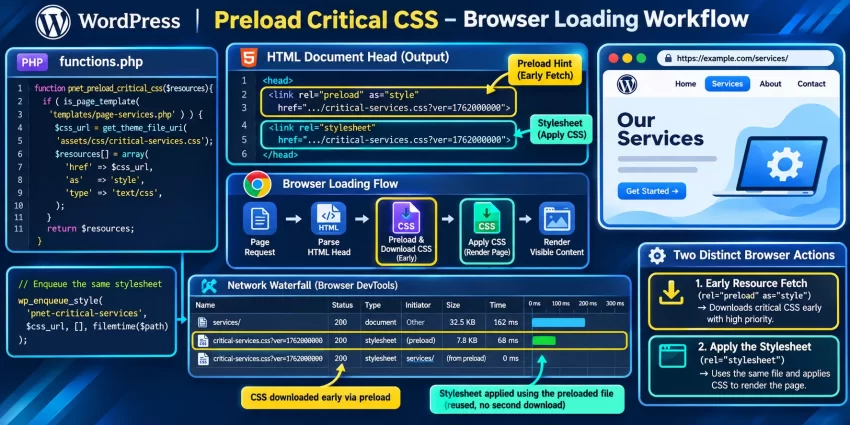
4.2. Understand the Generated Preload Markup
When WordPress processes the resource filter, it generates a preload link similar to the following:
<link
    rel="preload"
    href="https://example.com/wp-content/themes/your-theme/assets/css/critical-services.css?ver=1762000000"
    as="style"
    type="text/css"
/>
The actual URL and version number will depend on your website and the modification time of the CSS file.
Notice that this preload declaration does not replace the normal stylesheet link generated by WordPress. Both are necessary in this implementation: the preload declaration starts the resource request early, while the enqueued stylesheet applies the CSS to the document.
Important Technical Note
4.3. Why Use wp_preload_resources Instead of Manually Printing a Link?
You could manually print a preload link using the wp_head action. However, the native wp_preload_resources filter provides a centralized way to register resource hints and allows WordPress to generate the markup.
It also makes your implementation easier to extend. You can add other template-specific resources to the same filter without scattering custom link tags throughout your theme files.
For official technical documentation, see the WordPress wp_preload_resources reference and the wp_enqueue_style documentation.
Step 5: Extend the Implementation to Multiple Page Templates
Most WordPress websites have more than one custom template. Instead of creating separate preload functions for every page, you can extend the implementation to support multiple templates using a reusable mapping structure.
This approach makes it easier to Preload Critical CSS across different page layouts while keeping the code maintainable and reducing duplication.
5.1. Create a Reusable Template-to-CSS Mapping
Suppose your website has three custom templates:
- Services page:
templates/page-services.php - Landing page:
templates/page-landing.php - About page:
templates/page-about.php
You can associate each template with its corresponding CSS file using an associative array. Add the following implementation to your theme:
function pnet_get_template_critical_css() {

    $templates = array(
        'templates/page-services.php' => 'assets/css/critical-services.css',
        'templates/page-landing.php'  => 'assets/css/critical-landing.css',
        'templates/page-about.php'    => 'assets/css/critical-about.css',
    );

    foreach ($templates as $template => $css_file) {

        if (is_page_template($template)) {

            return $css_file;

        }

    }

    return false;

}

function pnet_enqueue_template_critical_css() {

    $css_file = pnet_get_template_critical_css();

    if (!$css_file) {
        return;
    }

    $css_path = get_theme_file_path($css_file);

    if (!file_exists($css_path)) {
        return;
    }

    wp_enqueue_style(
        'pnet-template-critical',
        get_theme_file_uri($css_file),
        array(),
        filemtime($css_path),
        'all'
    );

}

add_action(
    'wp_enqueue_scripts',
    'pnet_enqueue_template_critical_css',
    20
);

function pnet_preload_template_critical_css($resources) {

    $css_file = pnet_get_template_critical_css();

    if (!$css_file) {
        return $resources;
    }

    $css_path = get_theme_file_path($css_file);

    if (!file_exists($css_path)) {
        return $resources;
    }

    $css_url = add_query_arg(
        'ver',
        filemtime($css_path),
        get_theme_file_uri($css_file)
    );

    $resources[] = array(
        'href' => $css_url,
        'as'   => 'style',
        'type' => 'text/css',
    );

    return $resources;

}

add_filter(
    'wp_preload_resources',
    'pnet_preload_template_critical_css'
);
In this implementation, pnet_get_template_critical_css() identifies the current page template and returns the corresponding stylesheet path. Both the enqueue and preload functions use the same helper, ensuring that they always reference the same CSS file.
The main advantage is scalability. When you introduce another custom template, you only need to add its template path and CSS file to the mapping array. The rest of the implementation automatically handles conditional registration and preloading.
5.2. Avoid Preloading Every Template Stylesheet
One common mistake is registering all critical CSS files as preload resources on every page. This defeats the purpose of conditional loading because the browser may download stylesheets that are not needed for the current page.
Always identify the active template first, then preload only its associated stylesheet. This keeps the resource priority focused on the content that visitors are actually viewing.
Recommended Architecture
Step 6: Test and Verify Critical CSS Preloading
Once the implementation is complete, verify that the browser is discovering the stylesheet early, that WordPress is applying it correctly, and that unrelated pages are not downloading the resource.
Testing is essential because an incorrect preload declaration can generate unnecessary network requests without improving rendering performance.
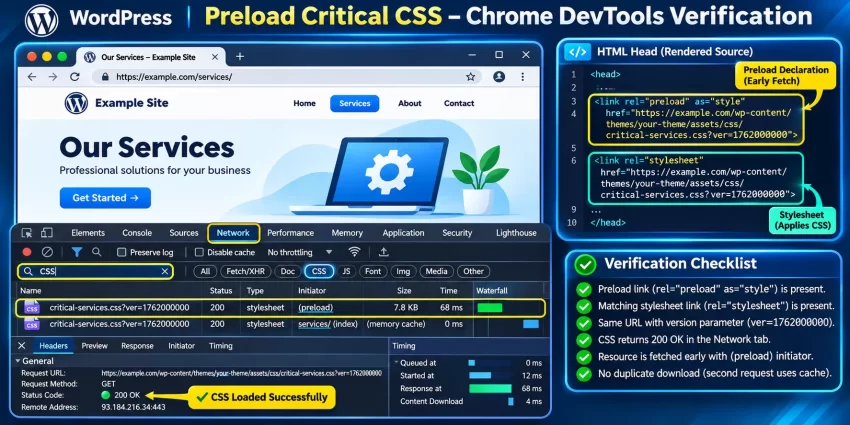
6.1. Inspect the Page Source
Open the target services page in your browser and use View Page Source. Search for the filename critical-services.css.
You should find two references to the same stylesheet URL:
- A preload declaration containing
rel="preload"andas="style". - A normal stylesheet declaration containing
rel="stylesheet".
Verify that the URL, including its version query parameter, matches in both declarations. If the URLs differ, the browser may download the stylesheet more than once.
6.2. Inspect the Network Tab
Open Chrome DevTools using F12, navigate to the Network tab, and reload the target page. Filter the network requests by CSS and locate your critical stylesheet.
Check the following details:
- The stylesheet is requested on the intended page template.
- The request starts early during document loading.
- The resource returns a successful HTTP response.
- The browser reuses the preloaded resource rather than fetching a duplicate.
- The stylesheet is not unnecessarily requested on unrelated templates.
You can also inspect the resource’s priority and initiator information in Chrome DevTools to understand how the browser discovered the file.
6.3. Measure Performance Improvements
Use Google PageSpeed Insights and Lighthouse to evaluate the page before and after implementing the preload strategy.
Pay particular attention to these performance metrics:
- Largest Contentful Paint (LCP): Measures how quickly the largest visible content element is rendered.
- First Contentful Paint (FCP): Measures when the browser renders the first content.
- Cumulative Layout Shift (CLS): Measures unexpected visual layout movement.
- Speed Index: Estimates how quickly visible content is populated.
Preloading critical CSS does not guarantee that every metric will improve. The result depends on stylesheet size, server response time, caching, network conditions, and the actual rendering dependencies of the page.
For the most reliable comparison, run multiple tests under similar conditions and compare both laboratory results and real-user performance data where available.
Step 7: Apply Additional Critical CSS Optimization Techniques
Preloading is only one part of an effective CSS delivery strategy. To get better results, combine template-specific resource prioritization with other front-end performance techniques.
7.1. Consider Inline Critical CSS
For very small critical CSS blocks, you may consider placing the styles directly inside a <style> element in the document head. Inline CSS removes the separate stylesheet request for those rules and makes them immediately available to the browser.
However, inline CSS increases HTML document size and may be duplicated across pages. For reusable stylesheets or larger critical CSS files, an external stylesheet with a preload hint may be more maintainable.
Choose between inline CSS and stylesheet preloading based on actual page requirements rather than assuming that one approach is always faster.
7.2. Avoid Excessive Preloading
Preloading too many resources can compete with other important downloads, including fonts, hero images, and JavaScript required for initial rendering. Browser resource prioritization is not unlimited, so reserve preload hints for resources that are genuinely important.
When optimizing a page, prioritize resources based on their contribution to the initial viewport. If the hero image is the LCP element, for example, it may also deserve appropriate resource prioritization.
7.3. Use Appropriate Caching and CDN Configuration
Make sure your critical CSS files are served with suitable cache headers and compression. Modern web servers and CDNs can deliver CSS efficiently using Brotli or Gzip compression and long-lived caching for versioned assets.
The filemtime() versioning approach used in this tutorial helps browsers distinguish updated CSS files from previously cached versions. If your CDN rewrites asset URLs or adds query parameters, verify that the preload URL and final stylesheet URL remain compatible.
7.4. Check Responsive Layouts
Critical CSS must account for different viewport sizes. A stylesheet that renders correctly on a desktop screen may produce layout problems on mobile devices if essential responsive rules are missing.
Test your page at multiple screen widths and make sure the header, navigation, hero section, and primary content remain visually stable. Include the responsive rules required for the initial viewport in your critical stylesheet.
You might also like:
Common Errors When Preloading Critical CSS
Even a correctly implemented preload strategy can encounter issues due to incorrect paths, template detection, URL mismatches, or conflicts with optimization plugins. The following troubleshooting steps address some of the most common problems developers encounter when they Preload Critical CSS in WordPress.
1. The Critical CSS File Is Not Loading
Possible cause: The CSS file path is incorrect, the file does not exist, or the current page is not using the expected custom template.
Solution: Verify the template filename passed to is_page_template() and confirm that the CSS file exists inside the active theme directory. Check the browser Network tab for a 404 response. Also confirm that the template path is relative to the theme directory, not the WordPress installation directory.
2. The Preload Link Appears but CSS Is Not Applied
Possible cause: A preload declaration downloads the stylesheet but does not automatically apply it to the document.
Solution: Make sure you also register the CSS using wp_enqueue_style(). Your page should contain both the preload resource hint and the normal stylesheet reference. Do not rely on rel="preload" alone.
3. The Browser Downloads the CSS File Twice
Possible cause: The preload URL and stylesheet URL do not match. Different query parameters, CDN transformations, protocols, or hostnames can cause the browser to treat them as separate resources.
Solution: Generate both URLs using the same theme URI and file modification timestamp. Inspect the Network tab and compare the complete request URLs, including query parameters. Also verify that your CDN or optimization plugin is not rewriting one URL differently.
4. The wp_preload_resources Filter Does Not Work
Possible cause: Your WordPress installation is older than version 6.1, or another plugin or theme component is interfering with resource hint generation.
Solution: Check your WordPress version and confirm that the filter is available. Update WordPress if appropriate. Inspect the rendered page source and temporarily disable conflicting optimization plugins in a staging environment to isolate the issue.
5. The Stylesheet Loads on Every Page
Possible cause: The conditional check is missing, incorrect, or the stylesheet is being registered separately by another function or plugin.
Solution: Make sure both the enqueue function and preload function use the same template detection helper. Search your theme and plugins for other references to the stylesheet handle or file URL. Remove unnecessary global registrations.
6. Flash of Unstyled Content Appears
Possible cause: The critical CSS does not contain all the styles required for the initial viewport, or the stylesheet is being applied too late.
Solution: Check whether essential layout, typography, and responsive rules are missing. Consider inlining a very small set of essential styles if necessary. Also verify that your stylesheet is not being delayed by JavaScript-based optimization or an incorrect loading strategy.
7. The Preloaded CSS Is Reported as Unused
Possible cause: The stylesheet is preloaded but is not consumed by the page within the browser’s expected time window, or the corresponding stylesheet reference uses a different URL.
Solution: Verify that the stylesheet is enqueued on the same page, that its URL matches the preload declaration, and that the CSS file is genuinely needed for initial rendering. Remove unnecessary preload hints rather than preloading resources that do not contribute to the initial viewport.
You might also like:

Conclusion
Prioritizing important stylesheets is an effective way to improve CSS delivery on WordPress websites, particularly when different page templates have different visual requirements. By combining conditional template detection, wp_enqueue_style(), and the native wp_preload_resources filter, you can Preload Critical CSS selectively without adding unnecessary stylesheet requests to unrelated pages.
The implementation in this tutorial provides a reusable foundation for custom themes, landing pages, service pages, and other template-specific layouts. Start with a small critical stylesheet, register it conditionally, preload the exact same resource URL, and verify the result using browser developer tools and performance testing.
Remember that preloading is not a replacement for CSS optimization. Keep critical styles lightweight, avoid excessive resource hints, maintain responsive layouts, and measure actual performance improvements. When implemented carefully, Preload Critical CSS can help WordPress developers improve rendering performance while maintaining a clean and maintainable theme architecture.