Instead of displaying a generic unauthorized message, you can provide expired members with a clear explanation, renewal instructions, and a direct link to the appropriate checkout page. We will cover both plugin-specific approaches, explain how to avoid redirect loops, and show you how to test the implementation safely.
Step 1: Understand Membership Expiration and Redirect Logic
Before implementing a MemberPress Membership Expiration Redirect, it is important to understand how membership plugins determine whether a user is entitled to access protected content. Both MemberPress and Paid Memberships Pro maintain membership records, expiration dates, subscription statuses, and payment information. However, their internal APIs and access-control mechanisms are different.
A membership expiration redirect should ideally happen when all the following conditions are satisfied:
- The visitor is logged in to WordPress.
- The visitor previously purchased or subscribed to a membership.
- The relevant membership has expired, been cancelled, or is no longer active.
- The visitor attempts to access a page or resource that requires an active membership.
- The visitor is not already viewing the renewal page.
There is an important distinction between an expired member and a user who has never purchased a membership. A simple active-membership check cannot always distinguish these two situations. For a production website, you should use historical membership records or scope the redirect to content that is specifically intended for previous members.
How the redirect should work
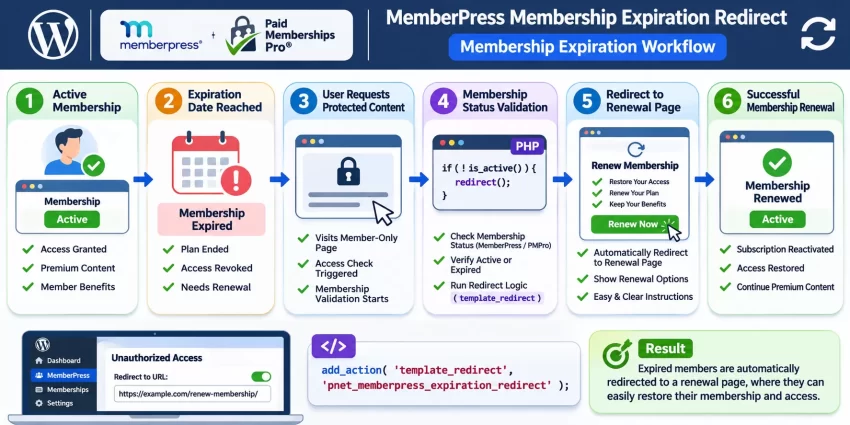
Consider the following workflow:
- A visitor purchases a monthly or annual membership.
- The membership plugin grants access to protected content.
- The membership reaches its expiration date or becomes inactive.
- The user attempts to access a protected resource.
- The membership plugin denies access.
- Your custom redirect logic sends the user to a renewal page.
- The user selects a renewal option and completes checkout.
This approach makes the renewal process more intuitive while maintaining the membership restrictions configured in the plugin.
Step 2: Prepare Your WordPress Environment
Before modifying membership redirect behavior, prepare your WordPress installation. A PHP error in a membership-related function can affect login sessions, protected content, or even the entire frontend. Testing the implementation on a staging environment first is strongly recommended.
- WordPress 6.0 or later.
- PHP 8.0 or later (preferably a currently supported PHP release).
- MemberPress or Paid Memberships Pro installed and activated.
- At least one configured membership level or subscription.
- A dedicated WordPress renewal page.
- Administrator access to WordPress.
- A complete website and database backup.
- Access to a child theme or a custom functionality plugin.
- Basic knowledge of PHP and WordPress hooks.
Create a dedicated renewal page
First, navigate to Pages > Add New in your WordPress dashboard and create a page named Renew Membership. Use a simple URL slug such as:
https://example.com/renew-membership/
This page will serve as the destination for your membership expiration redirect. Its content should clearly explain that the user’s membership is no longer active and provide instructions for restoring access.
For example, you can include:
- A message explaining that the membership has expired.
- The benefits of renewing the subscription.
- Available membership plans and pricing.
- A direct renewal or checkout button.
- A link to the member account page.
- Contact information for billing-related questions.
Make sure the renewal page is publicly accessible. If you accidentally protect it with the same membership rule that triggers the redirect, users may become trapped in a redirect loop.
Choose where to add custom PHP
There are several ways to add custom WordPress functionality. You can use a child theme’s functions.php file, a custom site-specific plugin, or a PHP snippet management plugin.
For production websites, I recommend a small custom plugin. It keeps the redirect functionality independent of your active theme and makes future maintenance easier.
Pro Tip
Step 3: Configure MemberPress Membership Expiration Redirect
MemberPress provides built-in unauthorized-access handling, which is the best starting point for a MemberPress Membership Expiration Redirect. You can configure the destination through the plugin’s settings without writing PHP code. This is particularly useful when you want to send visitors who cannot access protected content to a dedicated page.
Option A: Use MemberPress built-in unauthorized access settings
Log in to your WordPress dashboard and navigate to MemberPress > Settings. Look for the unauthorized access or unauthorized message configuration available in your installed version.
MemberPress provides unauthorized-access options that can display a custom message or direct unauthorized visitors to a specified URL. Configure the renewal page URL as the destination if the available settings in your version support the desired redirect behavior.
For example:
https://example.com/renew-membership/
Save the settings and test the behavior using a logged-in account that does not currently have access to the protected content.
Remember that a built-in unauthorized redirect can also affect users who have never purchased a membership. If your requirement is specifically to redirect previously expired members, you will need additional membership-history validation.
Option B: Implement a custom PHP redirect for inactive MemberPress users
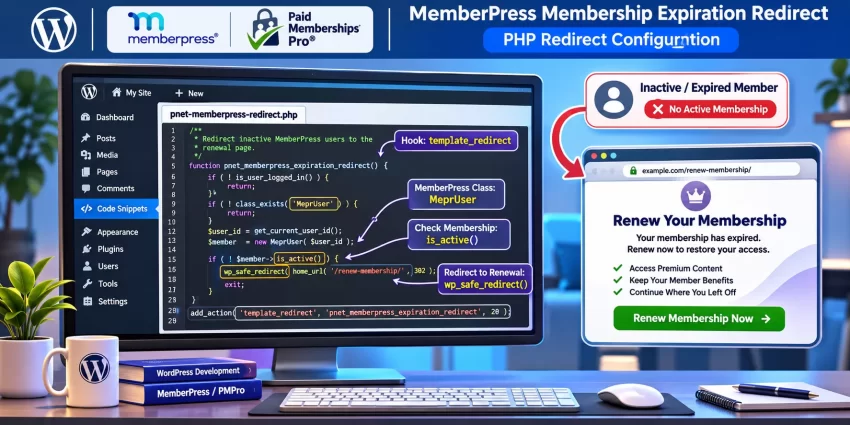
If you need more control, you can implement a custom redirect using WordPress’s template_redirect action. This hook runs before WordPress renders the selected frontend template, making it suitable for conditional redirects.
MemberPress provides the MeprUser class, which can be used to inspect a user’s membership status. Its is_active() method checks whether the user has an active membership subscription.
The following implementation redirects logged-in users who have no active MemberPress membership to the renewal page. This is a general inactive-member implementation, not a historical-expiration detector. It can also include users who never purchased a membership, so use it only when that behavior is appropriate for your site.
Implementation:
Open your site-specific plugin or child theme’s functions.php file and add:
/**
 * Redirect inactive MemberPress users to the renewal page.
 */
function pnet_memberpress_expiration_redirect() {

    // Do not redirect visitors who are not logged in.
    if ( ! is_user_logged_in() ) {
        return;
    }

    // Make sure MemberPress is available.
    if ( ! class_exists( 'MeprUser' ) ) {
        return;
    }

    // Get the current WordPress user.
    $user_id = get_current_user_id();

    // Do not redirect administrators.
    if ( user_can( $user_id, 'manage_options' ) ) {
        return;
    }

    // Set the renewal page URL.
    $renewal_url = home_url( '/renew-membership/' );

    // Prevent redirect loops.
    if ( untrailingslashit( $renewal_url ) ===
         untrailingslashit( home_url( wp_parse_url(
             $_SERVER['REQUEST_URI'],
             PHP_URL_PATH
         ) ) ) ) {
        return;
    }

    // Check the user's active MemberPress memberships.
    $member = new MeprUser( $user_id );

    if ( ! $member->is_active() ) {

        wp_safe_redirect( $renewal_url, 302 );
        exit;
    }
}

add_action(
    'template_redirect',
    'pnet_memberpress_expiration_redirect',
    20
);
Understanding the MemberPress implementation
Let’s examine the important parts of the code:
is_user_logged_in()ensures that the redirect only applies to authenticated WordPress users.class_exists( 'MeprUser' )prevents fatal errors when MemberPress is unavailable or deactivated.get_current_user_id()retrieves the current user’s WordPress ID.user_can()excludes administrators from the redirect.new MeprUser( $user_id )creates a MemberPress user object.is_active()checks whether the user has an active membership subscription.wp_safe_redirect()performs a safe redirect to the configured renewal page.exitprevents the remaining request from continuing after the redirect.
The redirect uses HTTP status code 302 because membership status can change. An expired member may renew the next day, so a temporary redirect is more appropriate than permanently redirecting the URL.
– View MemberPress Action Hooks
Important Membership Validation
Step 4: Configure Paid Memberships Pro Expiration Redirect
Paid Memberships Pro (PMPro) uses its own membership-level functions and access-control system. Therefore, you should not reuse MemberPress-specific classes when developing a MemberPress Membership Expiration Redirect equivalent for PMPro.
PMPro provides the pmpro_hasMembershipLevel() function to check whether a user has an active membership level. You can use it in conjunction with WordPress’s template_redirect hook to implement a similar redirect workflow.
Option A: Configure PMPro page redirection
Paid Memberships Pro manages several frontend pages, including Membership Account, Membership Levels, Membership Checkout, and Membership Billing. Its default redirection behavior is designed around the membership pages and access-control requirements.
Navigate to Memberships > Settings and review the configured frontend pages. Make sure your renewal page is published and that your membership levels and checkout pages are correctly configured.
PMPro also provides filters to customize its built-in redirection behavior. For example, the pmpro_account_preheader_redirect filter controls the redirect destination when a visitor without a PMPro membership visits the Membership Account page.
However, this filter is not a universal expired-membership redirect. Use it only when you specifically want to customize the Membership Account page behavior.
Option B: Create a custom PMPro redirect
For a custom frontend implementation, use pmpro_hasMembershipLevel() to check the current user’s membership status.
The following code redirects logged-in users who do not have an active PMPro membership to your renewal page. Like the MemberPress example, it identifies inactive users, not exclusively users with historical expired memberships. If you want to distinguish former members from users who never subscribed, add a separate membership-history check.
Add the following code to your custom plugin:
/**
 * Redirect inactive PMPro users to the renewal page.
 */
function pnet_pmpro_expiration_redirect() {

    // Only process logged-in users.
    if ( ! is_user_logged_in() ) {
        return;
    }

    // Verify that PMPro is available.
    if ( ! function_exists( 'pmpro_hasMembershipLevel' ) ) {
        return;
    }

    $user_id = get_current_user_id();

    // Exclude administrators.
    if ( user_can( $user_id, 'manage_options' ) ) {
        return;
    }

    // Renewal page URL.
    $renewal_url = home_url( '/renew-membership/' );

    // Prevent redirect loops.
    $current_path = wp_parse_url(
        $_SERVER['REQUEST_URI'],
        PHP_URL_PATH
    );

    $renewal_path = wp_parse_url(
        $renewal_url,
        PHP_URL_PATH
    );

    if ( untrailingslashit( $current_path ) ===
         untrailingslashit( $renewal_path ) ) {
        return;
    }

    // Check whether the user has an active PMPro membership.
    if ( ! pmpro_hasMembershipLevel( null, $user_id ) ) {

        wp_safe_redirect( $renewal_url, 302 );
        exit;
    }
}

add_action(
    'template_redirect',
    'pnet_pmpro_expiration_redirect',
    20
);
Understanding the PMPro implementation
The implementation follows the same general redirect pattern as MemberPress but uses PMPro’s native membership API.
function_exists()checks whether the PMPro membership function is available.pmpro_hasMembershipLevel( null, $user_id )checks whether the specified user has an active membership level.! pmpro_hasMembershipLevel()identifies users without an active membership.wp_safe_redirect()safely sends the user to the renewal page.
Passing null as the membership-level argument checks for an active membership without restricting the check to one particular level.
If your website has multiple membership levels, you may want to customize the implementation to check specific levels or redirect members to different renewal destinations.
For example, a website offering Basic, Professional, and Enterprise plans may use different renewal pages or checkout destinations depending on the user’s previous membership.
– View PMPro Action/Filter Hooks.
PMPro Membership History
You might also like: WordPress enqueue scripts and styles: Best Practices for Developers (2026)
Step 5: Improve the Renewal Page Experience
Redirecting expired members is only one part of the process. The renewal page should make it easy for users to understand their current status and restore access without unnecessary steps.
Display a clear expiration message
Your renewal page should immediately explain why the user was redirected. Avoid generic messages such as “Access denied” or “You do not have permission to view this page.”
Instead, use a more helpful message:
Your Membership Has Expired
Your membership is no longer active. Renew your subscription today to regain access to premium articles, tutorials, resources, and member-only features.
Ready to continue? Choose your membership plan and complete the renewal process.
Display renewal options
If your membership plugin supports multiple plans, provide clear renewal buttons for the available membership levels. Make sure the buttons lead to the correct checkout pages.
For Paid Memberships Pro, you can use its native checkout functionality and membership-level links. PMPro also provides renewal-related functionality through its account page and membership-level configuration.
For MemberPress, use the appropriate membership registration links. If members need to renew an existing subscription, make sure the selected membership and billing configuration support the intended renewal process.
Show existing membership information
When possible, display the previous membership name, expiration date, and renewal price. This helps users understand what they are renewing.
Be careful not to expose private subscription information to other users. Membership information should only be displayed after verifying the currently logged-in user’s identity and ownership of the relevant membership record.
You might also like:

Step 6: Prevent Redirect Loops and Access Problems
A common problem with a MemberPress Membership Expiration Redirect implementation is an infinite redirect loop. This happens when the renewal page is also protected by the membership rules that trigger the redirect.
For example, an inactive member visits a protected page. WordPress redirects the user to the renewal page. However, if the renewal page requires an active membership, the same redirect logic runs again.
To avoid this situation, follow these precautions:
- Keep the renewal page publicly accessible.
- Exclude the renewal page from the custom redirect logic.
- Do not redirect logged-out visitors unless that is explicitly required.
- Exclude administrators and relevant support roles.
- Use a temporary HTTP redirect while testing.
- Check for existing redirection rules from other plugins.
Exclude selected pages from redirection
For a more maintainable implementation, you can add page exclusions to your custom redirect function. This is especially useful if you also have account, checkout, login, logout, or payment confirmation pages that inactive users must access.
The following helper demonstrates how to exclude selected WordPress page IDs:
/**
 * Check whether the current page should be excluded.
 */
function pnet_is_redirect_excluded_page() {

    $excluded_pages = array(
        123, // Renewal page.
        124, // Account page.
        125, // Checkout page.
        126  // Login page.
    );

    if ( is_page( $excluded_pages ) ) {
        return true;
    }

    return false;
}
Replace the example IDs with the actual page IDs from your website. You can find a page ID by opening the page editor and checking the post= value in the browser URL.
Call this helper near the beginning of your redirect function:
if ( pnet_is_redirect_excluded_page() ) {
    return;
}
For a larger implementation, you should also consider excluding payment gateway return URLs and other plugin-managed endpoints. Not every checkout or account endpoint is necessarily a normal WordPress page.
Step 7: Test the Membership Expiration Redirect
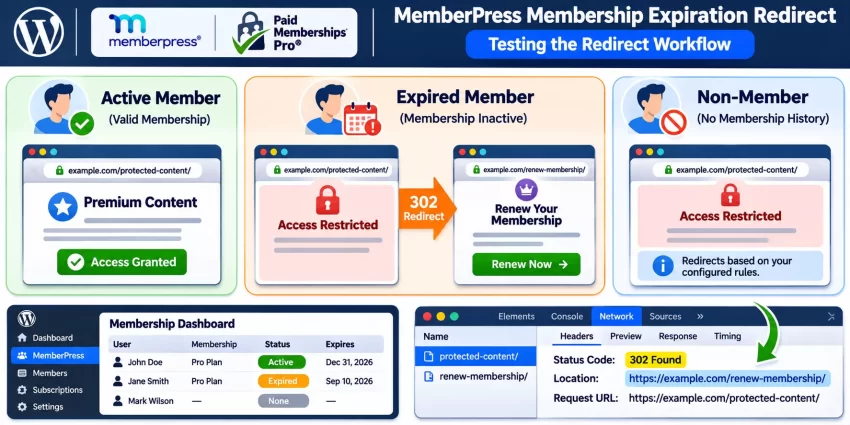
Never deploy a membership redirect without testing it using accounts with different membership states. A successful test should confirm that active members retain access, expired members reach the renewal page, and administrators can continue managing the website.
Create test membership accounts
Prepare at least three test accounts:
- Active Member: An account with a valid, active membership.
- Expired Member: An account whose membership has expired or become inactive.
- Non-Member: An account that has never purchased a membership.
Test the behavior against the rules you intend to enforce. If you use the general inactive-member snippets above, both expired members and non-members will be redirected. If you want to redirect only former members, verify that your historical-membership condition is working correctly before deployment.
Verify the redirect destination
Use a private browser window or a separate browser profile to avoid accidentally testing with an administrator session. Log in using each test account and attempt to access a protected page.
Check the following results:
- Active members can access their authorized content.
- Inactive members are redirected according to your configured rules.
- The renewal page loads without requiring an active membership.
- Checkout and account pages remain accessible where necessary.
- Administrators are not redirected away from the dashboard.
- Renewing a membership restores access after the plugin confirms the membership is active.
Inspect the HTTP response
Use your browser’s developer tools or a command-line HTTP client to inspect the redirect response. A temporary redirect should return an HTTP 302 status code with a Location header pointing to your renewal page.
You can also use the following command:
curl -I https://example.com/protected-content/
Note that this command tests the response as an unauthenticated request unless you provide an appropriate authenticated session. Use browser developer tools for testing logged-in membership behavior.
Step 8: Troubleshoot Common Errors
Even when the PHP code is correct, membership redirects can behave unexpectedly because of plugin settings, page restrictions, caching, or membership data. The following are common issues to investigate when implementing a MemberPress Membership Expiration Redirect.
1. All users are redirected, including active members
Possible cause: The membership check is not returning the expected result, or the code is running before the membership plugin has initialized.
Solution: Confirm that the correct plugin is active and that the membership API is available. Verify that the test user actually has an active membership. Also check whether multiple membership records or subscription states affect the expected result.
2. Expired members are not redirected
Possible cause: The membership plugin still considers the user active, or the custom function is not executing on the requested page.
Solution: Check the user’s membership status in the plugin dashboard. For MemberPress, inspect the member’s subscriptions and transactions. For PMPro, inspect the user’s membership level and expiration information. Confirm that the redirect function is attached to the template_redirect action.
3. Users get stuck in an infinite redirect loop
Possible cause: The renewal page is protected by the same membership rule or is not excluded from the custom redirect function.
Solution: Make the renewal page publicly accessible and add the renewal page, account page, login page, and necessary checkout endpoints to your exclusion logic. Clear browser and server-side caches before retesting.
4. PHP fatal error: Class ‘MeprUser’ not found
Possible cause: The MemberPress plugin is deactivated, unavailable, or has not loaded the required class.
Solution: Use class_exists( 'MeprUser' ) before creating a MemberPress user object. Also make sure the code is loaded on the frontend after plugins have initialized.
5. Call to undefined function pmpro_hasMembershipLevel()
Possible cause: Paid Memberships Pro is not installed, is inactive, or the function is being called before the plugin has initialized.
Solution: Check for the function using function_exists() before calling it. Verify the PMPro installation and review your PHP error log.
6. Redirects do not work after membership renewal
Possible cause: Cached membership data, delayed payment gateway confirmation, or an incorrect subscription status.
Solution: Verify that the payment transaction has been completed and the membership plugin has updated the user’s access status. Clear relevant caches and test again after the payment gateway confirms the transaction.
7. The renewal page displays an access-denied message
Possible cause: The renewal page is protected by a membership rule.
Solution: Remove the active-membership requirement from the renewal page. Visitors must be able to access renewal instructions and checkout options even when their previous membership is inactive.
8. Redirect works on desktop but not consistently on mobile
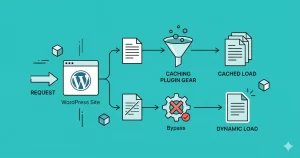
Possible cause: Different cache behavior, mobile optimization plugins, or browser-specific session handling.
Solution: Exclude membership-sensitive pages from full-page caching, test in a private browser window, and confirm that authentication cookies are being handled correctly.
You might also like:
Step 9: Follow Security and Performance Best Practices
A membership redirect is part of your website’s access-control workflow. It should not replace the actual content protection rules provided by MemberPress or PMPro.
Keep these development practices in mind:
- Use native membership APIs instead of directly querying plugin database tables.
- Use
wp_safe_redirect()for internal redirects. - Always terminate execution using
exitafter a successful redirect. - Do not trust membership status stored in browser cookies or URL parameters.
- Exclude checkout, renewal, login, and payment confirmation pages as appropriate.
- Use a temporary redirect while membership status is subject to change.
- Keep the custom code in a site-specific plugin.
- Test all membership states after updating either membership plugin.
- Do not expose subscription IDs, billing details, or private membership records to unauthorized visitors.
It is also important to remember that a redirect is not an authorization mechanism. Protected content must remain protected by the membership plugin’s rules even if a user manually enters the original URL or disables JavaScript.
Conclusion
Implementing a membership expiration redirect improves the renewal experience by sending inactive members to a page where they can understand their membership status and restore access. Both MemberPress and Paid Memberships Pro can be extended using WordPress hooks and their respective membership APIs.
For MemberPress, the MeprUser class provides an active-membership check, while Paid Memberships Pro provides pmpro_hasMembershipLevel(). These checks can be combined with template_redirect and wp_safe_redirect() to create a straightforward redirect workflow.
However, remember that checking for an inactive membership is not the same as detecting an expired historical membership. If your requirement is to redirect only former members, add membership-history validation and test users who have never purchased a plan separately.
With the correct membership checks, page exclusions, and renewal-page configuration, your MemberPress Membership Expiration Redirect implementation can provide a more seamless experience while helping you recover expired subscriptions and retain paying members.