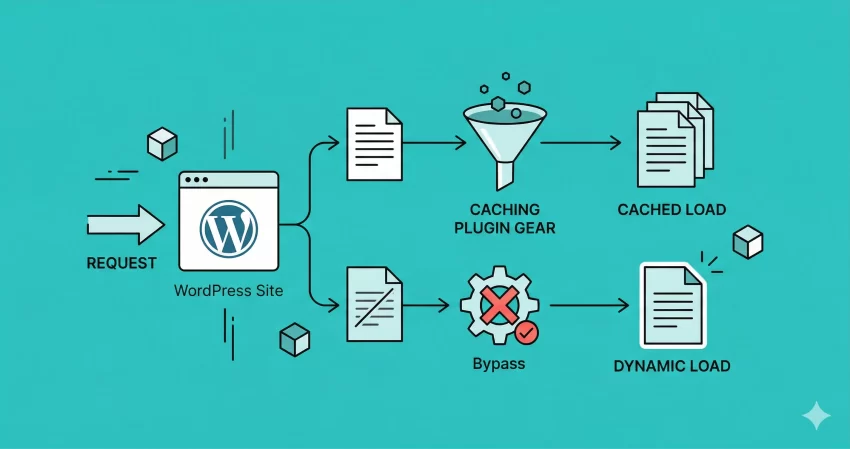
Serving dynamic content on a highly optimized WordPress site can often lead to a frustrating problem: users seeing stale, outdated information because a caching layer aggressively stored a static HTML copy of the page. Whether you are running a complex WooCommerce checkout, a customized membership portal, or a dynamic lead-generation form, you need a precise solution to bypass the cache. In this comprehensive developer guide, you will learn exactly how to exclude page from cache across the most popular performance plugins and server-level configurations in 2026. By following these programmatic and plugin-specific methods, you guarantee that your dynamic queries and personalized user sessions render perfectly on every single visit.
Prerequisites for Modifying Cache Rules
Before you begin modifying cache exclusions, ensure your environment meets the modern WordPress development standards. Failing to do so can result in fatal errors or configuration overrides.
- PHP 8.0+ running on your web server.
- Administrator level access to the WordPress dashboard.
- FTP/SFTP or SSH access to modify
wp-config.phpor theme files if using the programmatic method. - A recent, verified backup of your WordPress database and file system.
- Basic understanding of Regular Expressions (Regex) for advanced wildcard exclusions.
Step 1: Identify the Correct Page URI or ID
Before you can exclude page from cache, you must accurately identify the Uniform Resource Identifier (URI) or the specific WordPress Post ID. Caching plugins typically rely on the URI string (the part of the URL after your domain name) to create exclusion rules. If you do not specify this correctly, your rule will either fail to trigger or accidentally exclude your entire website, crushing your server performance.
For standard pages, the URI is simply the slug. For example, if your page is https://example.com/checkout/, the URI you need to target is /checkout/ or simply checkout depending on the plugin’s syntax. However, for dynamic endpoints or search queries, you may need to use wildcards (e.g., /members/(.*)). It is critical to use WordPress conditional tags mentally before applying these rules to understand what exactly you are targeting.
Finding the Exact Slug or Query String
Navigate to the page you want to exclude on the frontend of your site. Look at the address bar. If the URL contains query strings (like ?custom_filter=true), note that some caching plugins cache based on the base URL and ignore query strings by default, while others cache every unique query string. To definitively exclude page from cache when query parameters are involved, you often need to define both the base URI and the query arguments in the plugin’s advanced settings.
Pro Tip: Using Regex
Step 2: Exclude Page from Cache in WP Rocket
WP Rocket remains one of the most widely used premium caching solutions. It handles a lot of complexity under the hood, but it provides a very straightforward interface to exclude page from cache. WP Rocket automatically excludes default WooCommerce cart and checkout pages, but custom dynamic pages require manual intervention.
WP Rocket stores its configuration in an advanced JSON file and updates your .htaccess or Nginx config automatically. When you add a rule to exclude page from cache, it ensures that not only is the page skipped during the preloading process, but it is also bypassed entirely when a browser requests it.
Navigating to Advanced Rules
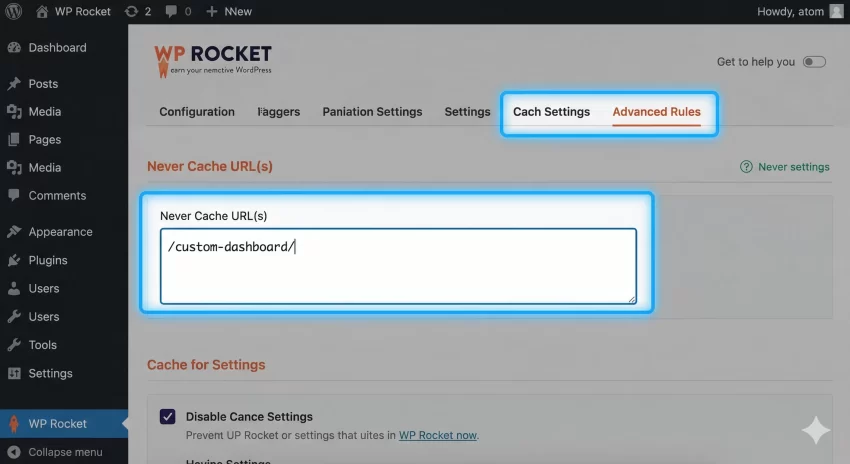
To implement this, go to Settings > WP Rocket in your WordPress admin dashboard. Click on the Advanced Rules tab on the left-hand sidebar. Here, you will find a text area labeled “Never Cache URL(s)”.
Entering the Exclusions
In the text area, enter the URL of the page you wish to exclude. You only need to enter the URI part of the URL. For example, to exclude https://yourdomain.com/secret-portal/, you simply type /secret-portal/. WP Rocket supports wildcards, so entering /secret-portal/(.*) will exclude the main portal and any child endpoints. Once entered, save your changes and clear the global cache to apply the new rules.
You might also like: Is WP Rocket Worth the Hype? An Honest WP Rocket Review (2026)
Step 3: Exclude Page from Cache in W3 Total Cache (W3TC)
W3 Total Cache (W3TC) is an enterprise-grade performance plugin that separates caching into multiple layers: Page Cache, Database Cache, Object Cache, and Browser Cache. To effectively exclude page from cache in W3TC, you primarily need to target the Page Cache module, though aggressive Object Caching can sometimes interfere with dynamic front-end queries.
W3TC is highly specific. If you only exclude a page from the Page Cache but leave a heavily cached database query running on that page, the content might still appear stale. Therefore, when you exclude page from cache in W3TC, you must also be mindful of your database and object caching configurations.
Configuring Page Cache Rejection
Navigate to Performance > Page Cache. Scroll down to the Advanced section. You will see a text box labeled “Never cache the following pages”. This is where W3TC accepts its exclusion rules.
Formatting Warning
Applying the Rules
Enter your URIs one per line. For example, /dynamic-form/. If you need to exclude an entire directory, you must use Regex syntax compatible with PHP’s PCRE engine, such as ^/user-dashboard/.*. After inputting your strings, save the settings and click “Empty All Caches” from the top admin bar to ensure the stale static files are purged from the server.
You might also like: Unbiased W3 Total Cache Review: The Ultimate Speed Booster or Just Hype?
Step 4: Exclude Page from Cache in Autoptimize
Autoptimize is technically not a full-page caching plugin (unless combined with their companion tools), but rather an asset optimization plugin. It minifies, aggregates, and caches CSS, JavaScript, and HTML. However, if a specific page relies on inline scripts that change dynamically (like a localized JS variable for a user), Autoptimize’s aggregation will break it. Therefore, you must exclude page from cache regarding asset optimization.
When you exclude page from cache in Autoptimize, you are telling the plugin not to optimize the scripts and styles specifically on that page, allowing the native, un-minified dynamic assets to load directly from the server.
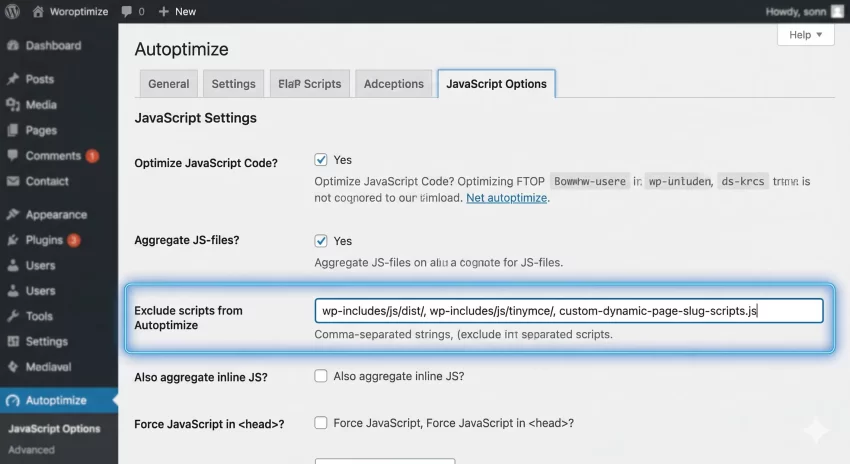
Excluding via the Settings Panel
Go to Settings > Autoptimize. Unfortunately, Autoptimize does not have a simple “Exclude URI” box in its main UI for full pages. It only excludes specific scripts or CSS files. To exclude an entire page from being processed by Autoptimize, you need to use a programmatic filter.
The Programmatic Autoptimize Exclusion
To exclude page from cache in Autoptimize completely based on a URL, you must add a snippet to your theme’s functions.php or a custom utility plugin. We will use the autoptimize_filter_noptimize hook.
/**
 * Exclude specific pages from Autoptimize processing.
 */
function pnet_disable_autoptimize_on_specific_pages() {
    if ( strpos( $_SERVER['REQUEST_URI'], '/my-dynamic-page/' ) !== false ) {
        return true; // Returns true to "noptimize" (disable optimization)
    }
    return false;
}
add_filter( 'autoptimize_filter_noptimize', 'pnet_disable_autoptimize_on_specific_pages' );
Step 5: Exclude Page from Cache in WP Super Cache
WP Super Cache by Automattic is a robust, file-based caching system. It operates by generating static HTML files and serving them via PHP or directly through Apache mod_rewrite. To exclude page from cache using this plugin, you must configure the “Accepted Filenames & Rejected URIs” settings.
Because WP Super Cache handles caching very early in the WordPress load process, accurately defining your rejected URIs is critical to prevent the plugin from writing the HTML file to the wp-content/cache/supercache/ directory.
Adding Rejected URIs
Go to Settings > WP Super Cache and click on the Advanced tab. Scroll down to the section titled “Accepted Filenames & Rejected URIs”. Here you will find a large text area where you can define strings that force the cache engine to skip the page.
String Matching Logistics
WP Super Cache looks for a partial match in the URL. If you add /checkout/, any URL containing that string will be excluded. You do not strictly need complex Regex here for basic operations. Just add the slug, save the changes, and click the “Delete Cache” button on the settings page.
Did you know: You can significantly reduce your server load and improve Time to First Byte (TTFB) by reading our deep-dive WP Super Cache Plugin Review to configure your caching correctly?
Step 6: Exclude Page from Cache in LiteSpeed Cache
LiteSpeed Cache (LSCache) is arguably the most powerful caching mechanism available for WordPress, as it integrates directly with the LiteSpeed Web Server. When you exclude page from cache using LSCache, you are directly instructing the server engine to bypass its internal caching memory, which provides unmatched performance control.
LSCache utilizes a very granular settings panel. You can exclude based on URI, Category, Tag, Cookie, or even User Agent. For dynamic applications, excluding by URI or Cookie is the standard protocol.
Using the Exclude Settings
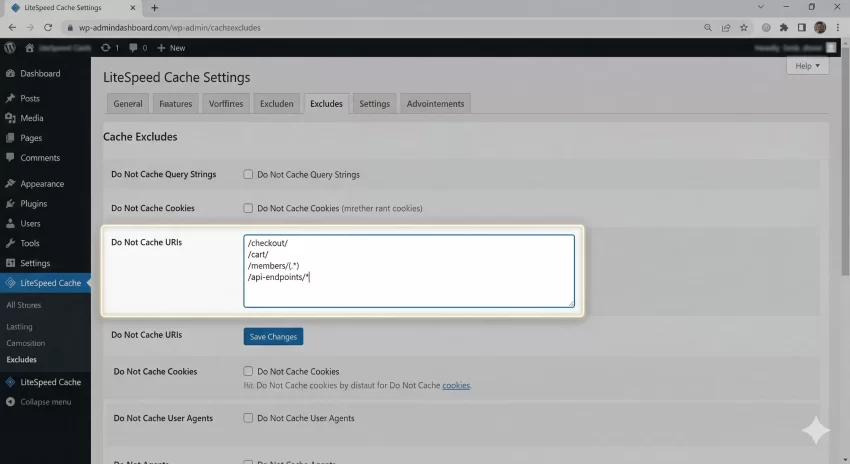
Navigate to LiteSpeed Cache > Cache in the admin menu, then click on the Excludes tab. Look for the “Do Not Cache URIs” text box. This is where you configure the engine to exclude page from cache.
Formatting LiteSpeed Exclusions
Paths should be relative to the domain and start with a forward slash. You can use an asterisk * as a wildcard. For example, /api-endpoints/* will exclude all traffic hitting that route. Save your changes and purge the LSCache to activate the bypass.
Step 7: The Programmatic Approach (For Developers)
As a developer, relying on plugin UIs can be cumbersome, especially when deploying code across multiple staging and production environments. The most bulletproof way to exclude page from cache is to define the exclusion programmatically within your WordPress theme or custom plugin using the universally recognized DONOTCACHEPAGE constant.
Almost all well-coded caching plugins (including W3TC, WP Rocket, and WP Super Cache) respect this core WordPress constant. When this constant is defined as true during the page load lifecycle, caching plugins will abort their routines.
Implementing DONOTCACHEPAGE
You must define this constant early enough in the WordPress execution cycle, usually by hooking into the wp or template_redirect action. This ensures the caching plugins read the constant before they attempt to output a cached file.
/**
 * Programmatically exclude page from cache based on specific conditions.
 */
function pnet_programmatic_cache_exclusion() {
    // Check if we are on a specific page ID or a specific custom post type
    if ( is_page( 42 ) || is_singular( 'custom_dashboard' ) ) {
        if ( ! defined( 'DONOTCACHEPAGE' ) ) {
            define( 'DONOTCACHEPAGE', true );
        }
    }
}
add_action( 'template_redirect', 'pnet_programmatic_cache_exclusion' );
Developer Note
define statement inside specific conditional logic to maintain high server performance. Step 8: Troubleshooting Common Caching Errors
Even when you carefully exclude page from cache, things can still go wrong due to server-side caching, browser caching, or conflicting plugins. Below is a troubleshooting guide for the most common caching issues developers face.
Why is my page still caching after exclusion?
If you have added the URI to your plugin but the page still serves stale content, you are likely dealing with a secondary caching layer. Check if your hosting provider uses server-level caching like Varnish or Nginx FastCGI Cache. You will need to add exclusion rules at the server configuration level (e.g., in your vhost config or via your host’s control panel) to fully exclude page from cache.
Why did excluding a page break my CSS layout?
This often happens when asset optimization plugins (like Autoptimize or WP Rocket’s File Optimization) are still trying to minify inline scripts or styles on the excluded page, but the main stylesheet is heavily cached. You must ensure that both the HTML Page Cache AND the Minification/Aggregation cache are bypassed for that specific dynamic URL.
Does the DONOTCACHEPAGE constant work for object caching?
No. The DONOTCACHEPAGE constant strictly informs plugins to bypass HTML page caching. If your dynamic page relies on frequently updated database queries, you must utilize the wp_cache_delete() function or group exclusions in your persistent object cache (Redis/Memcached) configuration to ensure fresh data is retrieved from MySQL.
Conclusion
Maintaining a high-speed WordPress site while delivering dynamic, personalized content requires a delicate balance. By properly configuring your systems to exclude page from cache, you ensure that vital areas like user dashboards, checkouts, and custom API endpoints function flawlessly without sacrificing the global performance of your static content. Whether you choose to use the intuitive interfaces of WP Rocket or LiteSpeed, or you prefer the programmatic precision of the DONOTCACHEPAGE constant, mastering these exclusion techniques is an essential skill for any serious WordPress developer.