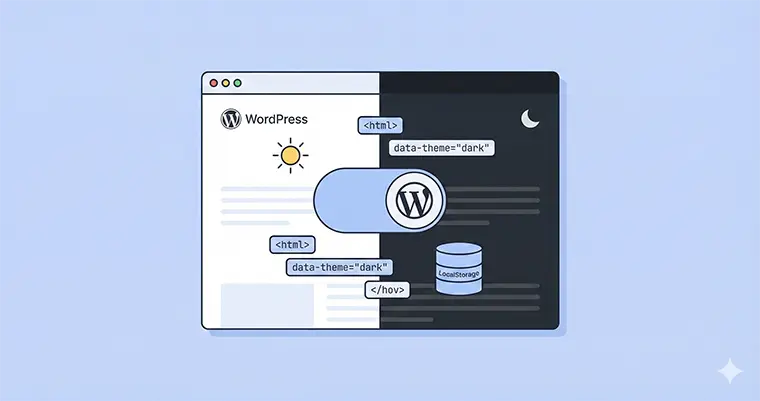
If you have been looking for a way to modernize your website, implementing WordPress Dark Mode is arguably the best upgrade you can make today. Dark mode isn’t just a trendy aesthetic choice; it is a crucial accessibility feature that reduces eye strain and saves battery life on mobile devices.
While there are dozens of heavy plugins available, many developers prefer a lightweight, custom solution. In this guide, we will walk through how to build a lightning-fast WordPress Dark Mode toggle. We will use CSS variables for styling, LocalStorage to remember the user’s choice, and a simple PHP function to ensure everything loads smoothly.
Why You Should Build Your Own WordPress Dark Mode Solution
Using a custom implementation for WordPress Dark Mode gives you total control. Plugins often load unnecessary JavaScript libraries that slow down your site. By writing your own code, you ensure that your WordPress Dark Mode functionality is lean, fast, and perfectly matches your brand’s design system.
Step 1: Defining the Styles with CSS Variables
The modern way to handle theming is through CSS Custom Properties (variables). We will define our default colors in the :root selector and our dark theme colors in a specific data attribute.
Add the following CSS to your theme’s style.css file or the Customizer:
/* 1. Define Default (Light) Variables */
:root {
    --bg-color: #ffffff;
    --text-color: #333333;
    --link-color: #0073aa;
    --toggle-bg: #e1e1e1;
}

/* 2. Define Dark Mode Variables */
[data-theme="dark"] {
    --bg-color: #1e1e1e;
    --text-color: #f0f0f0;
    --link-color: #4db2ec;
    --toggle-bg: #333333;
}

/* 3. Apply Variables to Elements */
body {
    background-color: var(--bg-color);
    color: var(--text-color);
    transition: background-color 0.3s ease, color 0.3s ease;
}

a {
    color: var(--link-color);
}

/* 4. Style the Toggle Button */
.dark-mode-toggle {
    cursor: pointer;
    padding: 10px 20px;
    background-color: var(--toggle-bg);
    border: 1px solid var(--text-color);
    border-radius: 5px;
    font-weight: bold;
    margin: 20px 0;
}
Step 2: The PHP Function to Add the Toggle and Script
To make this work seamlessly, we need to inject our HTML button and the JavaScript logic into the site. We will use a PHP function in your theme’s functions.php file. This keeps your WordPress Dark Mode logic centralized.
This PHP snippet does two things: it adds the toggle button to the footer (you can move this anywhere) and prints the JavaScript script that handles the switching logic.
Open your functions.php file and add this code:
/**
 * Add WordPress Dark Mode Toggle and Script
 */
function pnet_custom_dark_mode_assets() {
    ?>
    <div class="dark-mode-wrapper" style="position: fixed; bottom: 20px; right: 20px; z-index: 9999;">
        <button id="theme-toggle" class="dark-mode-toggle">Switch Mode</button>
    </div>

    <script>
    (function() {
        const toggleBtn = document.getElementById('theme-toggle');
        const currentTheme = localStorage.getItem('theme');

        // 1. Check for saved 'theme' in LocalStorage
        if (currentTheme) {
            document.documentElement.setAttribute('data-theme', currentTheme);
            if (currentTheme === 'dark') {
                toggleBtn.innerText = "Switch to Light";
            }
        }

        // 2. Handle the Click Event
        toggleBtn.addEventListener('click', function() {
            const theme = document.documentElement.getAttribute('data-theme');

            if (theme === 'dark') {
                // Switch to Light
                document.documentElement.setAttribute('data-theme', 'light');
                localStorage.setItem('theme', 'light');
                toggleBtn.innerText = "Switch to Dark";
            } else {
                // Switch to Dark
                document.documentElement.setAttribute('data-theme', 'dark');
                localStorage.setItem('theme', 'dark');
                toggleBtn.innerText = "Switch to Light";
            }
        });
    })();
    </script>
    <?php
}
add_action('wp_footer', 'pnet_custom_dark_mode_assets');
How the Logic Works
When implementing WordPress Dark Mode, the user experience relies on “persistence.” This means if a user switches to dark mode on the homepage, they shouldn’t revert to light mode when they click on a blog post.
- LocalStorage: We use
localStorage.setItem('theme', 'dark')to save the preference in the user’s browser. - Retrieval: On page load, the script checks localStorage.getItem(‘theme’).
- Application: If it finds “dark,” it immediately applies
data-theme="dark"to thehtmltag, triggering the CSS variables we wrote in Step 1.
Step 3: Preventing the “Flash of Unstyled Content” (FOUC)
A common issue when coding WordPress Dark Mode manually is a white flash before the dark theme loads. To fix this, we need to run a tiny check as early as possible, before the page content fully renders.
Add this distinct PHP snippet to your functions.php. It hooks into wp_head to apply the class immediately:
function pnet_dark_mode_prevent_fouc() {
    ?>
    <script>
        // Immediately check LocalStorage before body loads
        const savedTheme = localStorage.getItem('theme');
        if (savedTheme) {
            document.documentElement.setAttribute('data-theme', savedTheme);
        }
    </script>
    <?php
}
add_action('wp_head', 'pnet_dark_mode_prevent_fouc');
Step 4: Testing Your Implementation
Once you have added the code, clear your cache and visit your site. You should see the toggle button in the bottom right corner. Click it, and watch your colors invert instantly.
Navigate to a different page. If your WordPress Dark Mode setup is correct, the new page should load already in dark mode without any glitching.
Conclusion
Congratulations! You have successfully integrated a custom WordPress Dark Mode feature without relying on bloated plugins. This method ensures your site remains fast while offering a premium user experience.
By mastering this mix of CSS variables and LocalStorage, you have taken a significant step in your development journey. Your visitors will appreciate the option, and Google will appreciate the accessibility boost. Go ahead and tweak the CSS colors to create the perfect WordPress Dark Mode palette for your brand!



