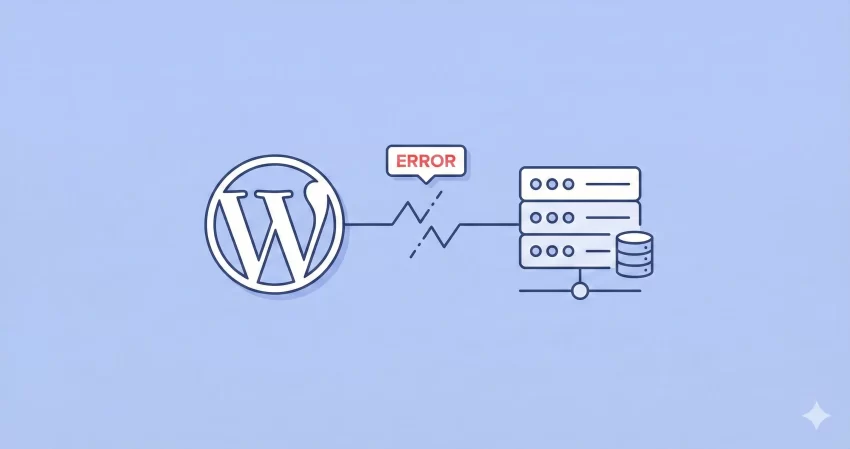
There is nothing more terrifying for a website owner than typing in their URL and being greeted by a blank white screen with a stark, intimidating message: Error Establishing a Database Connection. It’s the digital equivalent of trying to start your car and hearing absolutely nothing.
If you are seeing this right now, take a deep breath. You haven’t lost your content, and your site isn’t gone forever. It simply means the bridge between your WordPress files and the database has collapsed, and we are going to rebuild it.
In this beginner’s guide, we will walk you through exactly how to fix Error Establishing a Database Connection in WordPress. We will cover why it happens, how to troubleshoot it, and the specific code snippets you need to get your site back online fast.
What Causes the “Error Establishing a Database Connection”?
Before we dive into the solutions, it helps to understand what went wrong. WordPress is built using two main technologies: PHP (the code files) and MySQL (the database). Your database stores all your content—blog posts, page data, user info, and settings.
When a visitor lands on your site, PHP uses specific credentials to connect to the database and retrieve that information. If that handshake fails, you get the error.
Common causes include:
- Incorrect Login Credentials: The username, password, or hostname in your configuration file is wrong.
- Corrupted Database: Files can get messy or broken due to failed updates or malicious attacks.
- Server Down: Your hosting provider’s database server might be overwhelmed or offline.
- Traffic Spikes: A sudden surge in visitors can crash the database if your server resources are too low.
Let’s start troubleshooting step-by-step.
Step 1: Check Your Database Credentials (wp-config.php)
The most common reason you need to fix Error Establishing a Database Connection is simply a wrong password or username in your wp-config.php file. This often happens if you recently migrated your site or changed your hosting password.
To fix Error Establishing a Database Connection caused by this, you will need to access your website files using an FTP client (like FileZilla) or the File Manager in your hosting control panel (cPanel).
- Log in to your server via FTP or File Manager.
- Locate the
wp-config.phpfile in the root directory (usuallypublic_html). - Right-click and select Edit.
Look for the following lines of code. These define your database connection details:
// The name of the database for WordPress
define( 'DB_NAME', 'database_name_here' );

// MySQL database username
define( 'DB_USER', 'username_here' );

// MySQL database password
define( 'DB_PASSWORD', 'password_here' );

// MySQL hostname
define( 'DB_HOST', 'localhost' );
You need to verify that these values match exactly what is set in your hosting account.
How to Verify Credentials in cPanel
If you aren’t sure what the correct values are, log in to your hosting cPanel and go to MySQL Databases. Here you can check the database name and the privileged users associated with it.
Pro Tip: If you suspect the password is the issue, it is often easier to create a new password for the database user in cPanel, and then update the
DB_PASSWORDline in yourwp-config.phpfile to match the new one.
You might also like:
Step 2: Repair a Corrupted WordPress Database
If your credentials are correct but you are still seeing the error, your database might be corrupted. A tell-tale sign of this is if you see a different error message when trying to access your dashboard (/wp-admin/), such as “One or more database tables are unavailable.”
WordPress has a built-in repair tool, but it is disabled by default for security reasons. To enable it, you need to add a single line of code to your wp-config.php file.
Open wp-config.php again and paste this snippet just before the line that says “That’s all, stop editing! Happy publishing”:
define( 'WP_ALLOW_REPAIR', true );
Once you have saved the file, visit the following URL in your browser (replace yourdomain.com with your actual domain):
http://www.yourdomain.com/wp-admin/maint/repair.php
You will see a screen with two options:
- Repair Database
- Repair and Optimize Database
We recommend clicking Repair Database first, as it is faster. Once the repair is finished, immediately remove the line of code you added to wp-config.php. Leaving this enabled is a major security risk because it allows anyone to access that repair page. If repairing and optimizing wasn’t enough to fix Error Establishing a Database Connection, read on..
Step 3: Create a Database Connection Test File
Sometimes you need to verify if the issue is with WordPress or the server itself. To do this, we can write a simple PHP script to test the connection independently of the WordPress core software.
Create a new file in your public_html folder named test-db.php. Paste the following code into it. Note that we are using a custom function prefix pnet_ to keep our testing function unique.
<?php
/**
 * Script to test MySQL Connection
 */

function pnet_test_db_connection() {
    // Replace these with your actual wp-config details
    $dbname = 'your_db_name';
    $dbuser = 'your_db_user';
    $dbpass = 'your_db_password';
    $dbhost = 'localhost';

    $link = mysqli_connect($dbhost, $dbuser, $dbpass);

    if (!$link) {
        die('Could not connect: ' . mysqli_error());
    }

    echo 'Connected successfully to the server.<br/>';

    $db_selected = mysqli_select_db($link, $dbname);

    if (!$db_selected) {
        die('Could not connect to the specific database: ' . mysqli_error());
    }

    echo 'Connected successfully to the database.';

    mysqli_close($link);
}

// Run the test
pnet_test_db_connection();
?>
Save the file and navigate to yourdomain.com/test-db.php.
- If it says Connected successfully, your user and password are correct, and the issue lies within corrupted WordPress files.
- If it fails, your database user does not have permission, or the server is rejecting the connection. In that case, you need to contact hosting provider to fix Error Establishing a Database Connection issue from their end.
(Don’t forget to delete this file after testing!)
You might also like:
Step 4: Verify Your Database Host (DB_HOST)
In 90% of cases, the DB_HOST value in WordPress is localhost. However, this isn’t a universal rule. Some managed WordPress hosting providers (like WP Engine, Kinsta, or GoDaddy) use separate servers for databases.
If you are using localhost and it isn’t working, check your hosting provider’s documentation. You might need to change it to an IP address or a specific URL like mysql.yourdomain.com to fix Error Establishing a Database Connection.
For a detailed list of default constants and configurations, you can refer to the official WordPress documentation on editing wp-config.php. If that didn’t managed to fix Error Establishing a Database Connection, you may need to contact your hosting provider.
Step 5: Contact Your Hosting Provider
If you have tried all the steps above to fix Error Establishing a Database Connection and nothing has worked, the problem is likely on the server side.
This could be due to:
- Server Outage: The MySQL server is down.
- Database Quota Exceeded: Your database has grown too large for your hosting plan.
- Firewall Issues: Security software is blocking the connection.
Reach out to your host’s support team. You can simply say: “I am getting a database connection error on my WordPress site. I have verified my wp-config credentials and tested the connection with a PHP script, but it is still failing. Can you check if the MySQL server is running correctly?”
You might want to read this too: Why You Desperately Need a Site Specific WordPress Plugin (The Safest Method)
Conclusion
Seeing your website disappear is stressful, but the “Error Establishing a Database Connection” is almost always fixable with a few tweaks to your configuration. By methodically checking your credentials, repairing the database, and verifying server status, you can get your site back up and running smoothly.
Remember, the best defense against these errors is a good offense. Always keep regular backups of your website so that if things go wrong, you can restore a working version in minutes rather than hours.
Have you ever encountered the issue? Which one of the methods mentioned above managed to fix Error Establishing a Database Connection for you?