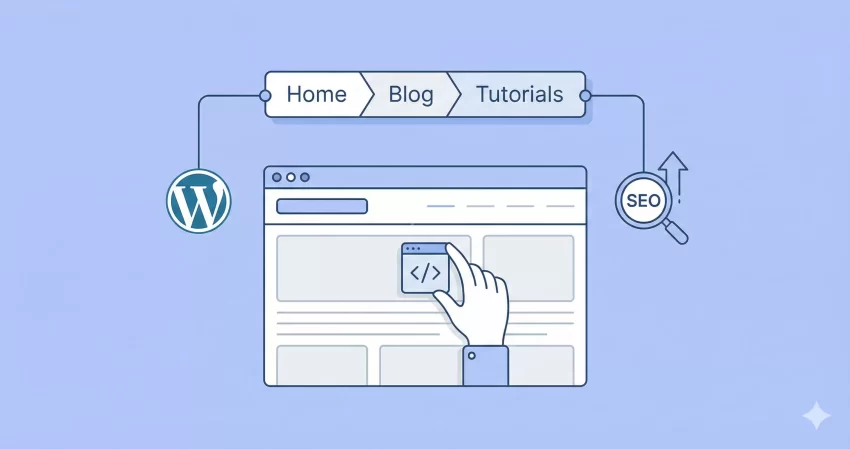
Navigation is the backbone of a great user experience. If your visitors feel lost, they leave. It is that simple. One of the most effective ways to guide your users and search engines through your site structure is to add breadcrumbs in WordPress. Whether you are running a simple blog or a complex e-commerce store, these little navigational trails are essential for SEO and usability.
In this comprehensive guide, we will explore why breadcrumbs matter and walk you through two distinct methods to implement them. We will show you how to utilize the popular Yoast SEO plugin, and for the performance purists, how to build a robust custom function from scratch. By the end of this tutorial, you will know exactly how to add breadcrumbs in WordPress like a pro.
Why You Should Add Breadcrumbs in WordPress
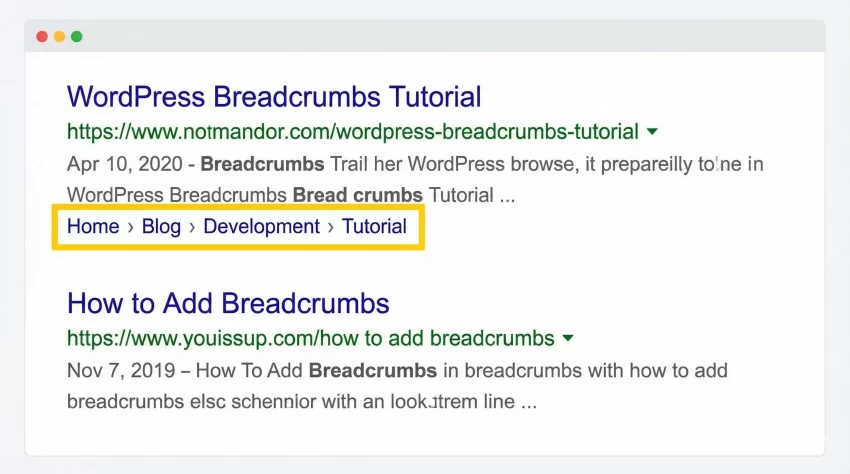
Before we dive into the code, let’s understand the why. Breadcrumbs are the small text paths usually located at the top of a page indicating where the user is (e.g., Home > Blog > Development > Tutorial). They are not just aesthetic; they are functional powerhouses.
When you add breadcrumbs in WordPress, you are essentially providing a secondary navigation scheme. This reduces the number of clicks required to return to a higher-level page, which drastically improves User Experience (UX). Furthermore, Google loves them. Breadcrumbs appear in search results, giving your listing a rich snippet look that can increase your Click-Through Rate (CTR).
Method 1: Using Yoast SEO to Add Breadcrumbs
If you are already using the Yoast SEO plugin, you are halfway there. Yoast has a built-in feature that makes it incredibly easy to add breadcrumbs in WordPress themes without writing complex logic. This is often the preferred method for beginners or those who want to offload the maintenance of schema markup to a trusted plugin.
Step 1: Enable Breadcrumbs in Yoast Settings
- Log in to your WordPress Dashboard.
- Navigate to SEO > Search Appearance.
- Click on the Breadcrumbs tab.
- Toggle the switch to Enabled.
Here, you can also configure the separator (usually a standard » or /) and the anchor text for the home page. Once saved, the functionality is active, but it won’t appear on your site until you place the code snippet in your theme.
Step 2: Insert the Code into Your Theme
To visually add breadcrumbs in WordPress via Yoast, you need to edit your theme files. Usually, this goes in header.php (at the very bottom) or single.php and page.php (just above the title).
Add the following snippet where you want the breadcrumbs to appear:
<?php
if ( function_exists('yoast_breadcrumb') ) {
  yoast_breadcrumb( '<p id="breadcrumbs">','</p>' );
}
?>
This code checks if the Yoast function exists (preventing fatal errors if you deactivate the plugin) and then outputs the navigational links.
You might also like:
Method 2: The Developer Way (Custom Function)
While plugins are great, they add overhead. Many developers prefer to add breadcrumbs in WordPress using a custom function to keep the theme lightweight and bloat-free. This method gives you 100% control over the markup and logic.
We will create a function prefixed with pnet_ to avoid conflicts. This function will handle posts, pages, and categories automatically.
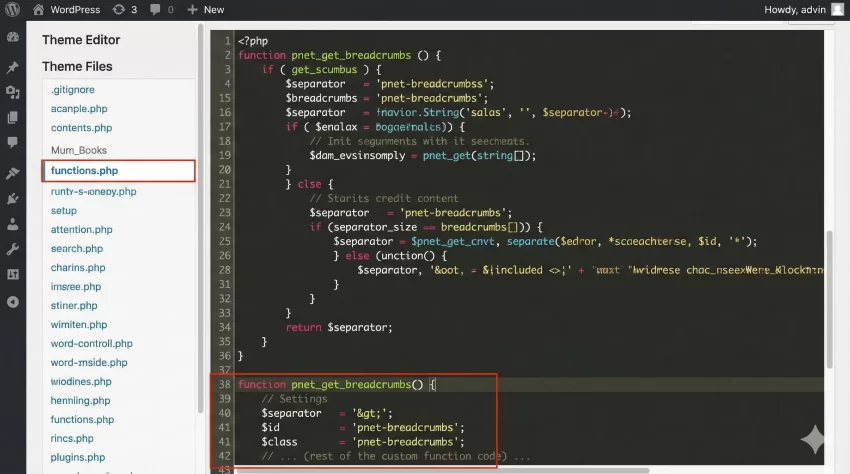
The Custom Breadcrumb Code
Open your theme’s functions.php file and drop in the following code. We are utilizing the get_queried_object function from the WordPress Codex to determine what page is currently being viewed.
function pnet_get_breadcrumbs() {

    // Settings
    $separator  = '>';
    $id         = 'pnet-breadcrumbs';
    $class      = 'pnet-breadcrumbs';
    $home_title = 'Home';

    // Get the global post
    global $post;

    // URL for the 'Home' link
    $url = home_url();

    echo '<ul id="' . $id . '" class="' . $class . '">';

    // Create the 'Home' link
    echo '<li class="item-home"><a class="bread-link bread-home" href="' . $url . '" title="' . $home_title . '">' . $home_title . '</a></li>';
    echo '<li class="separator separator-home"> ' . $separator . ' </li>';

    if ( is_single() ) {

        // Get categories for the current post
        $categories = get_the_category();

        if ( $categories ) {
            $category = $categories[0];
            echo '<li class="item-cat"><a class="bread-cat" href="' . get_category_link($category->term_id) . '" title="' . $category->name . '">' . $category->name . '</a></li>';
            echo '<li class="separator"> ' . $separator . ' </li>';
        }

        // Current post title
        echo '<li class="item-current item-' . $post->ID . '"><strong class="bread-current bread-' . $post->ID . '" title="' . get_the_title() . '">' . get_the_title() . '</strong></li>';

    } else if ( is_category() ) {

        // Category Archive
        echo '<li class="item-current item-cat"><strong class="bread-current bread-cat">' . single_cat_title('', false) . '</strong></li>';

    } else if ( is_page() ) {

        // Standard Page
        if( $post->post_parent ){

            // If child page, get parents
            $anc = get_post_ancestors( $post->ID );
            $anc = array_reverse($anc);

            foreach ( $anc as $ancestor ) {
                echo '<li class="item-parent item-parent-' . $ancestor . '"><a class="bread-parent bread-parent-' . $ancestor . '" href="' . get_permalink($ancestor) . '" title="' . get_the_title($ancestor) . '">' . get_the_title($ancestor) . '</a></li>';
                echo '<li class="separator separator-' . $ancestor . '"> ' . $separator . ' </li>';
            }

            // Current page
            echo '<li class="item-current item-' . $post->ID . '"><strong class="bread-current bread-' . $post->ID . '" title="' . get_the_title() . '">' . get_the_title() . '</strong></li>';

        } else {
            // Just a parent page
            echo '<li class="item-current item-' . $post->ID . '"><strong class="bread-current bread-' . $post->ID . '" title="' . get_the_title() . '">' . get_the_title() . '</strong></li>';
        }
    }

    echo '</ul>';
}
This script is a solid foundation. To actually add breadcrumbs in WordPress templates using this function, you simply call pnet_get_breadcrumbs(); in your theme files (like single.php), exactly where you want them to appear.
You might also like:

Styling Your New Breadcrumbs
A custom function outputs raw HTML, so it might look a bit plain initially. When you add breadcrumbs in WordPress manually, you must also style them. Here is a clean, modern CSS snippet to get you started. Add this to your theme’s style.css file or the Customizer.
ul.pnet-breadcrumbs {
    list-style: none;
    padding: 0;
    margin: 0;
    font-size: 14px;
}

ul.pnet-breadcrumbs li {
    display: inline-block;
    margin-right: 5px;
}

ul.pnet-breadcrumbs li a {
    text-decoration: none;
    color: #0073aa; /* WordPress Blue */
}

ul.pnet-breadcrumbs li a:hover {
    text-decoration: underline;
}

ul.pnet-breadcrumbs li.separator {
    color: #ccc;
}
Troubleshooting Common Issues
Sometimes, when you attempt to add breadcrumbs in WordPress, things don’t go as planned. Here are two common hiccups:
- Duplication: If you see two sets of breadcrumbs, check your theme settings. Many modern themes (like Astra or OceanWP) have built-in breadcrumb options. Ensure you disable the theme’s default setting if you are injecting your own code.
- Wrong Structure: If the hierarchy looks wrong (e.g., missing a parent category), ensure your posts are assigned to a “Primary Category” if you are using Yoast, or check your Permalinks settings in Settings > Permalinks.
Tip: Boost Your Engagement: Why You Need a WordPress Reading Time Progress Bar Now!
Conclusion: Which Method is Best?
Deciding how to add breadcrumbs in WordPress depends on your comfort level with code. If you want a “set it and forget it” solution and are already using Yoast SEO, stick with the plugin method. It handles the Schema markup specifically well, which is vital for search engines.
However, if you are building a custom theme or optimizing for speed, the pnet_get_breadcrumbs function is the superior choice. It removes dependency on third-party plugins for front-end visual elements.
Now that you know how to add breadcrumbs in WordPress effectively, try implementing it on your site today. Your users (and your bounce rate) will thank you.