
Introduction
Running a WooCommerce store often involves creating incentives to boost average order value, and nothing works quite like bulk discounts. However, most store owners immediately reach for expensive premium plugins to handle this logic. As a developer, you know that relying on heavy plugins for simple logic can bloat your site. That is where custom WooCommerce dynamic pricing code comes in.
In this guide, we will bypass the need for third-party subscriptions. You will learn how to implement a lightweight, robust, and completely free solution using PHP. By injecting specific WooCommerce dynamic pricing code directly into your theme, you gain total control over the logic—whether it is simple bulk discounts, BOGO offers, or role-based pricing—without the performance overhead of a generic plugin.
Intermediate
functions.php file. A basic understanding of PHP and WooCommerce hooks is recommended. Prerequisites
Before we dive into the code, ensure your environment is ready. Editing active theme files carries risk, so safety precautions are non-negotiable.
- PHP 8.0+ (Recommended for better performance and syntax support).
- Child Theme
A Child Theme installed and active (to prevent losing changes on theme updates). - A complete Backup of your WordPress site (Database + Files).
- FTP/SFTP access or a Code Snippets plugin.
- WooCommerce 8.0 or higher installed.
Step 1: Understanding the Cart Calculation Hook
To implement effective WooCommerce dynamic pricing code, we must intervene at the exact moment WooCommerce calculates the cart totals. The “Magic Hook” for this operation is woocommerce_before_calculate_totals. This action fires immediately before the cart totals are calculated, allowing us to iterate through cart items and modify their prices on the fly.
Many developers make the mistake of using display filters (like woocommerce_get_price_html). While that changes the visual price on the product page, it does not affect the actual checkout total. Our approach ensures that the WooCommerce dynamic pricing code alters the transactional data, ensuring the customer pays the correct discounted amount.
Pro Tip
is_admin() and !defined('DOING_AJAX') are true at the start of your function. This prevents your pricing logic from running unnecessarily in the backend interface. You might also like:
Step 2: Setting Up the Basic Code Structure
We will start by creating a skeleton function. This foundation is crucial because it handles the necessary checks to prevent errors and ensures compatibility with various WooCommerce setups. This snippet will go into your child theme’s functions.php file.
The goal here is safety. We need to ensure the cart object is available before we try to modify it. Without these safeguards, your WooCommerce dynamic pricing code could trigger fatal PHP errors when the cart is empty or loading via AJAX.
Writing the Wrapper Function
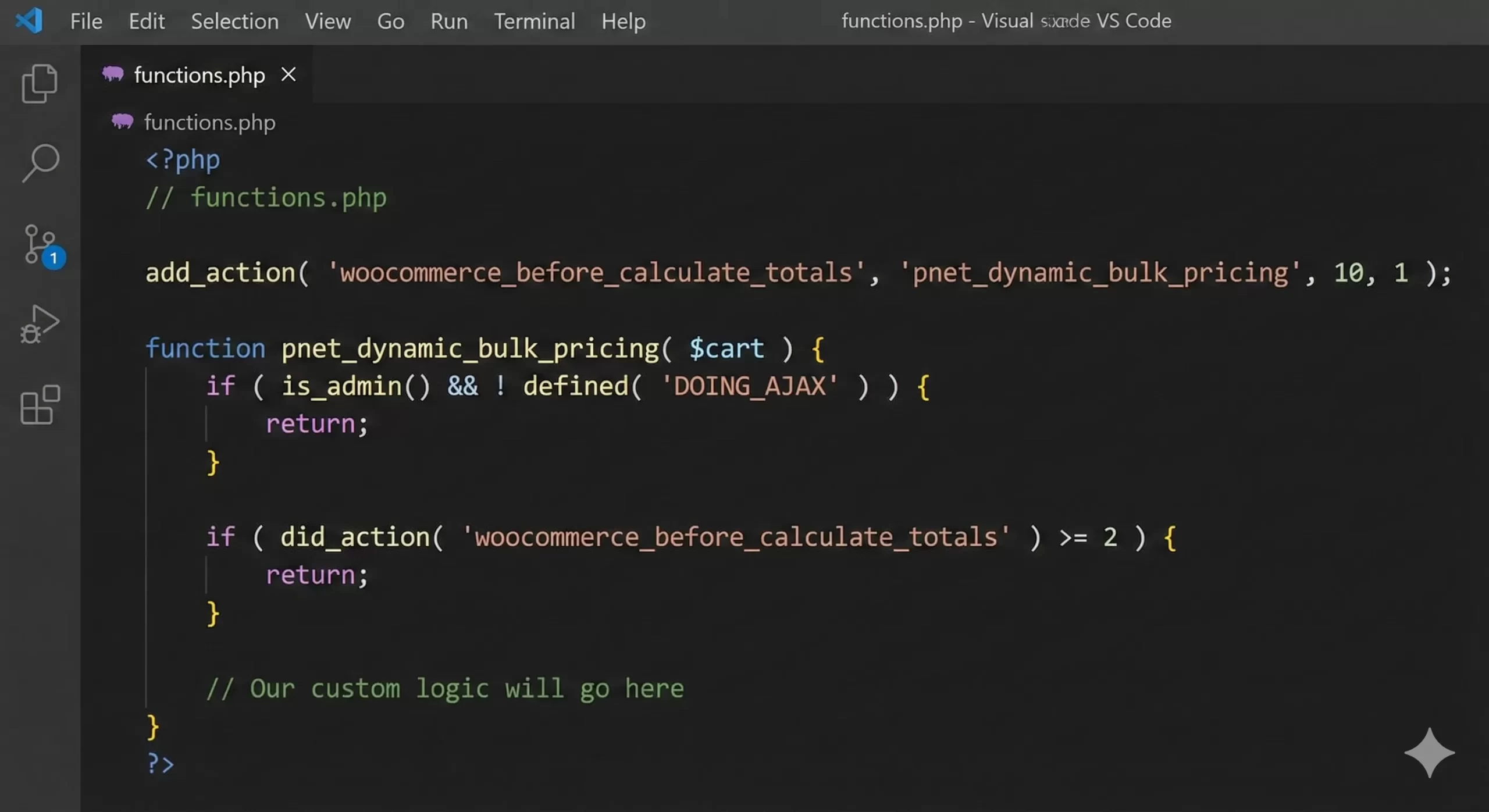
This wrapper serves as the container for all our logic. We will define a function pnet_dynamic_bulk_pricing and hook it into WooCommerce.
add_action( 'woocommerce_before_calculate_totals', 'pnet_dynamic_bulk_pricing', 10, 1 );

function pnet_dynamic_bulk_pricing( $cart ) {
    if ( is_admin() && ! defined( 'DOING_AJAX' ) ) {
        return;
    }

    if ( did_action( 'woocommerce_before_calculate_totals' ) >= 2 ) {
        return;
    }

    // Our custom logic will go here
}
In the snippet above, the check did_action( 'woocommerce_before_calculate_totals' ) >= 2 is a safeguard against infinite loops, which can happen if other plugins also trigger cart recalculations.
Step 3: Implementing Bulk Discount Logic
Now, let’s implement the core requirement: a bulk discount. We will write WooCommerce dynamic pricing code that applies a 10% discount if the customer buys 10 or more of a specific product. This is the most common use case for wholesale stores.
We need to iterate through every item in the cart. For each item, we check the quantity. If the quantity meets our threshold, we calculate the new price and set it programmatically.
Defining Thresholds and Calculations
We will define our variables at the top of the loop for easy editing later. In this example, $threshold is 10 items, and $discount is 0.10 (10%).
add_action( 'woocommerce_before_calculate_totals', 'pnet_dynamic_bulk_pricing', 10, 1 );

function pnet_dynamic_bulk_pricing( $cart ) {
    if ( is_admin() && ! defined( 'DOING_AJAX' ) ) {
        return;
    }

    if ( did_action( 'woocommerce_before_calculate_totals' ) >= 2 ) {
        return;
    }

    // Define discount rules
    $threshold = 10; // Minimum quantity for discount
    $discount_percentage = 10; // 10% Off

    foreach ( $cart->get_cart() as $cart_item_key => $cart_item ) {
        // Get the current quantity
        $quantity = $cart_item['quantity'];

        if ( $quantity >= $threshold ) {
            $product = $cart_item['data'];
            $price = $product->get_price();

            // Calculate new price
            $discount_amount = $price * ( $discount_percentage / 100 );
            $new_price = $price - $discount_amount;

            // Set the new price
            $cart_item['data']->set_price( $new_price );
        }
    }
}
Important
$cart_item['data']->set_price() only affects the current session. It does not permanently change the product price in the database, making this the safest way to apply WooCommerce dynamic pricing code. Must Read: Boost Sales: How to Display WooCommerce Discount Percentage Easily
Step 4: Targeting Specific Categories
Applying a blanket discount is useful, but often you need more granularity. Perhaps you only want to discount items in the “Accessories” category. We can refine our WooCommerce dynamic pricing code to check for product terms before applying the discount.
To do this, we use the has_term() WordPress function. This allows us to restrict the pricing logic to a specific array of category slugs.
Filtering by Category Slug
In this step, we modify the loop to include a conditional check. We will define an array of targeted categories (e.g., ‘t-shirts’, ‘hoodies’). If the product in the cart does not belong to these categories, the loop skips it.
// Inside the foreach loop from the previous step...

    $product_id = $cart_item['product_id'];
    $targeted_categories = array( 't-shirts', 'hoodies' );

    // Check if product is in the target category
    if ( has_term( $targeted_categories, 'product_cat', $product_id ) ) {

        if ( $quantity >= 5 ) { // Lower threshold for this category
             $product = $cart_item['data'];
             $price = $product->get_price();
             $new_price = $price * 0.80; // 20% Discount
             $cart_item['data']->set_price( $new_price );
        }
    }
This level of control highlights the power of using raw WooCommerce dynamic pricing code over simple plugins that might lock features like “Category Filtering” behind a “Pro” paywall.
You might also like:
Step 5: Displaying Savings to the User
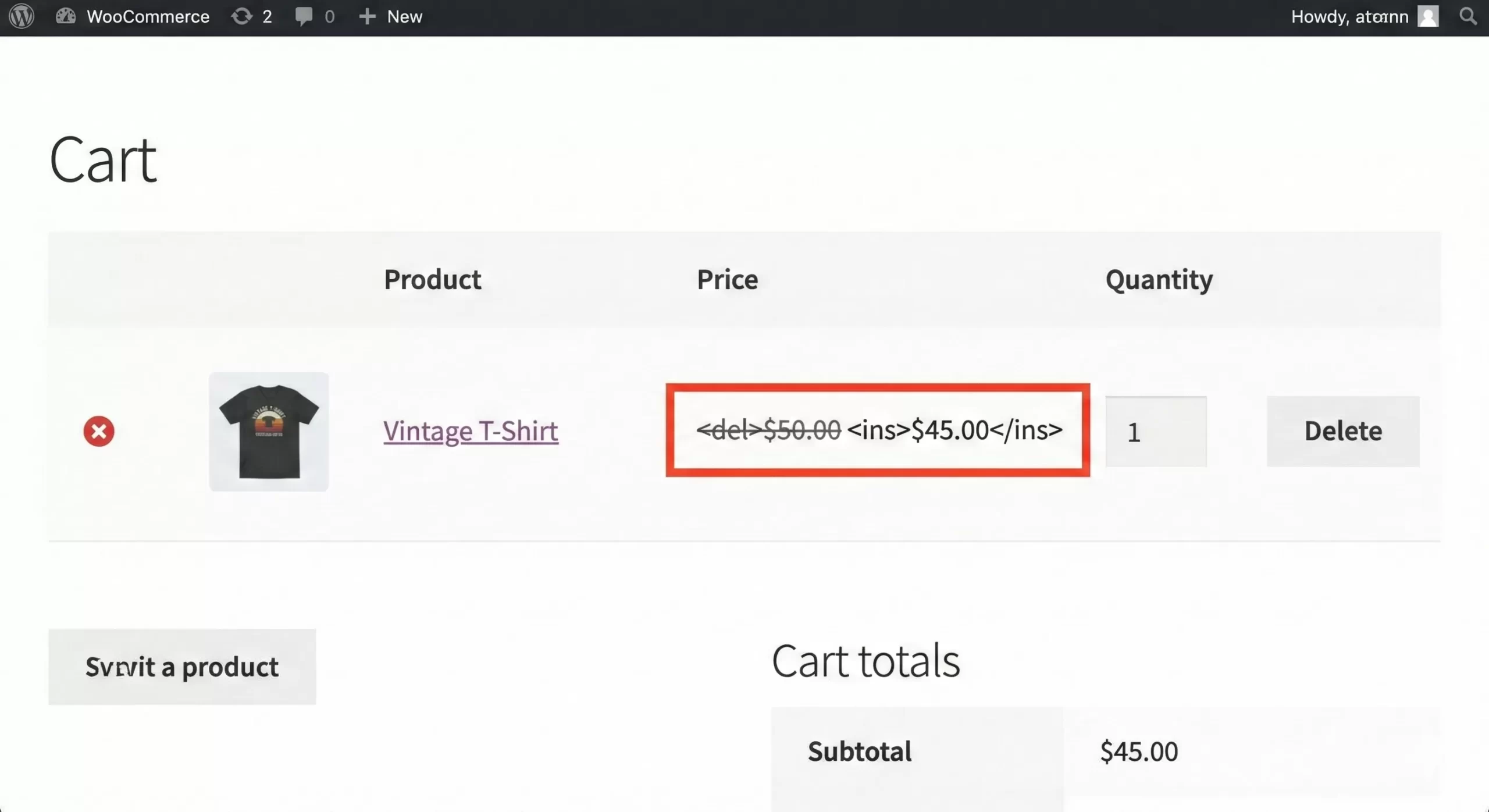
Ideally, when a discount is applied, the user should know about it. Silently changing the price can confuse customers (“Why is the price different than what I saw on the shop page?”). We need to add visual feedback to the cart page indicating that our WooCommerce dynamic pricing code has successfully applied a discount.
We can hook into woocommerce_cart_item_price to show the old price crossed out next to the new discounted price.
Modifying the Price HTML
This step involves a purely visual change. It does not affect the calculation but improves the User Experience (UX) significantly.
add_filter( 'woocommerce_cart_item_price', 'pnet_display_discounted_price', 10, 3 );

function pnet_display_discounted_price( $price, $cart_item, $cart_item_key ) {

    $product = $cart_item['data'];
    $regular_price = $product->get_regular_price();
    $current_price = $product->get_price();

    // If the price has been modified by our dynamic pricing code
    if ( $current_price < $regular_price ) {
        return '<span class="hljs-tag"><<span class="hljs-name">del</span>></span>' . wc_price( $regular_price ) . '<span class="hljs-tag"></<span class="hljs-name">del</span>></span> <span class="hljs-tag"><<span class="hljs-name">ins</span>></span>' . wc_price( $current_price ) . '<span class="hljs-tag"></<span class="hljs-name">ins</span>></span>';
    }

    return $price;
}
Common Errors & Troubleshooting
Even seasoned developers encounter issues when writing WooCommerce dynamic pricing code. Since we are manipulating financial data, precision is key. Here are the most common pitfalls and how to solve them.
1. Price Not Updating in Cart
If the price remains unchanged, ensure you are not logged in as an administrator if you added an !current_user_can('administrator') check. Also, verify that no other plugin is overriding the price with a higher priority hook (e.g., priority 20 or higher).
2. Taxes Calculation Errors
Sometimes, modifying the price programmatically can confuse tax calculations if you enter prices inclusive of tax. Ensure you use $product->set_price() with the pre-tax amount if your store settings exclude tax, or ensure your logic accounts for tax inclusion.
3. “Mini-Cart” Not Reflecting Changes
The mini-cart often caches data. If your WooCommerce dynamic pricing code works on the Checkout page but not the mini-cart, you may need to force a cart refresh fragment or ensure your caching plugin excludes the cart/checkout endpoints.
Debug Tip
wc_print_r( $cart_item ) inside your loop to inspect the data structure if you are unsure why a condition isn’t matching. Summary
Implementing WooCommerce dynamic pricing code without plugins empowers you to create highly tailored discount strategies while keeping your WordPress site lean and fast. We have covered the essential hooks, the logic for bulk calculation, and how to target specific categories. By mastering these snippets, you save money on subscription fees and gain the flexibility to build exactly what your client needs.
Start with the simple bulk discount script provided above, test it in your staging environment, and then expand it with more complex logic like user-role based pricing or BOGO deals. The power of WooCommerce dynamic pricing code is now in your hands.