
One of the most frustrating experiences when managing a high-conversion client portal or a lead generation site is losing potential clients simply because they mistyped their email address. When a user submits a form with a typo in their primary contact method, your automated replies bounce, and that connection is lost forever. The definitive solution to this widespread problem is implementing strict cf7 confirm email validation. By forcing users to type their email twice and cross-checking the inputs before the form submission completes, you mathematically reduce bounce rates and ensure data integrity within your database.
In this comprehensive, advanced guide, we will bypass the need for bloated third-party add-ons. Instead, we are going to write lightweight, highly optimized PHP and JavaScript to create a bulletproof cf7 confirm email validation system. Whether you are building a custom dashboard or a standalone landing page, this native approach ensures your WordPress site remains performant, secure, and fully accessible.
- PHP 8.0 or higher running on your server environment.
- Contact Form 7 (Version 5.7+) installed and activated.
- A child theme with an accessible
functions.phpfile, or a custom site-specific plugin. - Basic familiarity with WordPress Hooks (Actions and Filters).
- A full backup of your WordPress installation before modifying core theme files.
Step 1: Understanding Contact Form 7 Validation Hooks
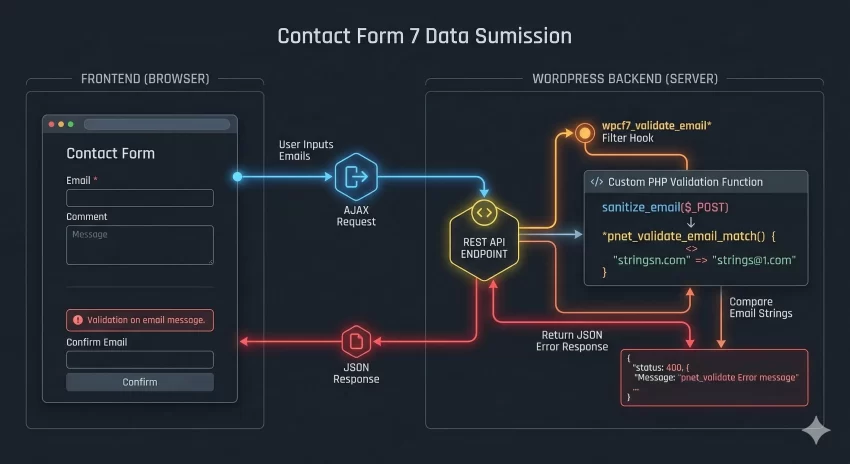
Before we write any code, it is critical to understand how Contact Form 7 processes data. Unlike standard HTML forms that rely entirely on the browser’s native submission process, CF7 intercepts the form submission using the WordPress REST API. During this interception, CF7 triggers a series of validation filters. If we want to implement custom cf7 confirm email validation, we must hook into the exact moment CF7 evaluates the email fields.
The specific filters we care about are wpcf7_validate_email and wpcf7_validate_email*. The asterisk denotes a required field. By attaching a custom callback function to these filters, we can tell WordPress to pause, compare our two specific fields, and inject a custom validation error if they do not match perfectly.
The WPCF7_Validation Object
When our custom function hooks into the filter, CF7 passes two arguments: the $result object (an instance of WPCF7_Validation) and the $tag object (an instance of WPCF7_FormTag). The $result object acts as a ledger. If we find that the emails do not match, we use the invalidate() method on the $result object to register an error message against the specific form tag. This halts the submission process and sends the error back to the frontend via JSON.
Handling Form Tag Parsing
The $tag object contains all the metadata about the current field being validated, including its name, type, and options. Since the wpcf7_validate_email* filter runs for every required email field on your form, our code must first check if the current $tag is the specific “confirm email” field we want to target. If we don’t isolate the tag, our cf7 confirm email validation logic will erroneously trigger on the primary email field, causing an infinite validation loop.
Pro Tip: Execution Priority
Step 2: Setting Up Your CF7 Form Structure
To make our backend logic work, we need a precise and predictable HTML structure within the Contact Form 7 editor. We require two distinct email tags. The first will capture the primary email, and the second will act as the confirmation field. Consistency in naming conventions is crucial for the cf7 confirm email validation to function correctly without throwing undefined index errors in PHP.
Navigate to your WordPress admin panel, go to Contact > Contact Forms, and edit your target form. We will create two required email tags. We will name the first one client-email and the second one client-email-confirm.
Structuring the Form Syntax
It is best practice to wrap your form inputs in proper label tags to ensure your client portal remains fully accessible to screen readers. Below is the exact syntax you should paste into your form editor.
<div class="pnet-form-row">
    <label> Primary Email Address
        [email* client-email autocomplete:email]
    </label>
</div>

<div class="pnet-form-row">
    <label> Confirm Email Address
        [email* client-email-confirm autocomplete:email]
    </label>
</div>

[submit "Create Account"]
Notice the inclusion of the autocomplete:email attribute. This is a modern UX enhancement that tells the user’s browser to suggest their saved email addresses, speeding up the form filling process. However, because we are forcing them to confirm it, they will still need to verify the input in the second field, triggering our upcoming cf7 confirm email validation check.
You might also like: Destination Folder Already Exists: 4 Fast Ways to Fix This Error [Step-by-Step]
Step 3: Implementing the Custom PHP Validation Logic
Now we reach the core of the tutorial. We will write the PHP function that performs the actual cf7 confirm email validation. This code should be placed in your child theme’s functions.php file or a custom site-specific plugin. Do not place this in the parent theme, as your changes will be overwritten during the next theme update.
The following script hooks into CF7, targets our specific client-email-confirm field, sanitizes the incoming POST data, compares the two strings in a case-insensitive manner, and returns a localized error message if they fail to match.
Writing the Core Function
We will define our function as pnet_validate_email_match. We use the pnet_ prefix to prevent namespace collisions with other plugins or theme functions.
add_filter( 'wpcf7_validate_email*', 'pnet_validate_email_match', 20, 2 );

function pnet_validate_email_match( $result, $tag ) {
    // 1. Assign the tag name to a variable
    $tag_name = $tag->name;

    // 2. Check if the current tag is our confirmation field
    if ( 'client-email-confirm' === $tag_name ) {

        // 3. Retrieve and sanitize the POST data safely
        $primary_email = isset( $_POST['client-email'] ) ? sanitize_email( wp_unslash( $_POST['client-email'] ) ) : '';
        $confirm_email = isset( $_POST['client-email-confirm'] ) ? sanitize_email( wp_unslash( $_POST['client-email-confirm'] ) ) : '';

        // 4. Compare the two emails (case-insensitive)
        if ( strtolower( $primary_email ) !== strtolower( $confirm_email ) ) {

            // 5. Invalidate the field and set the error message
            $result->invalidate( $tag, __( 'The email addresses do not match. Please verify and try again.', 'pnet-textdomain' ) );
        }
    }

    // 6. Return the result object so CF7 can proceed
    return $result;
}
Deconstructing the PHP Logic
Let’s break down exactly why this cf7 confirm email validation code is written this way. First, we use isset() to check if the POST variables exist before attempting to access them, preventing PHP notices in your debug logs. Second, we wrap the $_POST variables in wp_unslash() and sanitize_email(). This is a critical security measure to prevent Cross-Site Scripting (XSS) attacks or SQL injection if the data is later stored in a custom table.
Finally, we use strtolower() for the comparison. Email addresses are technically case-insensitive regarding the domain portion, and most modern mail servers treat the local part as case-insensitive as well. If a user types “User@Domain.com” in the first field and “user@domain.com” in the second, our cf7 confirm email validation should graciously accept it rather than failing them on a technicality.
Security Warning: Never Trust User Input
$_POST data directly. Even though CF7 has its own sanitization routines running in the background, interacting directly with the $_POST superglobal demands strict manual sanitization (sanitize_email) to maintain a secure server environment. 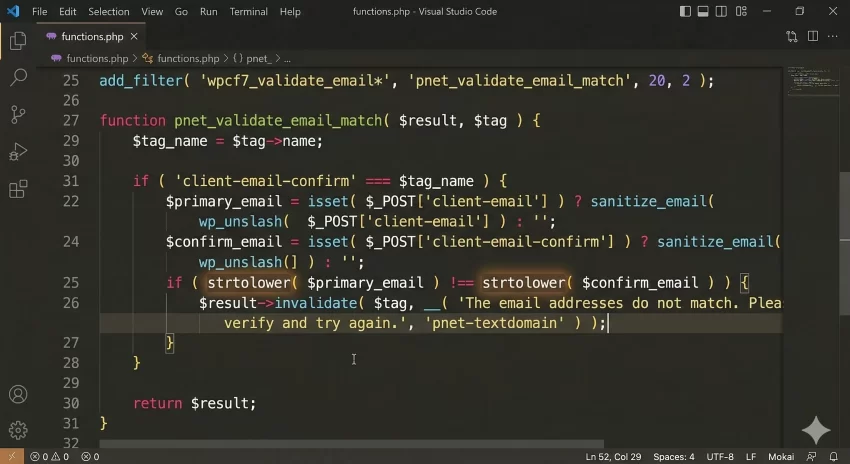
Step 4: Adding Real-Time JavaScript Feedback
While our PHP backend handles the strict security and final validation, relying solely on server-side validation results in a slower user experience. The user has to click “Submit”, wait for the AJAX request, and then receive the error. To build a truly premium interface, we should enhance our cf7 confirm email validation with real-time, vanilla JavaScript DOM manipulation.
By listening to the input event on the confirmation field, we can instantly alert the user if their typing deviates from the primary email field. This proactive approach drastically reduces form abandonment.
Writing the Vanilla JS Observer
This script should be enqueued in your theme’s footer. It waits for the DOM to load, identifies the two email fields, and compares them keystroke by keystroke.
document.addEventListener('DOMContentLoaded', function() {
    const primaryEmailInput = document.querySelector('input[name="client-email"]');
    const confirmEmailInput = document.querySelector('input[name="client-email-confirm"]');

    if (primaryEmailInput && confirmEmailInput) {
        // Create a custom error span
        const errorSpan = document.createElement('span');
        errorSpan.className = 'pnet-realtime-error';
        errorSpan.style.color = '#ff6b6b';
        errorSpan.style.fontSize = '0.85em';
        errorSpan.style.display = 'none';
        errorSpan.textContent = 'Emails do not match.';

        // Insert it right after the confirm input
        confirmEmailInput.parentNode.insertBefore(errorSpan, confirmEmailInput.nextSibling);

        confirmEmailInput.addEventListener('input', function() {
            const primaryVal = primaryEmailInput.value.toLowerCase();
            const confirmVal = confirmEmailInput.value.toLowerCase();

            if (confirmVal.length > 0 && primaryVal !== confirmVal) {
                errorSpan.style.display = 'block';
                confirmEmailInput.style.borderColor = '#ff6b6b';
            } else {
                errorSpan.style.display = 'none';
                confirmEmailInput.style.borderColor = ''; // Reset to default
            }
        });
    }
});
Synchronizing Frontend and Backend
This JavaScript does not replace our PHP cf7 confirm email validation; it supplements it. If a user has JavaScript disabled in their browser, or if a malicious bot attempts to bypass the form directly via the REST API endpoint, our robust PHP filter from Step 3 acts as an impenetrable fallback. This dual-layer approach is the hallmark of professional WordPress development.
Step 5: Styling Validation Errors for Dark Themes
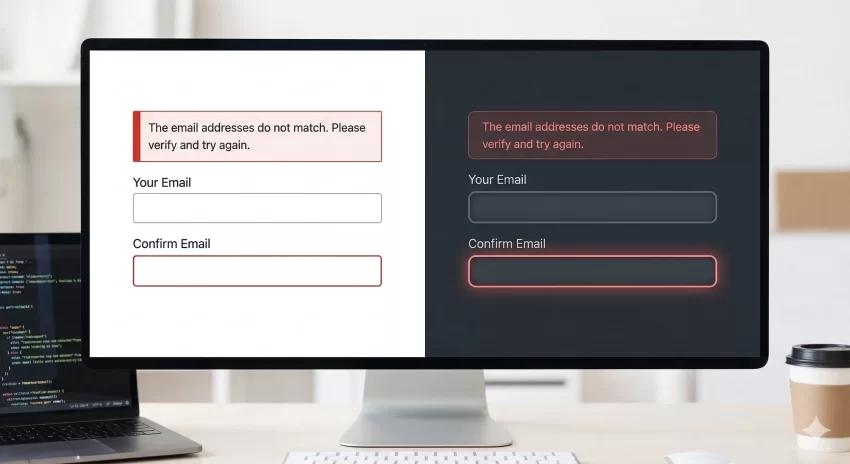
When an error occurs, Contact Form 7 injects a standard validation message wrapper (.wpcf7-not-valid-tip). If you are building modern development tools or a client portal, you are likely utilizing a dark theme aesthetic. The default CF7 red text often lacks the contrast needed to pass WCAG accessibility standards on dark backgrounds.
Let’s write some custom CSS to ensure our cf7 confirm email validation errors look cohesive and professional within a dark UI framework, utilizing soft shadows and distinct borders.
Custom CSS for CF7 Errors
Add this CSS to your child theme’s style.css file or via the WordPress Customizer.
/* Dark Theme Form Input Base */
.wpcf7-form-control.wpcf7-text {
    background-color: #1e1e24;
    color: #e0e0e0;
    border: 1px solid #333;
    border-radius: 6px;
    padding: 12px 16px;
    transition: border-color 0.3s ease;
}

/* CF7 Native Validation Error Text */
span.wpcf7-not-valid-tip {
    color: #ff6b6b;
    font-size: 0.9em;
    font-weight: 500;
    margin-top: 8px;
    display: block;
}

/* Highlight the input field when invalid */
.wpcf7-not-valid {
    border-color: #ff6b6b !important;
    box-shadow: 0 0 0 2px rgba(255, 107, 107, 0.2);
}

/* Global Form Error Alert Box */
div.wpcf7-response-output {
    background-color: #2a2a35;
    border-radius: 8px;
    border: 1px solid #444;
    color: #e0e0e0;
    padding: 16px;
}
By defining explicit background colors (like #1e1e24) and distinct error states (using a softer red like #ff6b6b), we ensure that when the cf7 confirm email validation triggers, the user is immediately and gracefully informed of their mistake without visual jarring.
Difficulty Level: Intermediate
!important tag) to override the default plugin stylesheets. Common Troubleshooting and Errors
Even with copy-and-paste code, implementing cf7 confirm email validation can sometimes hit snags depending on your server configuration or caching layers. Here are the most common issues developers face.
Why is the validation not triggering at all?
If you submit the form with mismatched emails and it still goes through, double-check your form tag names. The PHP code explicitly targets client-email-confirm. If your tag in the CF7 editor is named email-2 or anything else, the if statement in the PHP function will evaluate to false, and the code will be bypassed entirely. Ensure the tag names in Step 2 exactly match the variables in Step 3.
Can I use this for multiple forms on the same site?
Yes. The beauty of this specific cf7 confirm email validation script is its reusability. As long as you use the exact field names (client-email and client-email-confirm) in any other Contact Form 7 form on your site, this single snippet in your functions.php will automatically protect those forms as well. It globally hooks into the validation process.
The error message shows, but the email still sends?
This is extremely rare and usually indicates a severe conflict with another plugin that is aggressively overriding the wpcf7_before_send_mail action. It can also happen if you are running an outdated version of PHP (below 7.4) that fails to process the object methods correctly. Ensure you are running PHP 8.0+ and temporarily disable other SMTP or form-enhancement plugins to isolate the conflict.
You might also like: Boost Conversions: The Easiest Contact Form 7 Redirect Guide
Conclusion
Ensuring data accuracy is not just a technical requirement; it is a fundamental aspect of maintaining a professional online presence. By utilizing the wpcf7_validate_email* filter, we have successfully built a robust, secure, and lightweight solution to prevent user typos. This method avoids plugin bloat, keeps your WordPress database clean, and ensures you never lose a valuable lead to a simple keystroke error.
Remember that the best approach to cf7 confirm email validation involves both the backend strictness of PHP and the frontend elegance of JavaScript. Implement these snippets on your next project, apply the dark theme CSS to match your modern layouts, and enjoy a drastically reduced bounce rate on your client communications.