
Managing user sessions and displaying context-aware navigation elements can often be a frustrating challenge for WordPress developers. When relying on standard caching mechanisms, static menus frequently break or display the wrong authentication state to your visitors. If you are struggling with static menus that refuse to update when a user signs in, the ultimate solution is building a robust, dynamic component from scratch. Developing a custom Elementor login widget is the most effective way to seamlessly toggle user states, bypass aggressive page caching, and deliver a flawless user experience. In this comprehensive developer guide, you will learn exactly how to build a custom Elementor login widget step-by-step, ensuring your WordPress site remains highly interactive and user-friendly.
When you build a custom Elementor login widget, you are not just adding a simple button; you are creating a dynamic piece of architecture that queries the WordPress core to determine the current visitor’s session data. A custom Elementor login widget allows you to define unique styles for the logged-in state versus the logged-out state. Furthermore, a custom Elementor login widget provides the flexibility to specify precise redirect URLs after a successful authentication event. Throughout this extensive tutorial, we will deeply explore the Elementor Widget API, object-oriented PHP principles, and WordPress core authentication hooks required to engineer a flawless custom Elementor login widget.
Prerequisites for Your Widget
Before we begin programming our custom Elementor login widget, you must ensure your local or staging environment meets the necessary technical requirements. Building a custom Elementor login widget requires a foundational understanding of PHP and the WordPress plugin ecosystem.
- PHP version 8.0 or higher configured on your server.
- WordPress 6.4+ installed and running perfectly.
- Elementor Free or Pro activated on your development site.
- A dedicated code editor like VS Code or PhpStorm.
- Complete backup of your WordPress site and database.
- Basic understanding of Object-Oriented Programming (OOP) in PHP.
Backup Required
Step 1: Setting Up the Plugin Structure
To ensure our custom Elementor login widget remains active regardless of the theme you are using, we will create it as a standalone WordPress plugin. Creating a custom Elementor login widget inside a child theme’s functions.php file is generally discouraged because tying functionality to presentation violates the separation of concerns principle. By encapsulating our custom Elementor login widget in its own plugin, we ensure high portability and maintainability.
Creating the Root File
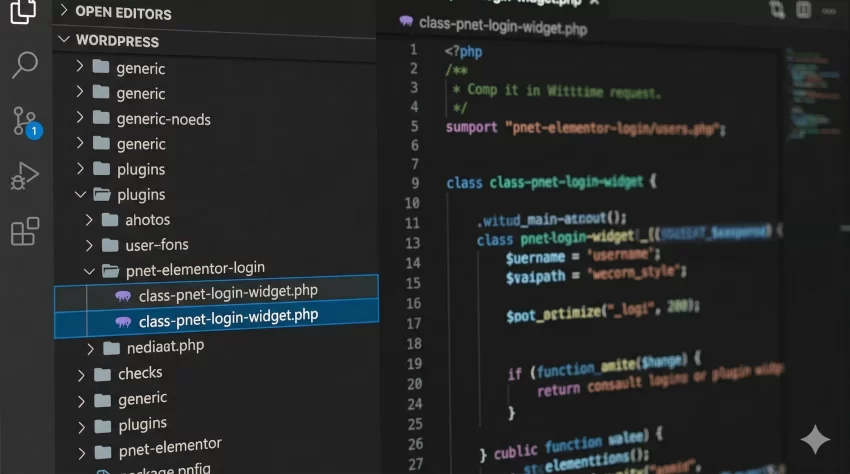
Navigate to your WordPress installations plugin directory located at /wp-content/plugins/. Create a new directory named pnet-elementor-login. Inside this new folder, create a PHP file named pnet-elementor-login.php. This file will serve as the entry point for your custom Elementor login widget. In this file, we must define the standard plugin headers so that WordPress recognizes our custom Elementor login widget as a valid extension.
<?php
/**
 * Plugin Name: PNET Custom Elementor Login Widget
 * Description: A highly dynamic custom Elementor login widget for WordPress.
 * Plugin URI: https://example.com/custom-elementor-login-widget
 * Version: 1.0.0
 * Author: PNET Developer
 * Text Domain: pnet-elementor-login
 */

if ( ! defined( 'ABSPATH' ) ) {
    exit; // Exit if accessed directly.
}

// Define plugin paths
define( 'PNET_LOGIN_WIDGET_PATH', plugin_dir_path( __FILE__ ) );

/**
 * Main initialization class for the custom Elementor login widget.
 */
class PNET_Elementor_Login_Extension {

    public function __construct() {
        add_action( 'elementor/widgets/register', array( $this, 'pnet_register_login_widget' ) );
    }

    public function pnet_register_login_widget( $widgets_manager ) {
        require_once PNET_LOGIN_WIDGET_PATH . 'widgets/class-pnet-login-widget.php';
        $widgets_manager->register( new \PNET_Login_Widget() );
    }
}

// Instantiate the plugin class
new PNET_Elementor_Login_Extension();
In the code block above, we initialize our custom Elementor login widget by hooking into the specific Elementor action named elementor/widgets/register. This hook is strictly required when you want to introduce a custom Elementor login widget to the page builder’s memory. If you fail to use this hook, your custom Elementor login widget will never appear in the Elementor editor sidebar. The PNET_Elementor_Login_Extension class is a simple wrapper that safely registers our custom Elementor login widget without cluttering the global namespace.
You might also like: Stop the Panic: Quickly Fix WordPress Image Upload Error
Step 2: Building the Widget Class Architecture
With the base plugin initialized, the next critical phase in developing a custom Elementor login widget is constructing the actual widget class. This class must extend the native \Elementor\Widget_Base class provided by the Elementor API. The structure of a custom Elementor login widget requires several mandatory methods to define its identity, including its name, title, icon, and the category under which it will appear.
Defining the Class Methods
Inside your plugin folder, create a new subfolder named widgets. Within this folder, create a file named class-pnet-login-widget.php. This is where the core logic of our custom Elementor login widget will reside. The architecture of a custom Elementor login widget demands rigorous attention to detail, especially when defining the internal identifier strings that Elementor uses for caching and rendering.
<?php
if ( ! defined( 'ABSPATH' ) ) {
    exit; // Exit if accessed directly.
}

class PNET_Login_Widget extends \Elementor\Widget_Base {

    public function get_name() {
        return 'pnet_login_button';
    }

    public function get_title() {
        return esc_html__( 'Dynamic Login/Logout', 'pnet-elementor-login' );
    }

    public function get_icon() {
        return 'eicon-lock-user';
    }

    public function get_categories() {
        return array( 'general' );
    }

    public function get_keywords() {
        return array( 'login', 'logout', 'user', 'authentication', 'custom Elementor login widget' );
    }

    protected function register_controls() {
        // We will define our custom Elementor login widget controls here shortly.
    }

    protected function render() {
        // We will implement the custom Elementor login widget frontend logic here.
    }
}
Let us thoroughly analyze what we have built for our custom Elementor login widget. The get_name() method returns a unique machine-readable identifier for the custom Elementor login widget. The get_title() method returns the human-readable label that will be displayed in the Elementor panel. The get_icon() method assigns an existing Elementor font icon to our custom Elementor login widget, making it easily identifiable visually. These foundational methods ensure that your custom Elementor login widget integrates natively into the page builder’s ecosystem.
For Developers
Step 3: Defining Elementor Controls for the UI
A high-quality custom Elementor login widget must offer flexibility to the end-user. Hardcoding texts or URLs into your custom Elementor login widget drastically reduces its utility. Therefore, we must define custom controls that allow the site administrator to change the login text, logout text, and redirection behaviors directly from the Elementor interface. Injecting these controls into our custom Elementor login widget is handled by the register_controls() method.
Implementing the Controls Logic
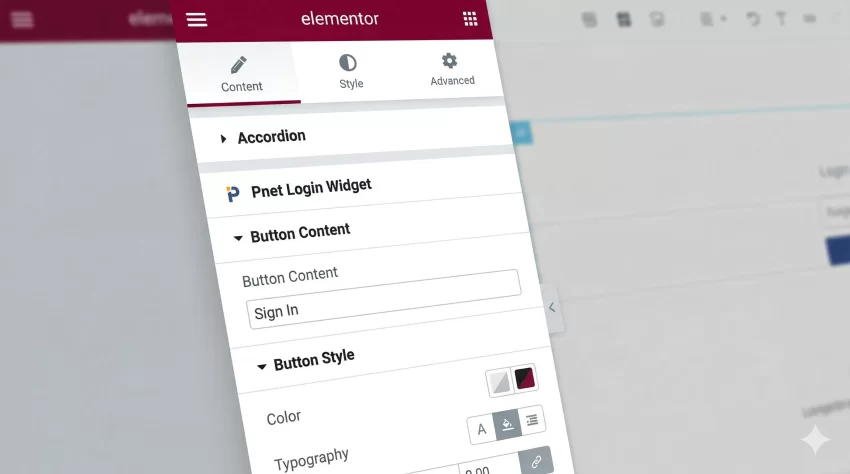
We will divide the controls for our custom Elementor login widget into two distinct sections: Content and Styling. This logical separation is standard practice when building any custom Elementor login widget. We utilize Elementor’s start_controls_section and add_control methods to populate the sidebar panel for our custom Elementor login widget.
    protected function register_controls() {

        // Content Section for the custom Elementor login widget
        $this->start_controls_section(
            'content_section',
            array(
                'label' => esc_html__( 'Button Content', 'pnet-elementor-login' ),
                'tab' => \Elementor\Controls_Manager::TAB_CONTENT,
            )
        );

        $this->add_control(
            'pnet_login_text',
            array(
                'label' => esc_html__( 'Login Button Text', 'pnet-elementor-login' ),
                'type' => \Elementor\Controls_Manager::TEXT,
                'default' => esc_html__( 'Sign In', 'pnet-elementor-login' ),
                'placeholder' => esc_html__( 'Enter login text', 'pnet-elementor-login' ),
            )
        );

        $this->add_control(
            'pnet_logout_text',
            array(
                'label' => esc_html__( 'Logout Button Text', 'pnet-elementor-login' ),
                'type' => \Elementor\Controls_Manager::TEXT,
                'default' => esc_html__( 'Sign Out', 'pnet-elementor-login' ),
                'placeholder' => esc_html__( 'Enter logout text', 'pnet-elementor-login' ),
            )
        );

        $this->add_control(
            'pnet_redirect_after_login',
            array(
                'label' => esc_html__( 'Redirect After Login', 'pnet-elementor-login' ),
                'type' => \Elementor\Controls_Manager::SWITCHER,
                'label_on' => esc_html__( 'Yes', 'pnet-elementor-login' ),
                'label_off' => esc_html__( 'No', 'pnet-elementor-login' ),
                'return_value' => 'yes',
                'default' => 'no',
            )
        );

        $this->end_controls_section();

        // Style Section for the custom Elementor login widget
        $this->start_controls_section(
            'style_section',
            array(
                'label' => esc_html__( 'Button Style', 'pnet-elementor-login' ),
                'tab' => \Elementor\Controls_Manager::TAB_STYLE,
            )
        );

        $this->add_control(
            'pnet_button_color',
            array(
                'label' => esc_html__( 'Text Color', 'pnet-elementor-login' ),
                'type' => \Elementor\Controls_Manager::COLOR,
                'selectors' => array(
                    '{{WRAPPER}} .pnet-auth-btn' => 'color: {{VALUE}};',
                ),
            )
        );

        $this->add_control(
            'pnet_button_bg_color',
            array(
                'label' => esc_html__( 'Background Color', 'pnet-elementor-login' ),
                'type' => \Elementor\Controls_Manager::COLOR,
                'selectors' => array(
                    '{{WRAPPER}} .pnet-auth-btn' => 'background-color: {{VALUE}};',
                ),
            )
        );

        $this->end_controls_section();
    }
By implementing these controls, your custom Elementor login widget transforms from a static script into a highly customizable component. The custom Elementor login widget now allows the user to define exactly what the buttons will say. Furthermore, the styling controls dynamically inject CSS into the custom Elementor login widget based on the user’s color selections. The use of {{WRAPPER}} ensures that the CSS applied to our custom Elementor login widget is scoped perfectly and does not bleed into other elements on the page.
Step 4: Implementing the Frontend Render Logic
The final and most crucial step in developing our custom Elementor login widget is writing the frontend rendering logic. The render() method is responsible for evaluating the user’s current session state and outputting the correct HTML for our custom Elementor login widget. This is where the true power of a custom Elementor login widget shines, as it interfaces directly with core WordPress authentication functions.
Outputting the Dynamic Button
Inside our custom Elementor login widget, we must utilize the WordPress function is_user_logged_in(). This conditional check determines the output of our custom Elementor login widget. If the user is authenticated, the custom Elementor login widget displays the logout link generated by wp_logout_url(). Conversely, if the user is a guest, the custom Elementor login widget presents the login link via wp_login_url().
    protected function render() {
        $settings = $this->get_settings_for_display();

        $login_text = ! empty( $settings['pnet_login_text'] ) ? $settings['pnet_login_text'] : 'Sign In';
        $logout_text = ! empty( $settings['pnet_logout_text'] ) ? $settings['pnet_logout_text'] : 'Sign Out';

        $current_url = home_url( add_query_arg( array(), \global_settings::$wp->request ) );

        $login_url = wp_login_url();
        if ( 'yes' === $settings['pnet_redirect_after_login'] ) {
            $login_url = wp_login_url( $current_url );
        }

        $logout_url = wp_logout_url( $current_url );

        if ( is_user_logged_in() ) {
            // User is logged in, show logout button for the custom Elementor login widget
            echo '<a href="' . esc_url( $logout_url ) . '" class="pnet-auth-btn pnet-logout">' . esc_html( $logout_text ) . '</a>';
        } else {
            // User is a guest, show login button for the custom Elementor login widget
            echo '<a href="' . esc_url( $login_url ) . '" class="pnet-auth-btn pnet-login">' . esc_html( $login_text ) . '</a>';
        }
    }
This rendering logic ensures that your custom Elementor login widget perfectly adapts to the session state. By passing the $current_url into the authentication functions, the custom Elementor login widget smoothly redirects the user back to the exact page they were viewing before initiating the login or logout action. This seamless flow is precisely why developing a custom Elementor login widget is superior to using static menu links. The structural integrity of your custom Elementor login widget relies heavily on this dynamic rendering phase.
Pro Tip
Do you want to setup WooCommerce Custom Email Notifications to alert your team or customers instantly?
Common Errors & Troubleshooting
Even when strictly following this guide, you may encounter specific issues while deploying your custom Elementor login widget. Understanding how to debug a custom Elementor login widget is just as important as writing the initial code. Let us review the most frequent complications developers face when building a custom Elementor login widget and how to resolve them rapidly.
Why is my custom Elementor login widget not displaying in the editor?
This usually happens if the custom Elementor login widget class is not properly registered or if there is a syntax error in your PHP file that fails silently. Double-check that your add_action( 'elementor/widgets/register', ... ) hook is correctly placed and that the file path to your custom Elementor login widget class is absolutely accurate. Enabling WP_DEBUG in your wp-config.php file will expose any hidden fatal errors preventing your custom Elementor login widget from loading.
How do I fix the redirect issue after logging out using this custom Elementor login widget?
Ensure you are passing the correct URL to the wp_logout_url() function inside the render method of your custom Elementor login widget. If you are using a strictly enforced security plugin, it might strip redirect parameters from the URL. Verify that your custom Elementor login widget is generating an unescaped, properly formed query string for the redirect_to parameter before it reaches the frontend output.
Why does the custom Elementor login widget show the wrong state on the live site?
This is almost always a page caching issue. If a guest visits a page, the caching engine saves the HTML with the “Login” button. When an authenticated user visits that same cached page, they see the guest version of the custom Elementor login widget. You must configure your caching solution (like WP Rocket or LiteSpeed) to serve dynamic, uncached pages to known logged-in users, ensuring your custom Elementor login widget operates correctly.
Conclusion: The Value of a Custom Authentication Component
Developing a custom Elementor login widget is an essential skill for any serious WordPress professional. Standard static links simply cannot provide the dynamic, conditional user experience required by modern web applications. By following this extensive technical guide, you have successfully engineered a custom Elementor login widget from the ground up, implementing proper object-oriented PHP and integrating directly with the page builder’s API. This custom Elementor login widget not only solves caching and session display issues but also provides administrators with a highly flexible, beautifully integrated component to manage their site’s authentication flow flawlessly.



