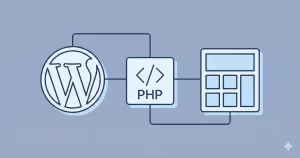
When search results show long excerpts, visitors can struggle to spot the words they searched for. WordPress Search Highlighting solves that problem with a small PHP implementation and a focused CSS rule that give matching terms a yellow highlight on search-result pages. The change affects how results are displayed; it does not modify the search query or stored content.
This guide walks through choosing a safe place for the code, adding filters for result titles and excerpts, styling the highlight, and testing the effect on search and non-search pages. The finished WordPress Search Highlighting feature uses a prefixed helper and standard WordPress output filters, so it is easy to review and remove if needed. Before you begin, make sure you have:
- PHP 8.0 or later, plus access to your WordPress site files or a code-snippet plugin that supports PHP.
- A current site backup. Back up your files and database before adding or changing theme or plugin code.
- A child theme or site-specific plugin. Either provides a safer home for custom functionality than a parent theme, whose files may be replaced during updates.
- A compatible search-results template. The theme should output post titles and excerpts through standard WordPress filters; custom templates or search plugins may need a small adjustment.
- A test search phrase that appears in at least one result title or excerpt, so you can verify both the visible highlight and its scope.
Choose a Safe Place for the Search Highlighting Code
Before adding the highlighting logic, decide where it should live. Do not edit WordPress core files: updates replace them, and custom changes can be lost. A parent theme’s functions.php is also a poor choice because a theme update can overwrite your work. Keeping the code separate from files managed by WordPress or the theme makes it easier to maintain and remove.
For functionality that should remain active when you change themes, use a small site-specific plugin. Create a plugin file in wp-content/plugins/, add the standard plugin header, place the implementation there, and activate it in the WordPress administration area. If you prefer to keep this customization with the current design, add it to your child theme’s functions.php instead. In either case, make a backup first and add the implementation only once.
The approach in this guide attaches to WordPress’s standard title and excerpt output filters. It changes how matching text is displayed on front-end search-result pages; it does not alter the search query, database, or saved post content. A request check in the helper will keep the highlighting out of the administration area and ordinary pages, even though the filters themselves can run in other contexts.
Backup Required
Standard themes generally pass titles and excerpts through the expected filters, but a custom search template may print custom fields or build its own markup instead. In that case, the filters might not reach the displayed text, and you may need to adjust the template-specific output after inspecting it. Keep the first implementation narrowly scoped; do not add highlighting globally to every post title or excerpt.
Add a Helper That Finds and Wraps Search Terms
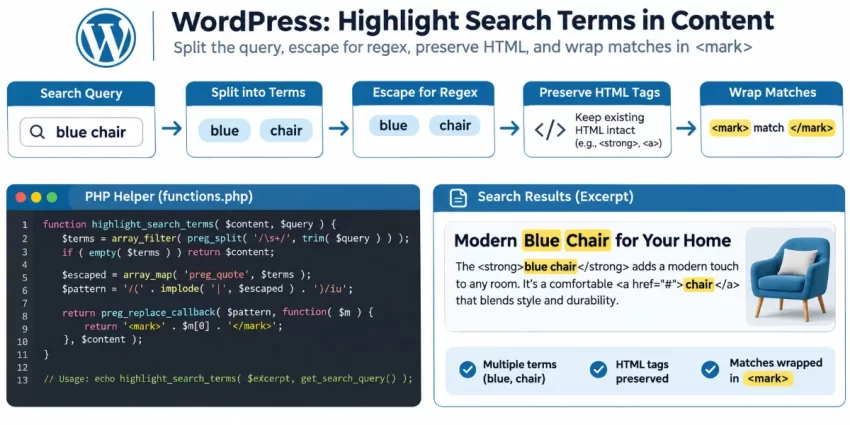
The helper below accepts a title or excerpt, checks that the request is a front-end search, then reads the submitted query. It splits the query into whitespace-separated terms and checks longer terms first, reducing partial matches when one term contains another. Each term is escaped for regular-expression use with PHP’s preg_quote(); see the PHP preg_quote() reference for details.
For each match, the callback keeps existing tag-shaped markup intact and wraps matching text in a <mark> element. The final result passes through wp_kses_post(), which allows WordPress post-safe HTML while filtering unsafe markup. If the query is empty, the request is in the administration area, or it is not a search request, the original input is returned unchanged.
function pnet_highlight_search_terms( $text ) {
    if ( ! is_string( $text ) || is_admin() || ! is_search() ) {
        return $text;
    }

    $query = trim( get_search_query( false ) );
    if ( $query === '' ) {
        return $text;
    }

    $terms = preg_split( '/\\s+/u', $query, -1, PREG_SPLIT_NO_EMPTY );
    if ( ! is_array( $terms ) || empty( $terms ) ) {
        return $text;
    }

    $terms = array_map(
        static function ( $term ) {
            return preg_quote( $term, '~' );
        },
        $terms
    );

    usort(
        $terms,
        static function ( $a, $b ) {
            return strlen( $b )  strlen( $a );
        }
    );

    $pattern = '~(]*>)|(' . implode( '|', $terms ) . ')~iu';
    $highlighted = preg_replace_callback(
        $pattern,
        static function ( $matches ) {
            if ( isset( $matches[1] ) && $matches[1] !== '' ) {
                return $matches[1];
            }

            return '<mark class="pnet-search-highlight">' . $matches[2] . '</mark>';
        },
        $text
    );

    if ( ! is_string( $highlighted ) ) {
        return $text;
    }

    return wp_kses_post( $highlighted );
}
This implementation highlights each individual term without changing WordPress’s search behavior. Quoted phrases are treated as separate words; punctuation, stemming, hyphenation, and complex search operators may require custom matching rules. The tag check helps avoid inserting a mark inside existing HTML tags, while the final sanitizer remains important: it does not make arbitrary input safe to trust.
Did you know: You can Preload Resources in your site’s head to load fonts and critical assets sooner, improve page speed, and create a smoother experience for visitors across devices.
Connect the Helper to Search Result Titles and Excerpts
Register named callbacks for the standard output filters
Attach a named callback to the_title and another to the_excerpt. The title filter can pass a post ID as its second argument, so its callback accepts two arguments; the excerpt callback accepts one. Both send the displayed text through the helper, whose existing is_search() and is_admin() checks leave other requests unchanged. Named, prefixed callbacks are straightforward to remove or extend later.
Use the consolidated implementation below in your site-specific plugin or child theme. If you already added the helper from the previous step, replace that helper-only snippet with this complete version rather than registering duplicate functions. The excerpt may contain formatting markup: the helper retains tag-shaped segments and sanitizes the final result with wp_kses_post().
function pnet_highlight_terms_callback( $matches ) {
if ( isset( $matches[1] ) && $matches[1] !== '' ) {
return $matches[1];
}
return '<mark class="pnet-search-highlight">' . $matches[2] . '</mark>';
}
function pnet_highlight_terms_by_length( $a, $b ) {
return strlen( $b ) strlen( $a );
}
function pnet_highlight_search_terms( $text ) {
if ( ! is_string( $text ) || is_admin() || ! is_search() ) {
return $text;
}
$query = trim( get_search_query( false ) );
if ( $query === '' ) {
return $text;
}
$terms = preg_split( '/\\s+/u', $query, -1, PREG_SPLIT_NO_EMPTY );
if ( ! is_array( $terms ) || empty( $terms ) ) {
return $text;
}
$terms = array_map(
static function ( $term ) {
return preg_quote( $term, '~' );
},
$terms
);
usort( $terms, 'pnet_highlight_terms_by_length' );
$pattern = '~(]*>)|(' . implode( '|', $terms ) . ')~iu';
$highlighted = preg_replace_callback(
$pattern,
'pnet_highlight_terms_callback',
$text
);
if ( ! is_string( $highlighted ) ) {
return $text;
}
return wp_kses_post( $highlighted );
}
function pnet_highlight_title_filter( $title, $post_id = 0 ) {
return pnet_highlight_search_terms( $title );
}
function pnet_highlight_excerpt_filter( $excerpt ) {
return pnet_highlight_search_terms( $excerpt );
}
add_filter( 'the_title', 'pnet_highlight_title_filter', 10, 2 );
add_filter( 'the_excerpt', 'pnet_highlight_excerpt_filter', 10, 1 );
The request guard is important because these filters can run in contexts other than search results. It ensures the helper changes output only for front-end search requests; it does not change the query or stored post data. The regular expression handles individual whitespace-separated terms, not phrase semantics, stemming, or every search plugin’s syntax.
If a theme calls get_the_excerpt() directly or prints custom-field content, inspect how that template generates its output before adding another filter. A custom field may need to be passed through the helper at the point it is rendered. Avoid applying the helper twice to the same content, which can create nested marks, and do not add a second copy of these registrations.
You might also like:

Style the Match as a Yellow Highlight
Add a scoped yellow highlight rule
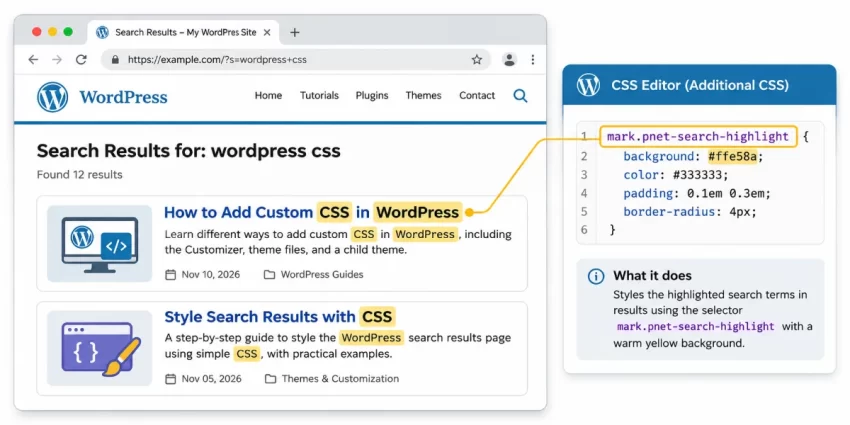
The PHP helper creates a <mark> element with the class pnet-search-highlight. Target that class—not every mark element—so the yellow styling applies only to matches added by this implementation. A warm background and dark text keep the result noticeable without making it difficult to read.
Add this CSS to your child theme’s stylesheet or the WordPress Additional CSS panel. CSS is separate from the PHP implementation: do not paste it into a PHP code snippet or wrap it in PHP tags. The box-decoration-break rule helps the highlight retain its padding and background when a match wraps across lines in browsers that support it.
mark.pnet-search-highlight {
    background-color: #ffeb7a;
    color: #222;
    padding: 0.05em 0.18em;
    border-radius: 0.15em;
    -webkit-box-decoration-break: clone;
    box-decoration-break: clone;
}
The selector is deliberately specific: native highlights and other components that use <mark> remain unchanged. If your theme has a highly specific rule that overrides these declarations, inspect the computed styles in your browser’s developer tools and adjust the selector only as needed. Avoid adding !important unless you have confirmed a theme rule is preventing the intended style.
Test the Search Results and Confirm the Scope
Run a search for a word that appears in a result title, then try a different word that appears only in an excerpt. Confirm that each matching word has a yellow background and that the surrounding text remains readable. Next, submit a multiword query: each whitespace-separated term should be highlighted independently, regardless of letter case. This verifies that matching works across more than one term, not just the first word in a query.
Also test a search that returns no results and, if your site allows it, a blank search. The results page should remain usable, without empty or stray highlight elements. Then open an ordinary page and a single post; neither should receive the pnet-search-highlight class. These checks confirm that the request guard is limiting the effect to search requests.
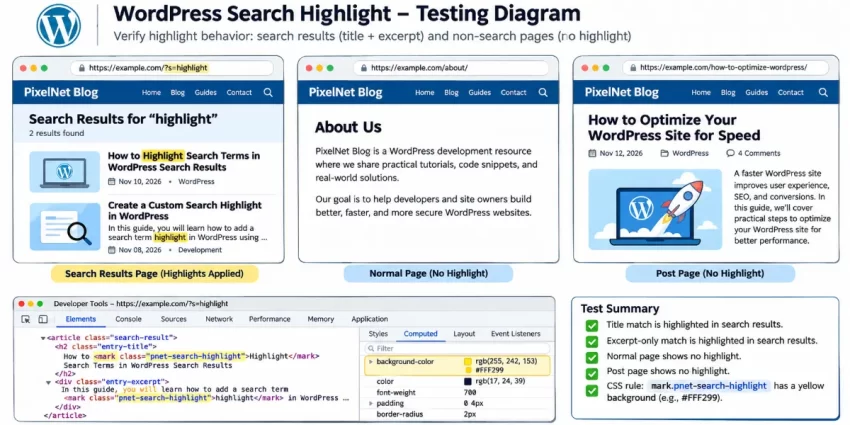
For a direct markup check, use your browser’s developer tools to inspect a highlighted result and confirm it contains mark.pnet-search-highlight. In the Styles or Computed panel, verify that the dedicated CSS rule supplies the yellow background and dark text. If the class is present but the color is not, the PHP filter is likely running and the issue is with stylesheet loading or an overriding theme rule.
Test After Clearing Caches
Test on the same front-end template visitors use, and repeat the checks after theme or search-plugin changes. A custom results template may bypass standard title or excerpt filters, so inspect its output if no highlight class appears. Confirming both visible behavior and rendered markup makes it easier to distinguish a template issue from a CSS or caching issue.
You might also like:
Common Errors and Troubleshooting
Most problems come from a theme template that bypasses the standard filters, a missing stylesheet, or the PHP snippet being loaded more than once. Use the checks below to identify which part of the implementation needs attention before changing the helper.
No search terms are highlighted
Confirm the site-specific plugin is active or the child theme is enabled, and check that the code is present only once. Test on an actual front-end search-results page: the helper intentionally returns unchanged text when is_search() is false or when the request is in the administration area. If the theme prints titles or excerpts through a custom template, custom fields, or a search plugin, it may not call the_title or the_excerpt. Inspect the template’s output path before adapting the filter.
The match appears, but it is not yellow
Inspect the result in browser developer tools. If mark.pnet-search-highlight is present, PHP is working; verify that the CSS selector matches exactly and that the stylesheet loads on the search page. Check computed styles for a theme rule overriding the background, then clear page, object, and CDN caches and reload.
HTML displays as text or markup changes unexpectedly
Inspect the title or excerpt before and after the filter, especially if the theme applies its own formatting or escaping. Keep wp_kses_post() in place so generated output is sanitized. If a custom template expects plain text or uses a different output format, adapt the integration at that documented rendering point rather than removing the sanitizer or applying the helper indiscriminately.
Some terms are missed, or highlights overlap
The helper matches whitespace-separated terms, not full search semantics. Punctuation, quoted phrases, hyphenation, stemming, and search-plugin operators can therefore produce different results. For repeated or nested marks, ensure the helper is not called twice on the same content and that the snippet is not registered in both a plugin and functions.php. Register it once and avoid passing already-highlighted output through it again.
A PHP error occurs, or a search plugin behaves differently
Check for missing braces, syntax errors, and duplicate pnet_-prefixed function names; review the PHP error log for the exact file and line. Add or correct code in the site-specific plugin or child theme chosen earlier, not in WordPress core or a parent theme. If a plugin’s search request does not satisfy is_search(), inspect its query context and template first. Change the guard only when you have confirmed how that plugin builds its results, so highlighting does not leak onto unrelated pages.
Conclusion: Make Matching Terms Easier to Scan
Search results are easier to scan when visitors can quickly find the words they entered, especially in longer excerpts. The implementation in this guide adds that emphasis without changing WordPress’s search query or stored content: a prefixed PHP helper finds query terms, standard filters apply it to titles and excerpts, and a narrowly scoped CSS rule gives the generated mark elements a readable yellow background. Because the helper checks the request context, ordinary pages and administration screens are not intended to receive the highlighting.
Keep the customization in a site-specific plugin or child theme rather than WordPress core or a parent theme, and make a backup before deploying code. Register the filters only once, retain the output sanitization, and test several searches—including multiword terms, a term found only in an excerpt, and a query with no matches. Check normal pages and posts as well, then inspect the rendered markup and computed styles if the result looks different from expected.
Theme and search-plugin templates can use custom output paths, so a missing highlight may mean the template bypasses the standard title or excerpt filters. Inspect that path before changing the request guard or applying the helper elsewhere. With the code stored safely and the search and non-search views verified, this small, reversible enhancement can make results clearer while remaining adaptable to custom templates. The finished WordPress Search Highlighting feature keeps matching terms visible without changing how WordPress searches.