CSS and JavaScript URLs in WordPress often include a version query string, such as style.css?ver=1.2.3, and some caching systems or performance tools flag these URLs. WordPress Remove Query Strings can be handled safely: first inspect the asset requests and cache behavior, then apply a targeted WordPress filter only if your hosting or CDN setup has a demonstrated need. Query strings are not inherently slow; WordPress commonly uses ver to help browsers fetch updated files after an asset change.
Before changing URLs, record how representative local CSS and JavaScript files are served, including their response headers and cache behavior. Keep other query parameters intact, since external, signed, or functional asset URLs may rely on them. To follow this guide, prepare:
- A working WordPress site and access to a site-specific plugin or child theme.
- PHP 8.0+ or the PHP version supported by your site.
- A recent backup or staging environment for testing PHP changes.
- Browser developer tools or a command-line method to inspect asset URLs and response headers.
- Access to WordPress, hosting, or CDN cache controls so you can test and purge caches when needed.
Prepare a safe baseline
Before changing an asset URL, establish what the current setup actually does. In a URL such as style.css?ver=1.2.3, ver=1.2.3 is commonly a version identifier added by WordPress or an asset-enqueuing plugin. When the file changes and its version changes too, the browser sees a new URL and can request the updated file instead of reusing an older cached copy. That cache-busting behavior is useful during theme and plugin deployments.
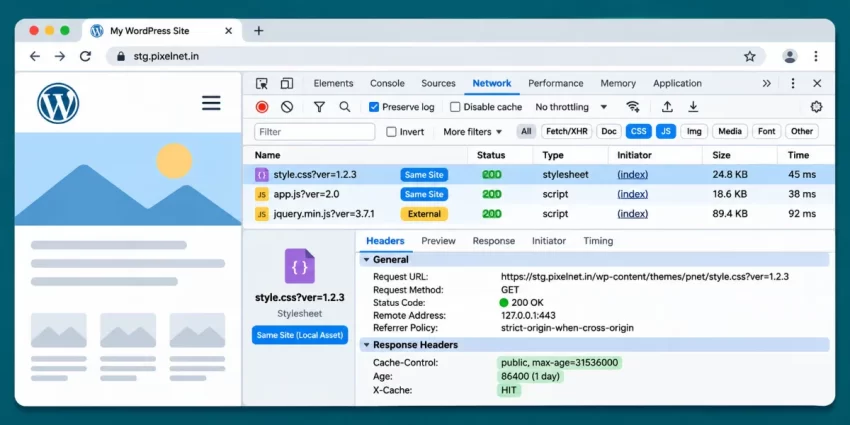
A query string does not automatically prevent caching. Browsers, web servers, and CDNs can cache URLs that contain query parameters, although their rules may treat different parameter values as separate cache keys or handle them according to configuration. Record one representative local stylesheet URL and one JavaScript URL, along with each response status and relevant response headers, such as Cache-Control, Age, and any cache-hit indicator supplied by your host or CDN. Also note whether repeat requests are served from cache and whether the page currently loads and behaves correctly.
Keep this baseline so you can compare the same assets after any change. Do not assume every parameter is a version string: a URL may include language, signature, or other functional values required by a plugin, a third-party service, or a delivery system. Removing those indiscriminately can break asset access or make a request invalid. The goal is to identify a specific caching compatibility issue, not to make every URL look cleaner.
Backup Required
Inspect which assets actually need attention
Open the page in your browser, launch Developer Tools, and select the Network panel. Enable the option to preserve the log if you will navigate or reload, then filter by CSS and JS requests. Reload the page and record a few representative asset URLs, their status codes, and whether each request is served from the browser cache or reaches the server. Select a request to inspect its response headers, including Cache-Control, Age, and any host-specific cache status such as a cache hit or miss.
Identify where each file comes from before considering a change. A theme or plugin asset on your own site may look like style.css?ver=1.2.3 or app.js?ver=2.0. An asset hosted on a different domain, such as a vendor script or CDN URL, is external and should not be treated as a local WordPress file. Note whether the parameter is specifically ver or something else; a signature, locale, or other value may be required for the request to work. Compare the warning from your performance tool with the actual request and headers: some tools report query strings categorically, while a real cache rule may be ignoring them.
If repeat requests are cacheable and produce cache hits, the URL appearance alone is not evidence that removal will improve performance. If a particular cache layer bypasses these assets because of ver, record that exact behavior and confirm whether its configuration can be corrected while preserving WordPress versioning. This evidence will help determine whether a targeted change is necessary in the next step.
You might also like:

Choose the right strategy for your cache setup
Start with the cache layer that is causing the problem, rather than changing WordPress asset URLs by default. If your host or CDN can cache CSS and JavaScript URLs that include query strings, correcting its cache-key or bypass rules is usually the safest option. Visitors keep the benefit of WordPress versioning: when a file changes and its version changes, the new URL prompts the browser to fetch the updated asset.
Keep version strings when you deploy asset updates frequently, rely on them to invalidate browser caches, or use a plugin, CDN, security layer, or delivery service that expects the parameter. WordPress provides version arguments when styles and scripts are enqueued; review the official wp_enqueue_style reference to understand how stylesheet versions are supplied. A performance warning about query strings alone is not sufficient reason to remove them. Confirm that a specific cache system mishandles the local asset URL and that its configuration cannot be fixed without changing the URL.
Consider removing only ver from eligible local frontend assets if you have verified a compatibility requirement and can replace the lost version-based cache invalidation with a reliable deployment process. That process should purge the relevant WordPress, host, and CDN caches whenever CSS or JavaScript changes, and should include a way to test that visitors receive the updated files. Keep unrelated parameters and external URLs untouched; the next step provides a narrowly scoped implementation for that case.
Stale Assets Risk
Remove only the ver parameter from local frontend assets
If your cache setup genuinely requires versionless URLs, add a narrowly scoped filter in a site-specific plugin or your child theme’s functions.php. Avoid editing a parent theme because an update can overwrite the change. This implementation handles frontend styles and scripts, leaves admin requests and external hosts alone, and removes only the ver parameter.
The callback treats relative URLs and URLs on the site’s host as local. It returns an empty source unchanged and uses WordPress’s remove_query_arg() helper, so unrelated parameters are preserved.
<?php
function pnet_remove_local_asset_ver($src, $handle) {
    if (is_admin() || !is_string($src) || $src === '') {
        return $src;
    }

    $asset_host = wp_parse_url($src, PHP_URL_HOST);

    if ($asset_host) {
        $site_host = wp_parse_url(home_url('/'), PHP_URL_HOST);

        if (!$site_host || strtolower($asset_host) !== strtolower($site_host)) {
            return $src;
        }
    }

    return remove_query_arg('ver', $src);
}

add_filter('script_loader_src', 'pnet_remove_local_asset_ver', 10, 2);
add_filter('style_loader_src', 'pnet_remove_local_asset_ver', 10, 2);
Both filters pass the source URL and handle to the callback; the handle is accepted to match the filter arguments, though this implementation does not need to inspect it. The is_admin() guard prevents changing asset URLs in the administration area. A URL with a different hostname is returned untouched, which avoids rewriting third-party or CDN-hosted assets. For example, a local style.css?ver=1.2.3&mode=compact becomes style.css?mode=compact, while a URL on another host remains unchanged.
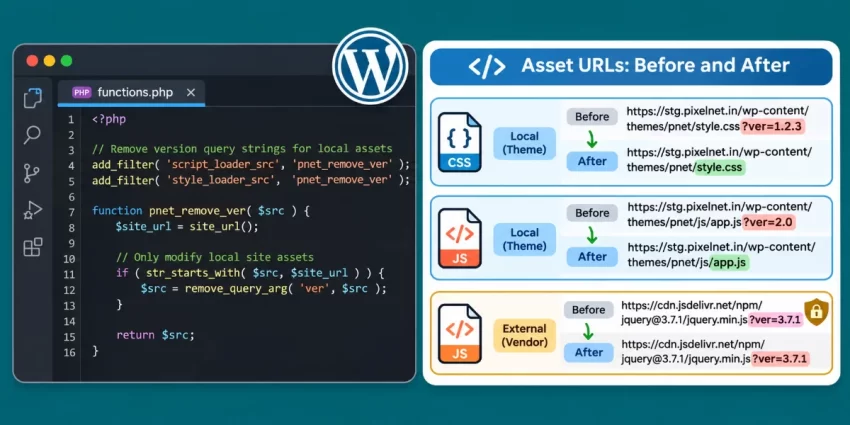
After adding the code, save the file and test on staging or with a rollback available before deploying. This filter does not replace a cache-purge process: when assets change, purge the relevant caches or visitors may continue receiving an older file.
Did you know: You can keep your media library organized and protect privacy by limiting each account to its own uploads? Learn how WordPress Media Library Access prevents users from browsing or managing files added by others.
Deploy the change and verify requests
Deploy the filter to staging first, or keep a recent backup and a clear rollback path if you must test on production. Load representative pages and inspect both their page source and the Network panel. For local frontend CSS and JavaScript, confirm that ver is gone; check that any unrelated parameters remain. Confirm that external and CDN-hosted URLs are unchanged, and that the requests return successful responses rather than redirects or errors.
Next, purge caches in a controlled sequence: clear the WordPress page or optimization cache, then the hosting cache, followed by the CDN cache. Open a private browser window or clear the browser cache before testing again, so you are not relying on an older local copy. Inspect response headers and repeat a request to see whether the asset is cached as expected. Record cache status and expiry information alongside the baseline you collected before the change.
Check more than the homepage. Visit pages that use navigation scripts, forms, ecommerce features, and conditionally loaded plugin assets. Test key interactions, such as opening a mobile menu, submitting a form, and completing the relevant checkout flow. If a style or script fails, restore versioning or roll back the filter, then investigate the affected asset and cache rules before trying again.
Finally, compare cache hits and page behavior with your recorded baseline. A cleaner-looking URL does not prove that a page is faster: judge the change by actual asset delivery, cache behavior, and measured performance under comparable conditions. Keep a note of the filter and the cache-purge procedure so future asset deployments do not leave visitors with stale files.
You might also like:
Common Errors
Most problems come from removing too much, changing assets that should remain untouched, or deploying the filter without a cache plan. Diagnose the actual request before changing the implementation; do not broaden the rewrite just to clear a generic performance warning.
The snippet removes every query parameter
A broad URL rewrite can remove parameters required for signatures, localization, or other asset behavior. Limit the change to ver with WordPress’s remove_query_arg('ver', $src) helper, and verify that unrelated parameters remain in the final URL. If a resource depends on another parameter, leave it unchanged.
External or CDN assets are modified
Check the hostname comparison in the callback. URLs on a different host should be returned unchanged, including vendor and CDN assets. If your own assets use a separate CDN hostname, decide explicitly whether that host is trusted and eligible; do not classify every external URL as local just to remove its version string.
Visitors still see old CSS or JavaScript
Removing ver also removes a convenient cache-busting signal. Restore versioning, or ensure your deployment process purges WordPress, hosting, and CDN caches and uses an appropriate cache expiry. Test after purging in a private browser window. If updated files still do not arrive reliably, roll back the filter.
The filter appears to have no effect
Confirm that the asset is enqueued through WordPress and that your site-specific plugin or child-theme code is loading without errors. Inspect the final request after optimization plugins run; they may rewrite or combine URLs later. If the URL is generated outside the standard script or style enqueue process, these filters may not affect it.
A PHP error or blank page appears
Disable the site-specific plugin or revert the child-theme edit through your hosting file manager or recovery access. Validate the PHP syntax and reapply the change on staging before deploying it again. Keep a working backup so you can restore the site without editing a broken page in the browser.
A performance warning remains
Inspect the specific URL named by the tool. It may contain a different functional parameter, belong to a third-party service, or reflect an outdated recommendation. Do not expand the filter to cover those cases automatically; compare real cache headers and cache-hit behavior with your baseline instead.
Conclusion
Query strings on CSS and JavaScript URLs are not automatically a performance problem. WordPress commonly adds a ver value to enqueued assets so browsers can recognize a changed URL and fetch an updated file after a theme or plugin deployment. Browsers, servers, and CDNs can cache URLs that include query strings; what matters is how your particular cache configuration handles them.
Use evidence to guide the decision: inspect representative requests, note their response headers and cache behavior, and confirm that a real cache compatibility issue exists. Where possible, correct the cache or CDN configuration and retain WordPress versioning. If removal is genuinely necessary, use the targeted filter to remove only ver from local frontend assets. Leave external hosts and other query parameters untouched, and make sure you have a dependable cache-purge and rollback process before deploying.
After the change, clear the relevant caches and test the final requests, response headers, and important site interactions. Compare results with your baseline rather than judging success by whether the URLs look cleaner or a generic performance warning disappears. Reliable delivery of current CSS and JavaScript matters more than removing a parameter for appearance alone. In short, WordPress Remove Query Strings should be a deliberate compatibility choice, not a blanket optimization.