
Theme code that calls a class, function, or integration supplied by a plugin can trigger a fatal error when that plugin is inactive or unavailable. To prevent that failure, use WordPress’s plugin activation check with the plugin’s exact basename before running dependent theme code. This guide shows how to Check If Plugin Active safely from theme PHP, including how to make the check available on front-end requests and account for Multisite.
An activation check tells you whether WordPress considers the plugin active; it does not prove that a particular feature is enabled, a required setting is configured, or an external service is working. Treat those as separate runtime checks when your integration depends on them. Make and test changes in a controlled environment, and keep the theme usable when the plugin is absent.
- A WordPress installation where you can edit the active theme safely, preferably a local or staging site.
- Familiarity with PHP 8.0+ and access to the active theme’s
functions.phpfile or a theme-specific PHP include. - A current site backup or version-control commit so you can restore the previous code if a change causes an error.
- The target plugin installed, so you can identify its actual directory and main plugin file.
- A way to test with the plugin both active and inactive; for Multisite testing, access to a network-admin account.
Prerequisites and Safe Testing
Before adding an activation check, make sure you can safely edit and restore the active theme. Work on a local or staging copy whenever possible, and keep a recent backup or version-control commit so you can recover if a PHP error prevents the theme from loading. These examples belong in theme PHP, such as functions.php or a PHP file included by the theme—not in a post, page, or shortcode editor.
- A WordPress installation where you can edit the active theme, preferably on a local or staging site.
- Basic PHP 8.0+ familiarity and access to the active theme’s
functions.phpfile or a theme-specific PHP include. - A current backup or version-control commit, plus a way to restore the previous theme file if a syntax error occurs.
- The target plugin installed so you can inspect its exact directory and main PHP file.
- A way to test the site with the plugin both active and inactive; Multisite testing also requires suitable network-admin access.
Before writing the check, note the plugin’s actual main-file path relative to the plugins directory. The plugin’s display name and folder name alone may not identify the file WordPress uses, so verify the entry file in the installed plugin directory. Keep a copy of the original theme file before editing; if a syntax error makes the site inaccessible, restore that copy through your hosting file manager, SFTP, or version control.
After editing, validate the change on staging and test both plugin states before deploying. This confirms that the theme continues to render when the integration is unavailable, rather than merely proving that the active-plugin path works.
Backup Required
Did you know: You can use WordPress Content Restriction to create a WordPress paywall that hides premium posts from non-subscribers, protecting members-only content while encouraging readers to upgrade for full access.
Identify the Plugin Basename to Check
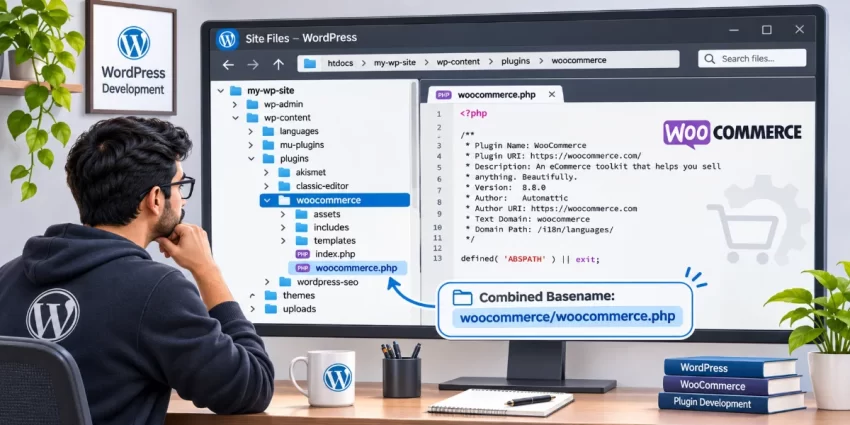
The activation helper needs the plugin’s basename: its path inside the WordPress plugins directory, including both the plugin folder and its main PHP file. For example, a standard WooCommerce installation uses woocommerce/woocommerce.php. The plugin’s display name, its URL, or just woocommerce is not enough because WordPress needs to identify the specific entry file.
To find the value, inspect the installed plugin directory using your hosting file manager, SFTP client, or local development tools. Open wp-content/plugins/, locate the plugin’s folder, and identify the PHP file containing the plugin header near the top of the file. Combine the folder name and that filename with a slash between them. For WooCommerce, the resulting path is woocommerce/woocommerce.php.
You can also look for the plugin file information on the WordPress Plugins screen when your installation or tools expose it. Verify the path against the files on disk before using it in theme code. Do not assume the display name matches either the directory or main filename: a plugin may use a short folder name, a differently named entry file, or a custom directory after a manual rename or migration. In those cases, use the actual installed folder/file pair. A custom installation location may also require extra consideration because the standard helper expects a plugin basename relative to WordPress’s plugins directory.
Record this exact value before writing the check. A small path mismatch can make an active plugin appear inactive, while guessing from its name can conceal the real issue. The example in the next step uses WooCommerce’s common basename; replace it with the verified path for your target plugin.
Check Whether the Plugin Is Active in Theme Code
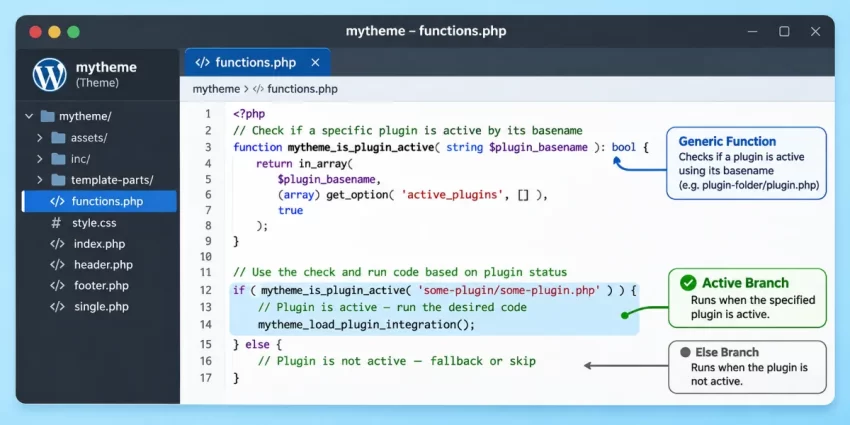
WordPress provides is_plugin_active() for checking a plugin’s activation status. The function is defined in wp-admin/includes/plugin.php, which is not necessarily loaded during front-end requests. Load that file only when the function is unavailable, then check the verified plugin basename before running dependent theme code.
Use a uniquely prefixed helper in your theme’s functions.php or a PHP file included by the theme. The function below returns a boolean and safely handles the case where the helper file cannot be found:
if ( ! function_exists( 'pnet_is_woocommerce_active' ) ) {
    function pnet_is_woocommerce_active(): bool {
        if ( ! function_exists( 'is_plugin_active' ) ) {
            $plugin_api = ABSPATH . 'wp-admin/includes/plugin.php';

            if ( file_exists( $plugin_api ) ) {
                require_once $plugin_api;
            }
        }

        return function_exists( 'is_plugin_active' )
            && is_plugin_active( 'woocommerce/woocommerce.php' );
    }
}

if ( pnet_is_woocommerce_active() ) {
    // Register or load WooCommerce-dependent theme functionality here.
}
The function_exists() guard prevents a redeclaration if the helper is included more than once, and require_once avoids loading WordPress’s plugin API file repeatedly. The final check also ensures the theme returns false rather than calling an unavailable function. Keep plugin-specific API calls inside the active branch; activation alone does not guarantee that a particular setting or feature is enabled.
Replace woocommerce/woocommerce.php with the exact folder-and-main-file basename you identified in the previous step. For example, if the installed plugin entry file is example-plugin/plugin-main.php, pass example-plugin/plugin-main.php to is_plugin_active(). See the official WordPress Developer Resources reference for is_plugin_active() for the helper’s behavior.
Pro Tip
You might also like:

Place the Check at a Safe Point in the Theme
Active plugins are loaded before the active theme, so theme PHP can generally check a plugin’s status during normal theme loading. However, avoid running plugin-dependent code directly as soon as functions.php is included. Register a callback on a suitable WordPress hook instead; this keeps setup in a predictable place and makes it easier to leave the rest of the theme working when the plugin is unavailable.
The example below assumes you added pnet_is_woocommerce_active() in the previous step. It checks both activation and the availability of WooCommerce’s runtime API, then includes a theme integration file only when those conditions are met. Save the integration at inc/woocommerce-integration.php in the active theme.
if ( ! function_exists( 'pnet_register_woocommerce_theme_integration' ) ) {
    function pnet_register_woocommerce_theme_integration(): void {
        if ( ! function_exists( 'pnet_is_woocommerce_active' ) || ! pnet_is_woocommerce_active() ) {
            return;
        }

        // Activation does not guarantee that the expected API is available.
        if ( ! function_exists( 'WC' ) || ! class_exists( 'WooCommerce' ) ) {
            return;
        }

        $integration_file = get_theme_file_path( '/inc/woocommerce-integration.php' );

        if ( is_readable( $integration_file ) ) {
            require_once $integration_file;
        }
    }
}

add_action( 'after_setup_theme', 'pnet_register_woocommerce_theme_integration', 20 );
The early returns deliberately do nothing when the plugin check fails, its API is unavailable, or the optional theme file is missing. That lets unrelated theme features continue without a fatal error. Keep this integration separate from the plugin itself, and use a distinctive pnet_ prefix for theme functions to reduce naming collisions.
Choose the hook based on what the integration needs. Loading a file that registers callbacks is often suitable during theme setup; code that needs a plugin object to be fully initialized should run on the plugin’s appropriate lifecycle hook instead. An active-status result is not proof that a particular setting, module, or external service is ready, so add targeted capability checks before using those features.
You might also like:

Account for Multisite and Network-Activated Plugins
On a Multisite network, a plugin can be activated for an individual site or activated network-wide by a network administrator. Site activation applies only to that site; network activation makes the plugin active across the network. WordPress’s is_plugin_active() helper accounts for both states when given the correct plugin basename, provided the helper is available before you call it.
Use the following theme helper when you also need to report whether activation is specifically network-wide. It loads the plugin API only if necessary, then returns separate status values. Replace the example basename with the actual directory-and-main-file path for your plugin.
if ( ! function_exists( 'pnet_get_plugin_activation_status' ) ) {
    function pnet_get_plugin_activation_status( string $plugin_basename ): array {
        if ( ! function_exists( 'is_plugin_active' ) ) {
            $plugin_api = ABSPATH . 'wp-admin/includes/plugin.php';

            if ( file_exists( $plugin_api ) ) {
                require_once $plugin_api;
            }
        }

        if ( ! function_exists( 'is_plugin_active' ) ) {
            return array(
                'active' => false,
                'network_active' => false,
            );
        }

        $network_active = function_exists( 'is_plugin_active_for_network' )
            && is_plugin_active_for_network( $plugin_basename );

        return array(
            'active' => is_plugin_active( $plugin_basename ),
            'network_active' => $network_active,
        );
    }
}

$pnet_plugin_status = pnet_get_plugin_activation_status( 'woocommerce/woocommerce.php' );

if ( $pnet_plugin_status['active'] ) {
    // Safely register functionality that requires the active plugin.
}
The active value is the useful general check: it is true for either site-level or network-wide activation. The separate network_active value is only needed when your theme must distinguish activation scope; do not use it as a replacement for the general active check. Avoid inspecting only the active_plugins option, since that misses network activation.
Verify both cases on a Multisite staging network: activate the plugin for one test site and confirm the active branch runs there, then deactivate it for that site and network-activate it to confirm the check still succeeds. Also test a site where neither activation applies and confirm the theme continues without plugin-dependent functionality.
Did you know: You can use WordPress REST API Custom Fields to expose custom post metadata and calculated values directly in JSON responses, making headless WordPress integrations easier.
Test the Active and Inactive Paths
Verify both outcomes on a staging site before deploying the theme change. First, leave the target plugin active and load the front-end page that uses the integration. Confirm that the dependent feature behaves as expected: its intended markup appears, its callbacks are registered, or the theme integration file is included. A status message alone is not sufficient; check the actual behavior the integration is meant to provide.
Next, deactivate the plugin from the WordPress Plugins screen and reload the same page in a fresh request. The dependent feature should be omitted, while unrelated theme content should still render normally. Check that the request produces no PHP warnings or fatal errors, especially errors about missing classes, functions, or methods. If the site uses Multisite, include the network-activation case in your tests as well.
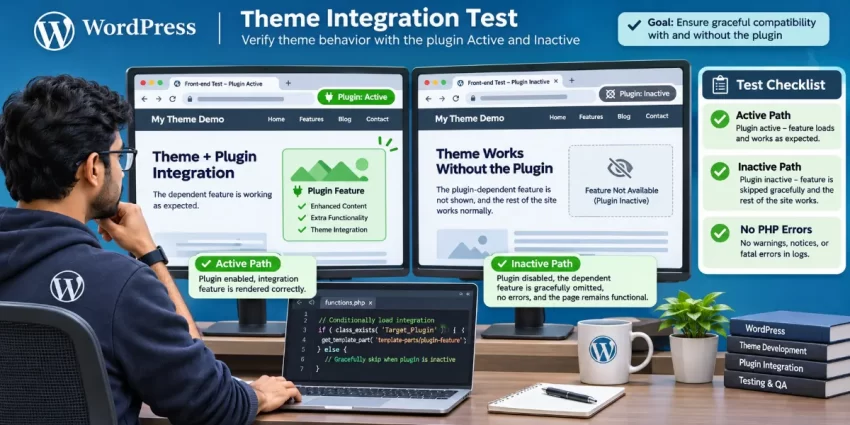
If you need to diagnose PHP issues, enable WordPress debug logging on staging and review the log after testing; do not display debug errors to visitors on production. When page caching, object caching, or a deployment pipeline is involved, clear the relevant cache or test on a fresh request before deciding that the activation result is stale. Record the expected active and inactive outcomes, then confirm each one directly rather than relying only on a temporary message in the page.
Common Errors
If an activation check returns an unexpected result or your theme still fails when a plugin is unavailable, check the plugin path, helper loading, and the timing of plugin-specific calls. These are common causes of false negatives and PHP errors.
- Wrong basename: Pass the plugin’s directory and main PHP filename, such as
woocommerce/woocommerce.php. A display name or directory alone is not a valid basename. - Activation helper unavailable:
is_plugin_active()may not be loaded during a front-end request. Loadwp-admin/includes/plugin.phpbefore calling it, as in the guarded example below. - Incorrect file path: Verify the actual plugin entry file on disk. A renamed folder or differently named main file changes the basename.
- Network activation missed: Avoid checking only the
active_pluginsoption. WordPress’s helper accounts for network activation when used with the correct basename. - Plugin API called too early or when unavailable: Activation does not guarantee a particular class or function is ready. Check for the required capability and defer dependent setup to an appropriate hook.
- Function redeclaration: Give theme helpers a unique
pnet_prefix and guard declarations withfunction_exists().
This reusable helper returns false if the plugin API cannot be loaded. Replace the sample basename with the verified path, and keep plugin-specific calls behind the returned status and any required runtime capability checks.
if ( ! function_exists( 'pnet_is_target_plugin_active' ) ) {
    function pnet_is_target_plugin_active(): bool {
        if ( ! function_exists( 'is_plugin_active' ) ) {
            $plugin_api = ABSPATH . 'wp-admin/includes/plugin.php';

            if ( is_readable( $plugin_api ) ) {
                require_once $plugin_api;
            }
        }

        if ( ! function_exists( 'is_plugin_active' ) ) {
            return false;
        }

        return is_plugin_active( 'woocommerce/woocommerce.php' );
    }
}

if ( pnet_is_target_plugin_active() && function_exists( 'WC' ) ) {
    // Register theme functionality that requires the WooCommerce API.
}
Check PHP syntax after editing, review staging logs for warnings or fatal errors, and test the inactive-plugin path before deployment. The theme should continue rendering when the plugin is deactivated, without attempting to load its classes or functions.
You might also like:

Conclusion
A reliable theme-side activation check starts with the plugin’s exact basename: its directory and main PHP file joined by a slash. Pass that value to WordPress’s is_plugin_active() helper, and make sure the helper is available before calling it on front-end requests. Avoid substituting a plugin’s display name or directory alone, since an incorrect path can make an active plugin appear inactive.
Use the result to conditionally load or register only the theme functionality that depends on the plugin. Keep the rest of the theme operational when the plugin is inactive, and check for any required plugin class, function, setting, or feature before using it. Activation confirms WordPress’s status for the plugin; it does not guarantee every integration capability is ready. On Multisite, the core helper also accounts for network activation when used with the correct basename and loaded correctly.
Before deploying, test the relevant page with the plugin active and inactive on staging. Confirm that the integration works in the active case, that unrelated theme behavior remains intact in the inactive case, and that neither path produces PHP errors. Once both states are verified, deploy the change with confidence. This simple practice makes it safer to Check If Plugin Active before your theme relies on plugin-provided functionality.