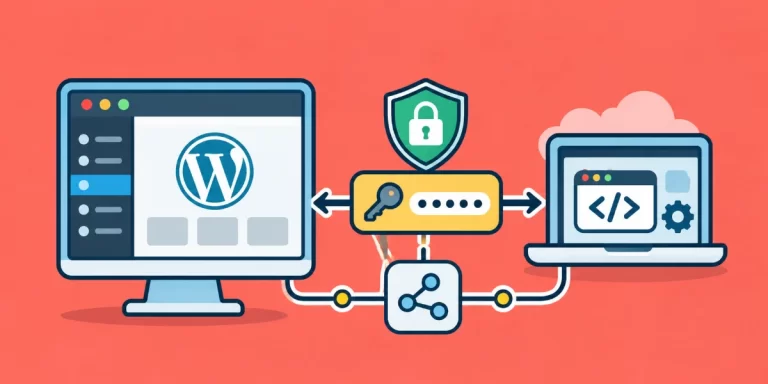
WordPress updates, migrations, and other planned changes can expose unfinished work or broken pages to visitors. A generic message printed by a theme may look like maintenance mode, but still return HTTP 200, giving browsers and search engines the wrong signal. With Maintenance Mode Without Plugin, you can instead build a lightweight must-use plugin that serves a branded page with a genuine HTTP 503 response, then enable or disable it using a configuration constant. Logged-in administrators will retain normal front-end access, while public visitors see the temporary notice; WordPress administration, login, AJAX, REST API, and scheduled-task requests are excluded from the gate.
This is a small, site-owned implementation—not a substitute for a verified backup, staging tests, or a host-level maintenance page if PHP or the database is unavailable. Before editing production files, make sure you have the access and recovery options below. The planned response duration is useful when setting the HTTP Retry-After header, but it is guidance for clients, not an automatic timer that turns maintenance mode off.
- A WordPress site running PHP 8.0 or later, plus SSH, SFTP, or trusted file-manager access to its files and
wp-config.php. - A recent, verified backup of both the database and site files. Test the implementation on staging first when available.
- Permission to create
wp-content/mu-plugins/and editwp-config.php. The activation constant must be placed before the “That’s all, stop editing!” line. - A logged-in administrator account and a way to inspect HTTP response headers, such as
curl, browser developer tools, or an online header inspector. - A planned maintenance window and an estimated retry period to provide to visitors. Remember that
Retry-Afterdoes not reactivate or deactivate the feature automatically.
Create a must-use plugin for the maintenance gate
Put this site-specific feature in a must-use plugin (MU-plugin), rather than a theme file or a regular plugin that someone could accidentally deactivate. WordPress loads MU-plugins automatically, so there is no installation or activation step in the Plugins screen. This makes one a practical home for a small, operational feature that should stay separate from your theme.
On staging, or in a local copy of the site, create wp-content/mu-plugins/ if it does not already exist. Create the PHP file directly inside that directory at wp-content/mu-plugins/pnet-maintenance-mode.php. WordPress does not discover PHP files in nested MU-plugin folders by default; if you organize code into a subdirectory, you will also need a loader file in the top-level directory. Keep your verified backup available while editing.
Add this valid starter file. It protects direct access, uses the required pnet_ prefix, and provides a single check for the configuration switch. The request-handling callback that uses this check is added in the next step.
<?php
/**
 * Plugin Name: PixelNet Maintenance Gate
 * Description: Site-specific maintenance response for public front-end requests.
 * Version: 1.0.0
 */

if ( ! defined( 'ABSPATH' ) ) {
    exit;
}

if ( ! function_exists( 'pnet_maintenance_mode_is_enabled' ) ) {
    function pnet_maintenance_mode_is_enabled(): bool {
        return defined( 'PNET_MAINTENANCE_MODE' )
            && PNET_MAINTENANCE_MODE === true;
    }
}
Save the file with a .php extension and check for PHP syntax errors before deploying it. The function returns true only when the switch is explicitly defined as boolean true; an absent or false constant leaves maintenance behavior disabled. Do not put this file inside a theme, since switching or updating the theme should not remove the gate.
Backup Required
Did you know: You can significantly boost your site’s security and prevent malicious DDoS amplification attacks when you disable xml-rpc in wordpress using a simple code snippet directly inside your active theme’s functions file?
Add the 503 response and administrator bypass
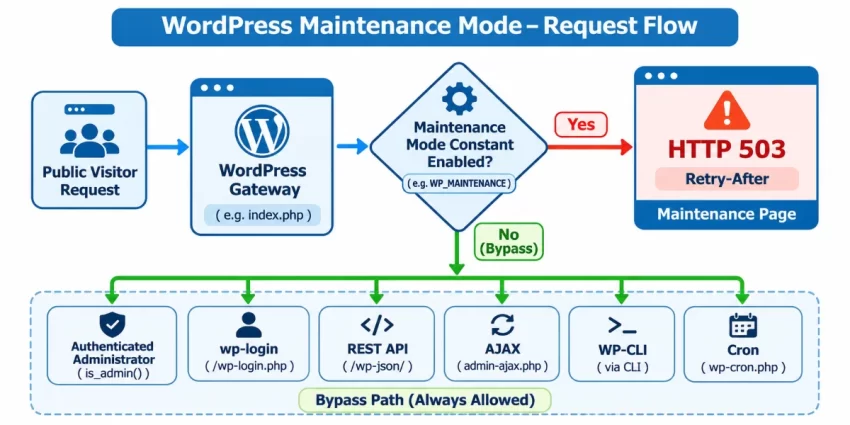
Now replace the starter file’s contents with the complete implementation below. The gate runs on template_redirect, before the theme renders a page, so WordPress can send the HTTP status and headers before any page markup is output. It first checks the maintenance switch and skips administration, login, AJAX, REST API, WP-CLI, and cron requests. Logged-in users must also have the manage_options capability to bypass the gate; a query-string value is not a secure way to grant access.
For other requests, the callback returns HTTP 503, adds a Retry-After hint, and sends no-cache headers. The response is a small, self-contained HTML page, so it does not depend on theme templates or redirect visitors to a separate URL that might return HTTP 200. The one-hour retry value is an example: choose a reasonable estimate for your work, and remember it does not switch maintenance mode off automatically. WordPress’s status_header() reference describes the function used to set the response status.
<?php
/**
 * Plugin Name: PixelNet Maintenance Gate
 * Description: Site-specific maintenance response for public front-end requests.
 * Version: 1.0.0
 */

if ( ! defined( 'ABSPATH' ) ) {
    exit;
}

function pnet_maintenance_mode_is_enabled(): bool {
    return defined( 'PNET_MAINTENANCE_MODE' )
        && PNET_MAINTENANCE_MODE === true;
}

function pnet_send_maintenance_response(): void {
    global $pagenow;

    if ( ! pnet_maintenance_mode_is_enabled() ) {
        return;
    }

    if (
        is_admin()
        || ( defined( 'DOING_AJAX' ) && DOING_AJAX )
        || ( defined( 'REST_REQUEST' ) && REST_REQUEST )
        || ( defined( 'WP_CLI' ) && WP_CLI )
        || ( defined( 'DOING_CRON' ) && DOING_CRON )
        || ( isset( $pagenow ) && 'wp-login.php' === $pagenow )
    ) {
        return;
    }

    if ( is_user_logged_in() && current_user_can( 'manage_options' ) ) {
        return;
    }

    status_header( 503 );
    header( 'Retry-After: 3600' );
    nocache_headers();
    header( 'Content-Type: text/html; charset=utf-8' );

    echo <<<'HTML'
<!doctype html>


    <title>We’ll be back soon</title>

        body { margin: 0; padding: 2rem; color: #202a35; background: #f4f7fa; font: 16px/1.6 system-ui, sans-serif; }
        main { max-width: 38rem; margin: 12vh auto; padding: 2rem; background: #fff; border-radius: 12px; }
        h1 { line-height: 1.2; }


    <main>
        <h1>We’ll be back soon</h1>
        <p>We’re carrying out scheduled maintenance. Please try again shortly.</p>
    </main>


HTML;

    exit;
}

add_action( 'template_redirect', 'pnet_send_maintenance_response', 0 );
The HTML is intentionally static, accessible, and independent of WordPress templates. You can customize its wording and inline styles, but keep it self-contained and avoid adding output before the status and headers. Test the file for syntax errors after saving, then proceed to configure the separate activation switch.
Add the activation switch in wp-config.php
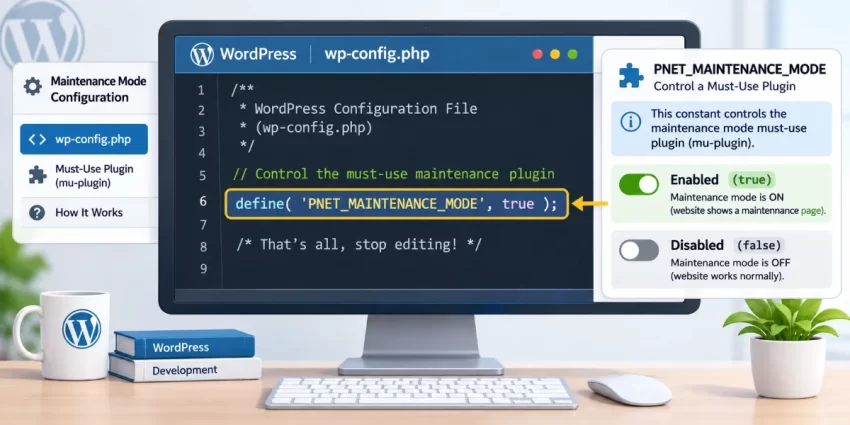
The MU-plugin now contains the maintenance behavior, while a constant in wp-config.php controls whether that behavior runs. Keeping the switch separate lets you deploy and test the code while it is inactive, then enable maintenance without editing the plugin itself. Open the active site’s wp-config.php and add the following line before the “That’s all, stop editing!” comment:
define( 'PNET_MAINTENANCE_MODE', true );
If you are editing an existing wp-config.php, do not add another <?php opening tag; the file is already inside PHP mode at this point. Add the line only once. Defining the same constant again can produce a warning and make it unclear which setting is effective. If a definition already exists, change its value rather than adding a second one.
Set the value to false, or remove the definition, to turn the gate off. The plugin’s check requires the constant to be explicitly true, so an absent or false value leaves public requests unaffected. Once you save the configuration file, the change applies to subsequent requests; it is not a scheduled timer, and the Retry-After header does not disable the switch for you.
This constant is server-side configuration; do not print its value into page output. Treat wp-config.php as sensitive because it commonly contains database credentials and other secrets. Keep it out of public repositories, and follow your normal secure deployment process when changing production configuration. After saving, verify the file remains syntactically valid and keep a recovery copy available so you can remove or change the switch if needed.
You might also like:
Test the public response, bypasses, and shutdown procedure
Test the complete gate on staging before enabling it on production. During the maintenance window, keep an administrator session open and confirm that the front end still displays normally for an account with the manage_options capability. In a private browser window—or from a machine without a WordPress login cookie—request a public page and verify that it shows the maintenance message and returns HTTP 503 with a Retry-After header.
Run this Bash check against a public URL while the switch is enabled. It verifies the status, retry header, and expected message; it does not follow redirects, so a redirect cannot disguise an incorrect response.
#!/usr/bin/env bash
set -u

url="${1:?Usage: $0 https://example.com/}"
headers="$(mktemp)"
body="$(mktemp)"
trap 'rm -f "$headers" "$body"' EXIT

pnet_check_public_response() {
    local status

    status="$(curl -sS -D "$headers" -o "$body" -w '%{http_code}' "$url")" || {
        printf 'Request failed for %s\n' "$url" >&2
        return 1
    }

    if [[ "$status" != "503" ]]; then
        printf 'Expected HTTP 503; received %s\n' "$status" >&2
        return 1
    fi

    if ! grep -Eiq '^[[:space:]]*Retry-After:' "$headers"; then
        printf 'Retry-After header was not found\n' >&2
        return 1
    fi

    if ! grep -Fq 'scheduled maintenance' "$body"; then
        printf 'Expected maintenance message was not found\n' >&2
        return 1
    fi

    printf 'Public maintenance response verified: HTTP %s with Retry-After.\n' "$status"
}

pnet_check_public_response
Save the script as pnet-test-maintenance.sh, make it executable if desired, and run bash pnet-test-maintenance.sh https://example.com/ with your site URL. Check the relevant bypasses for your site: wp-login.php, wp-admin, AJAX, REST API, and scheduled tasks should remain available where applicable. These exclusions preserve operational access; they do not require testing integrations your site does not use. If you can, compare the public result with a direct request to the origin so a CDN or reverse proxy does not mask the application’s response.
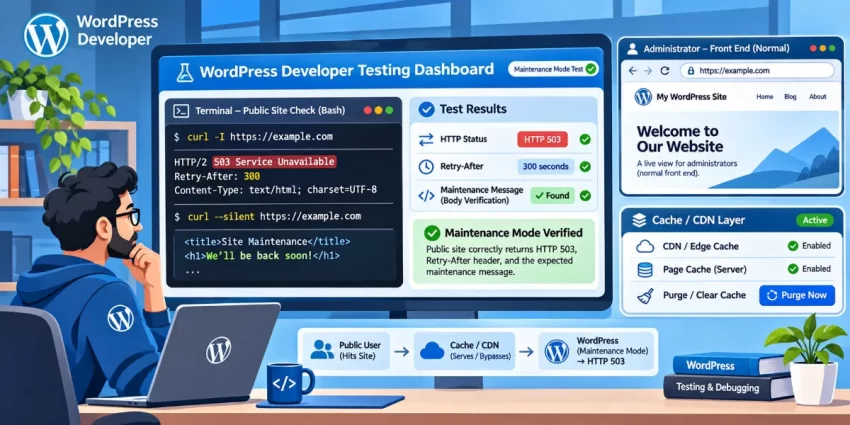
When the work is complete, change PNET_MAINTENANCE_MODE to false or remove its definition from wp-config.php. Purge page, host, reverse-proxy, and CDN caches after both activation and shutdown; nocache_headers() cannot control every caching layer. Retest as an administrator and as a logged-out visitor, confirming normal responses at the origin and through the public hostname.
Shutdown Checklist
You might also like:
Common Errors
When a custom maintenance gate behaves unexpectedly, check the PHP file, activation switch, response headers, and caching layers separately. Test in a private browser window as well as in your administrator session: the two request types are expected to receive different responses.
A blank page or PHP error appears
A missing semicolon, mismatched brace, duplicate <?php opening tag, or code pasted outside the active PHP block can prevent WordPress from loading correctly. Check the PHP error log for the filename and line number, then compare your last edit with the working backup. Revert that edit if necessary before trying again; do not leave a broken MU-plugin in place while debugging production.
The maintenance response never appears
Confirm the file is named with a .php extension and sits directly in wp-content/mu-plugins/, not only in a nested directory. Then verify that PNET_MAINTENANCE_MODE is defined as true before the stop-editing comment in wp-config.php. If both checks pass, request the origin directly if possible: a page cache, reverse proxy, or CDN may be serving an older response.
Administrators are blocked too
The bypass applies only to a logged-in user with the manage_options capability. Confirm that the account has that capability and that the browser has an active WordPress login session; an administrator role in another browser profile does not authenticate this request. Review the bypass condition in the callback, and test it from the front end while signed in. Do not add a public query-string secret as a substitute for capability checks.
Visitors still see maintenance after the work is done
Remove the constant from wp-config.php or set it to false, making sure there is not a second definition elsewhere. Then purge the WordPress page cache, hosting or server cache, reverse proxy, and CDN as applicable. Check the origin and public hostname again as a logged-out visitor; changing the switch does not necessarily invalidate content already cached outside WordPress.
The browser reports HTTP 200 instead of 503
Inspect the actual response headers rather than judging by the page’s appearance. Confirm that status_header( 503 ) runs before any output and that the callback exits after printing the maintenance HTML. A redirect to a separate maintenance URL can return 200 and is not equivalent to returning 503 for the original request. Also check that another plugin or server rule is not replacing the status.
The maintenance page is cached or persists for logged-in users
nocache_headers() asks clients and compatible caches not to store the response, but it cannot control every proxy or CDN. Review cache rules for logged-in and anonymous traffic, purge the relevant layers after enabling or disabling the gate, and verify the response from the origin. If only one browser shows stale content, test in a clean private window before changing the plugin.
You might also like:

Summary
A directly loaded MU-plugin provides a small, site-owned maintenance gate without adding a third-party plugin or tying the behavior to your theme. When its configuration switch is enabled, public front-end requests receive a self-contained page with a genuine HTTP 503 response and a Retry-After hint. The implementation leaves administrator access and operational requests—including login, administration, AJAX, REST API, WP-CLI, and cron—available, so essential site work can continue during the maintenance window.
Back up the site, test on staging, and verify both the public response and administrator bypass before relying on the gate in production. When maintenance is complete, set PNET_MAINTENANCE_MODE to false or remove the definition, purge relevant page, host, proxy, and CDN caches, then confirm normal responses as both a logged-in administrator and a logged-out visitor. This approach is intended for planned front-end work; if PHP or the database is unavailable, use a host- or infrastructure-level maintenance response instead. Used with those safeguards, **Maintenance Mode Without Plugin** gives you a reversible, honest 503 gate under your control.