Every WordPress developer has been there. You install a caching plugin to boost your Core Web Vitals, only to find your interactive maps vanishing, your sliders freezing, or your checkout page throwing errors. While performance optimization is non-negotiable in 2026, it often comes with a trade-off: aggressive JavaScript minification and deferral can break functionality. The solution is usually simple—you need to exclude scripts in WP Rocket from being processed.
WP Rocket is arguably the most powerful caching tool available, but its “Delay JavaScript Execution” and “Defer JS” features are double-edged swords. If a script requires immediate execution (like a jQuery dependent slider or an AJAX filter), delaying it will break the user experience. In this guide, we will dive deep into how to identify problematic files and apply the correct exclusions to keep your site fast and functional.
Why JavaScript Optimization Breaks WordPress Sites
Before we jump into the “how,” it is vital to understand the “why.” When you enable “Minify JavaScript” or “Combine JavaScript” in WP Rocket, the plugin modifies the structure of your code. It strips whitespace and often changes the loading order. If Script A depends on Script B, but Script B is deferred to the footer, Script A will fire a console error because its dependency does not exist yet.
This is where the ability to selectively exclude scripts in WP Rocket becomes a superpower. It allows you to maintain a high-performance baseline for 99% of your site while manually whitelisting the 1% of sensitive code that needs to load naturally.
Step 1: Identifying the Problematic Script
You cannot fix what you cannot find. The first step in this process is identifying exactly which JavaScript file is causing the conflict. Using Chrome Developer Tools is the most reliable method.
1. Open your broken page in an Incognito window.
2. Right-click and select Inspect.
3. Navigate to the Console tab.
4. Look for red error messages. You will often see errors like Uncaught ReferenceError: jQuery is not defined or specific function errors.
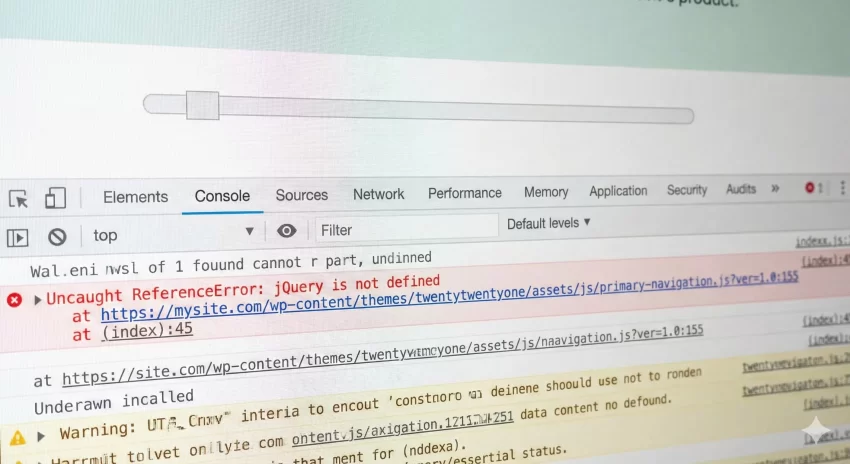
Hover over the filename on the right side of the error console. This will give you the URL of the script. Note down the filename (e.g., jquery.min.js or main-slider.js). This is the identifier you will use to exclude scripts in WP Rocket configurations.
You might also like:

Method 1: Excluding Scripts from Minification via Settings
The most straightforward way to handle this is through the WP Rocket dashboard. If you have “Minify JavaScript” enabled, but a specific file breaks when minified, you can exclude it here.
- Go to Settings > WP Rocket.
- Click on the File Optimization tab.
- Scroll down to the JavaScript Files section.
- Locate the “Excluded JavaScript Files” text area.
Here, you can enter the URLs of the files you want to ignore. You do not need the full domain; just the path is sufficient. For example:
/wp-content/plugins/your-plugin/assets/js/broken-script.js
This ensures the file remains in its original, unminified state while the rest of your site benefits from optimization.
Tip: How to Increase WordPress Maximum Upload Size Easily
Method 2: Handling “Delay JavaScript Execution”
The “Delay JavaScript Execution” feature provides the biggest performance boost but is also the most common cause of issues. It pauses scripts until user interaction (scroll or click). However, scripts like Google Analytics, Ads, or above-the-fold sliders often need to run immediately.
To fix this, you must add the keyword or filename to the exclusion list in the WP Rocket settings under File Optimization > Delay JavaScript execution > Excluded JavaScript Files.
Pro Tip: You can exclude inline scripts by finding a unique string of text within the inline code and adding that string to the exclusion box. This is often necessary for tracking pixels or dynamic variable definitions.
Method 3: Advanced Programmatic Exclusion (For Developers)
As a developer, you might want more control, or perhaps you are building a custom theme and want to ensure your assets are never cached aggressively. You can use WordPress filters to programmatically exclude scripts in WP Rocket options.
For this, we will use the add_filter function. This is a standard WordPress function that allows you to hook into plugin behavior without modifying core files.
Excluding External JS from Minification
If you need to prevent specific external scripts from being minified, you can use the rocket_minify_excluded_external_js filter. Add the following code to your theme’s functions.php file or a custom plugin.
function pnet_exclude_external_scripts( $excluded_external ) {
    // Add the domain or URL of the external script
    $excluded_external[] = 'cdn.example.com/api/widget.js';
    $excluded_external[] = 'forms.hubspot.com';

    return $excluded_external;
}
add_filter( 'rocket_minify_excluded_external_js', 'pnet_exclude_external_scripts' );
Excluding Inline JavaScript
Inline JS often contains unique IDs or non-static data that breaks when cached or combined. To stop WP Rocket from touching specific inline scripts, use the snippet below. This helps you exclude scripts in WP Rocket that are embedded directly in the HTML.
function pnet_exclude_inline_js( $inline_exclusions ) {
    // Add a unique string found within the inline script
    $inline_exclusions[] = 'const user_session_id';
    $inline_exclusions[] = 'var pnet_map_data';

    return $inline_exclusions;
}
add_filter( 'rocket_excluded_inline_js_content', 'pnet_exclude_inline_js' );
Common Scenarios Requiring Exclusion
Over years of WordPress development, I have noticed patterns in which scripts usually require exclusion. Recognizing these early can save you hours of debugging.
1. CAPTCHA Services
Google reCAPTCHA v3 often runs in the background to score traffic. If you delay this script, it may not initialize in time for the user to submit a form, resulting in false spam flags. Always exclude recaptcha or grecaptcha from the “Delay JavaScript Execution” settings.
2. eCommerce Checkout Gates
Payment gateways like Stripe or PayPal rely on complex JavaScript to tokenize credit card data securely. Minifying these scripts can sometimes strip necessary attributes. It is best practice to exclude scripts in WP Rocket that relate to the checkout process (e.g., /wp-content/plugins/woocommerce/assets/js/) to ensure you do not lose sales.
3. Interactive Maps
Google Maps or Leaflet.js maps are heavy resources. While delaying them seems like a good idea for page speed, it often results in a blank gray box until the user interacts with the page. If the map is critical to the page content (like on a Contact page), exclude it from the delay list.
You might also like:

Verifying Your Fixes
Once you have applied the exclusions, you must verify that the fix works without ruining your performance score.
1. Clear Cache: Always clear the WP Rocket cache and your browser cache.
2. Test Functionality: Reload the page in Incognito mode. Does the slider work? Does the form submit?
3. Check Console: Open DevTools again. Are the red errors gone?
4. Re-test Speed: Run the page through PageSpeed Insights. If your score dropped significantly, you might have excluded too many files. Try to narrow down the exclusion to the single file causing the conflict rather than excluding the whole plugin folder.
Troubleshooting: When Exclusion Doesn’t Work
Sometimes, even after you attempt to exclude scripts in WP Rocket, the issue persists. This is usually due to one of two reasons: CDN caching or Server-level caching.
If you use Cloudflare or Varnish (often found on managed hosts like Kinsta or WP Engine), you must clear those caches as well. WP Rocket creates the file, but the CDN serves the old, broken version. Ensure you purge all layers of caching after saving your settings.
Conclusion
Achieving a 100/100 performance score is satisfying, but it should never come at the cost of a broken website. WP Rocket is an incredible tool, but it requires a human touch to navigate the complexities of modern JavaScript dependencies. By mastering how to exclude scripts in WP Rocket, you can ensure your client sites are lightning-fast and perfectly functional.
Remember to always test your changes in a staging environment before pushing to production, and use the helper functions provided above to keep your configurations clean and maintainable.