Every WordPress developer knows the pain of a slow website. You spend hours optimizing your theme, tweaking your CSS, and writing clean PHP, only to have the server response time drag your scores down. In the quest for the perfect speed score, caching plugins are the first line of defense. Today, we are doing a deep dive into one of the oldest and most controversial titans in the industry. Welcome to our comprehensive W3 Total Cache review.
W3 Total Cache (W3TC) is often described as the “Swiss Army Knife” of WordPress performance. Unlike simple “install and activate” plugins, W3TC offers granular control over every aspect of caching—minification, opcode, database, object, and browser caching. But does this complexity translate to real-world speed, or is it just bloated software waiting to break your site? In this W3 Total Cache review, we will dissect its features, test its performance, and provide a developer-centric guide on how to configure it correctly for PixelNet readers.
What is W3 Total Cache?
W3 Total Cache is an open-source WordPress caching plugin with over a million active installations. Ideally, it is designed to improve SEO and user experience by increasing website performance and reducing download times via features like Content Delivery Network (CDN) integration.
For a developer, W3TC is fascinating because it doesn’t just “hide” the complexity of caching; it exposes it. It supports various caching methods including local Disk, Redis, Memcached, and APC/APCu. This makes it incredibly powerful for VPS or Dedicated server environments where you have root access and can install these extensions.
Key Features at a Glance
- Page Caching: Creates static HTML versions of your dynamic pages.
- Minification: Compresses HTML, CSS, and JavaScript files.
- Object Caching: Caches database query results to reduce SQL processing.
- Database Caching: Caches database objects to reduce server load.
- CDN Integration: Seamlessly pushes static files to your Content Delivery Network.
- Lazy Loading: Defers loading of images until they are visible in the viewport.
Installation and Setup Guide
Installing the plugin is standard, but the setup is where many beginners (and even seasoned developers) get lost. Let’s walk through the setup process that balances performance with stability.
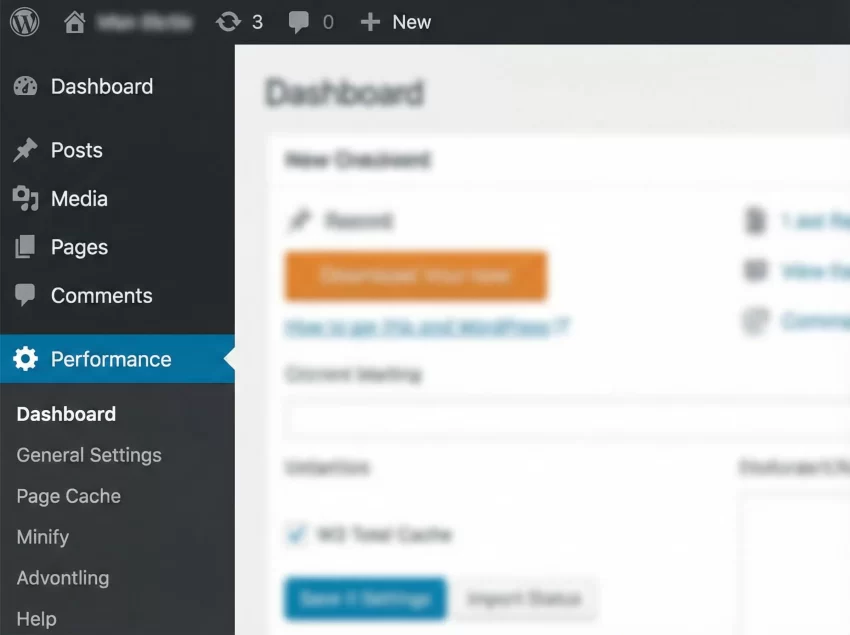
Navigate to Plugins > Add New and search for “W3 Total Cache”. Install and activate it. You will see a new “Performance” tab in your WordPress admin sidebar.
1. Page Cache Settings
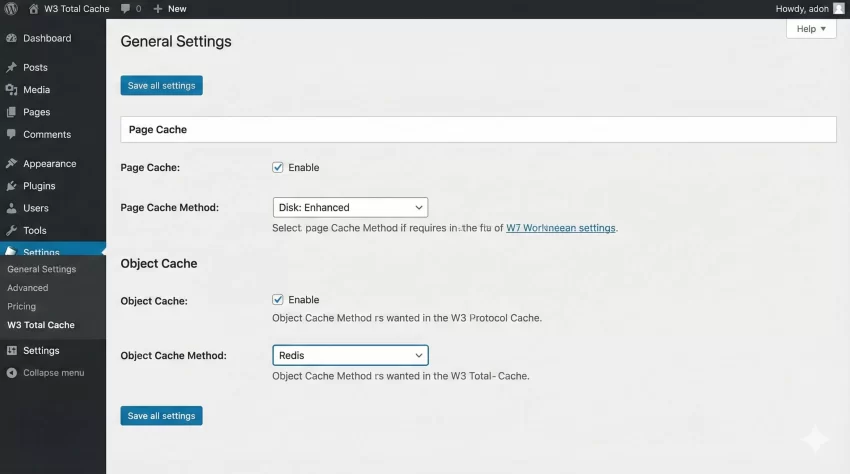
This is the most impactful setting. Go to Performance > General Settings and scroll to Page Cache. Enable it.
Recommendation: select Disk: Enhanced. This method uses the .htaccess file to rewrite rules, allowing the Apache/Nginx server to serve static files directly without invoking PHP. It is significantly faster than “Disk: Basic”.
2. Minify Settings
Minification can break sites if not handled carefully. W3TC allows for “Auto” and “Manual” modes.
If you are a developer comfortable with debugging dependency issues, choose Manual. This allows you to specifically add JS and CSS files in the order they should load. However, for most users, Auto works well enough. If you see layout issues after enabling this, this is the first place to check.
3. Database and Object Cache
Warning: If you are on shared hosting, do not enable Database or Object Caching using the “Disk” method. Writing these intricate cache objects to the disk creates excessive I/O operations, which can actually slow down your website or get you suspended by your host.
Only enable these if your server supports Redis or Memcached. These store data in the RAM, which is lightning fast. You can check if these are available by creating a simple PHP info file or asking your hosting provider.
Performance Stress Test
No W3 Total Cache review is complete without data. We set up a test environment on a standard shared hosting plan running a heavy WordPress theme with WooCommerce installed.
Test Environment:
- Server: Apache/Nginx Hybrid
- PHP Version: 8.2
- Theme: Storefront (with dummy data)
Results:
The improvement in TTFB is massive because of the Disk: Enhanced page caching. By bypassing PHP execution for repeat visitors, the server response is almost instantaneous.
Advanced Developer Configurations
Since PixelNet is a hub for developers, let’s look at how we can extend W3TC in this W3 Total Cache review. Sometimes the UI isn’t enough, and you need to interact with the cache programmatically.
For example, if you are building a custom plugin or a heavy frontend tool (like the ones we often build here at PixelNet), you might need to ensure the cache is flushed when specific actions occur.
Programmatic Cache Flushing
You can use the native W3TC functions within your own theme’s functions.php or custom plugin. Here is a helper function using our pnet_ prefix that you can drop into your project to safely flush the entire cache.
/**
 * Safely flush W3 Total Cache.
 * * @return bool True on success, false if W3TC is not active.
 */
function pnet_flush_w3tc_cache() {
    // Check if W3TC function exists to avoid fatal errors
    if ( function_exists( 'w3tc_flush_all' ) ) {
        w3tc_flush_all();
        return true;
    }

    return false;
}

// Example Usage: Hook into a custom action
add_action( 'pnet_custom_tool_update', 'pnet_flush_w3tc_cache' );
You can also use the WordPress Object Cache API if W3TC Object Caching is enabled. This is standard WordPress development practice, but W3TC acts as the backend for it.
// Storing complex query results in cache
$cache_key = 'pnet_heavy_query_results';
$results = wp_cache_get( $cache_key );

if ( false === $results ) {
    // Cache miss: Run the expensive query
    $results = pnet_run_expensive_database_query();

    // Store in cache for 1 hour (3600 seconds)
    wp_cache_set( $cache_key, $results, '', 3600 );
}

// Return results
return $results;
Pros and Cons
Every tool has trade-offs. Here is our honest assessment.
Pros
- Free: The free version is incredibly robust. Unlike competitors that lock critical features (like lazy load or CSS optimization) behind a paywall, W3TC gives you almost everything for free.
- Compatibility: Works well with almost all hosting environments (Shared, VPS, Dedicated, Clusters).
- Mobile Support: Excellent support for Accelerated Mobile Pages (AMP).
- Security Headers: Allows you to easily set HTTP security headers (HSTS, X-Frame-Options) directly from the dashboard.
Cons
- Learning Curve: The settings page is overwhelming. There are literally hundreds of checkboxes. One wrong move can white-screen your site.
- Uninstall Issues: W3TC is notorious for leaving behind files in wp-content and rules in .htaccess after deletion. You often need to manually clean up files to completely remove it.
- Support: Being a free plugin, the support response time on the WordPress forums can be slow compared to premium alternatives like WP Rocket.
W3 Total Cache vs. The Competition
The most common question we get is: “Is it better than WP Rocket?”
If you have a budget and want convenience, WP Rocket is superior. It automatically applies optimal settings upon activation. However, for developers who want to tweak the Time to Live (TTL) of specific cache groups or configure a Redis server manually, W3 Total Cache wins on flexibility.
For a detailed breakdown of caching concepts, I highly recommend checking the official WordPress Optimization guide on the Codex.
Must Read: Is WP Rocket Worth the Hype? An Honest WP Rocket Review (2026)
Best Practices for PixelNet Readers
If you decide to use this plugin on your client sites, follow this workflow to ensure safety:
- Backup: Always backup your
.htaccessandwp-config.phpfiles before installing W3TC. - Preview Mode: W3TC has a “Preview Mode” feature. Use it! It allows you to test changes without affecting live visitors.
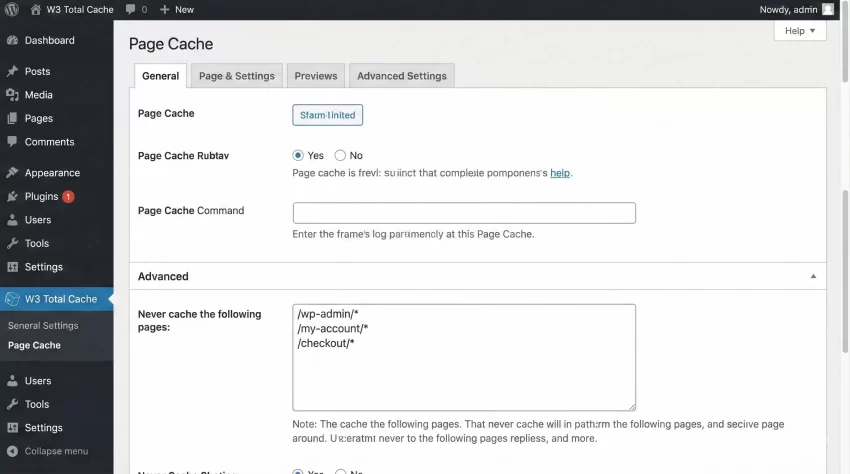
- Exclude Critical Pages: If you are running an e-commerce site or have dynamic tools, ensure you add those page URLs to the “Never Cache the Following Pages” list in Page Cache settings.
Verdict: Is it the Ultimate Solution?
To conclude this W3 Total Cache review, the plugin remains a powerhouse in the WordPress ecosystem. It is not the most user-friendly, nor is it the prettiest. But it is a workhorse.
If you are a casual user who is afraid of breaking things, you might want to look elsewhere. But for the “PixelNet” audience—developers, tinkerers, and those who want to squeeze every millisecond of performance out of their server—W3 Total Cache is arguably the best free solution available today. It respects the developer’s need for control, and once tamed, it delivers incredible speed.
Just remember: With great power comes great responsibility (and the occasional need to manually clear the /wp-content/cache/ folder).
Tell me how do you like this W3 Total Cache review? Do let me know in the comments below.