
WooCommerce does not show a total-weight column in the orders list by default, so estimating packing and shipping needs may mean opening orders one at a time. Add a custom admin column that totals each order’s product weights using the quantities purchased, with hooks for both the legacy orders screen and High-Performance Order Storage (HPOS). This guide provides a safe, site-specific plugin approach for displaying WooCommerce Order Weight in the store’s configured weight unit.
You’ll create and activate the plugin, then verify the column against representative orders, including variations and products with missing weights. The column is for order review only: it does not change saved order data, shipping calculations, or customer-facing pages. Accurate results depend on product weights being configured, and calculations based on current product data may differ from historical weights if a product has since been edited.
- PHP 8.0 or later, and a WordPress installation that meets the requirements of your active WooCommerce version.
- An active WooCommerce installation and administrator access to the WordPress dashboard.
- A full site and database backup. Test the change on a staging site before deploying it to production.
- Access to create and activate a small custom plugin using SFTP, a hosting file manager, or a local development environment.
- Product weights configured in WooCommerce for meaningful totals, and familiarity with the weight unit selected in your store settings.
Prepare a Safe Place for the Customization
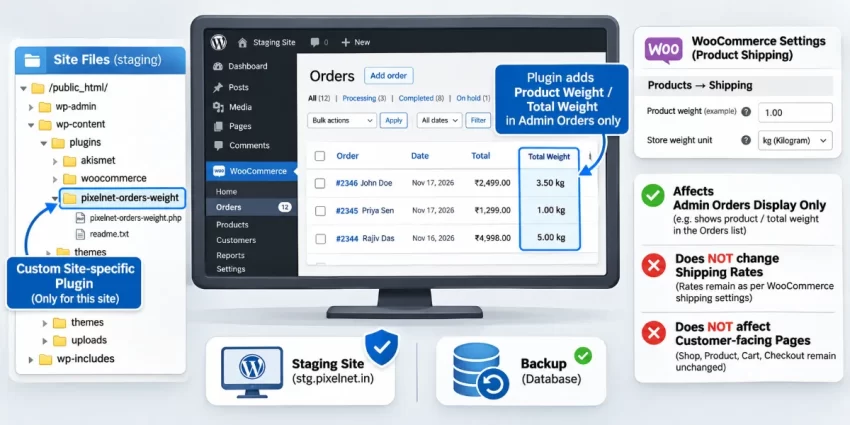
Keep this change in a small, site-specific plugin rather than editing WooCommerce files or a parent theme. Core and theme updates can overwrite edits, while a dedicated plugin keeps the order-list feature separate from your site’s appearance and easier to maintain. You can leave the plugin active if you later change themes.
This customization adds an administrative display column only. It does not change saved order data, shipping rates, packing slips, or customer-facing pages. The displayed total depends on product weight values configured in each product’s Shipping settings. WooCommerce uses the store’s configured weight unit when formatting the result, so review that setting before comparing values.
Before creating files, make a full backup of the site and database, and test the change on a staging copy. Use a staging order to check the products and variations your store actually sells. The later calculation uses product information available through order items; if a catalog weight has changed since an order was placed, the displayed figure may not represent the weight recorded at that time.
Backup Required
Did you know: Implementing a custom woocommerce clear cart button drastically improves UX by letting frustrated shoppers restart bulk orders instantly without hassle? Read the full tutorial!
Create the Plugin and Add the Order-List Hooks
Use a standalone plugin so the column remains available if you change themes. The code below adds it beside the order total in both the legacy orders table and the HPOS orders screen. It uses WooCommerce order and product APIs rather than querying the database directly; see the official WooCommerce HPOS information for background on the newer order storage system.
Create the plugin file
Create a uniquely named directory such as pnet-order-weight-column inside wp-content/plugins/, then add pnet-order-weight-column.php inside it. Paste the complete code below into that file. The plugin inserts the column after order_total, or appends it if that column is unavailable. If any line item has no product or a blank weight, it displays “Incomplete” rather than presenting a partial sum as the order’s total.
 $value ) {
        $updated[ $key ] = $value;

        if ( 'order_total' === $key ) {
            $updated[ $column_key ] = $label;
            $inserted = true;
        }
    }

    if ( ! $inserted ) {
        $updated[ $column_key ] = $label;
    }

    return $updated;
}

function pnet_render_legacy_order_weight_column( $column, $order_id ) {
    if ( 'pnet_total_weight' === $column ) {
        pnet_output_order_weight( $order_id );
    }
}

function pnet_render_hpos_order_weight_column( $column, $order_or_id ) {
    if ( 'pnet_total_weight' === $column ) {
        pnet_output_order_weight( $order_or_id );
    }
}

function pnet_output_order_weight( $order_or_id ) {
    $order = $order_or_id instanceof WC_Order
        ? $order_or_id
        : wc_get_order( absint( $order_or_id ) );

    if ( ! $order ) {
        echo esc_html__( 'Unavailable', 'pnet-order-weight-column' );
        return;
    }

    $total_weight = 0;
    $incomplete   = false;

    foreach ( $order->get_items( 'line_item' ) as $item ) {
        $product = $item->get_product();

        if ( ! $product ) {
            $incomplete = true;
            break;
        }

        $weight = $product->get_weight();
        if ( '' === $weight || ! is_numeric( $weight ) ) {
            $incomplete = true;
            break;
        }

        $total_weight += (float) $weight * (int) $item->get_quantity();
    }

    if ( $incomplete ) {
        echo esc_html__( 'Incomplete', 'pnet-order-weight-column' );
        return;
    }

    echo esc_html( wc_format_weight( $total_weight ) );
}
The line-item product object represents the purchased product or variation where applicable, and its weight is multiplied by the ordered quantity. A numeric zero is accepted as a configured weight; an empty weight or missing product makes the result incomplete. Valid totals are formatted with the store’s configured unit and escaped before output.
For Developers
Install and Activate the Custom Plugin
With the plugin file prepared, install it as a standalone plugin so the order-list customization remains independent of your theme. Use the folder and filename from the previous step: pnet-order-weight-column and pnet-order-weight-column.php. Uploading through SFTP or your hosting file manager is suitable; avoid placing the file in WooCommerce’s plugin directory or editing WooCommerce files directly.
Create the plugin folder and file
On your computer or staging site, create the pnet-order-weight-column folder and place the complete PHP implementation in pnet-order-weight-column.php. Make sure the plugin header is at the beginning of the file and that the code has been copied completely, including its opening PHP tag and closing braces. Save the file as plain text, not as a rich-text document.
Upload the plugin files
Using SFTP or a hosting file manager, upload the entire folder to wp-content/plugins/. Confirm the final path is wp-content/plugins/pnet-order-weight-column/pnet-order-weight-column.php. If you are working locally, place the folder in the same plugins directory of your development WordPress installation.
Activate and open the orders screen
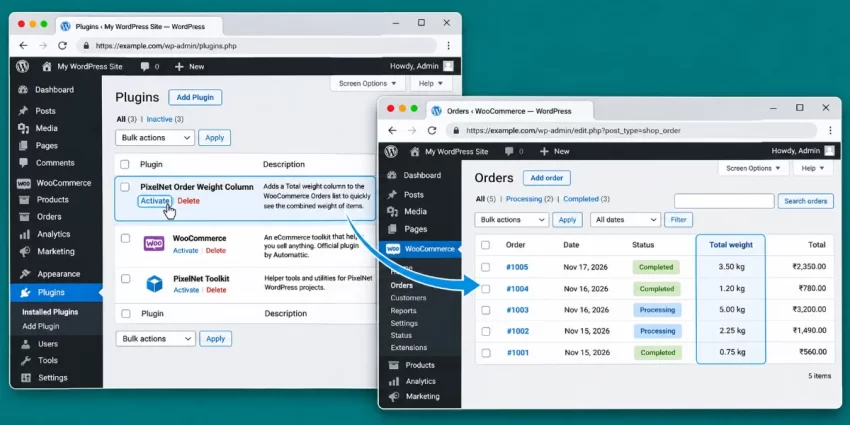
In the WordPress dashboard, go to Plugins > Installed Plugins, locate PixelNet Order Weight Column, and select Activate. Then open WooCommerce > Orders. The added column should appear beside the order total whether the store uses the legacy orders table or HPOS; the plugin only changes the admin display.
Before continuing, check that the dashboard and orders screen load without a PHP error. If activation causes an error, deactivate the plugin from the Plugins screen. If you cannot access the dashboard, use SFTP or your hosting file manager to rename the plugin folder, which disables it, then review the PHP error log or restore your backup before trying again. For additional details about the HPOS order storage system, see WooCommerce’s official HPOS documentation.
You might also like:

Verify the Column and Check the Calculations
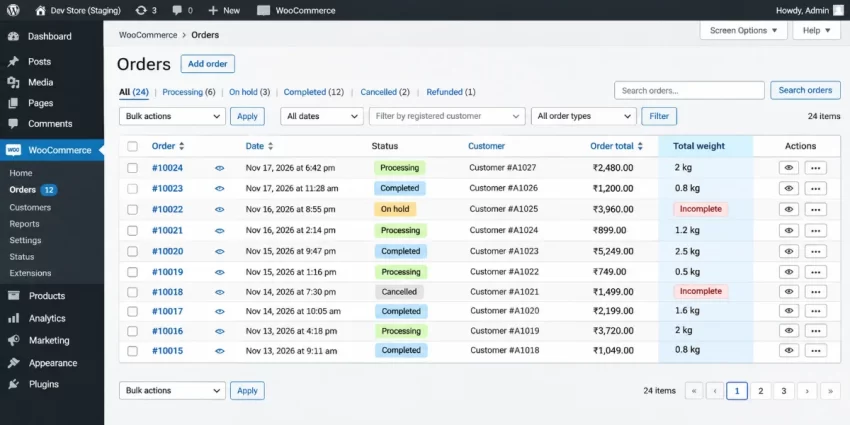
After activating the plugin, open WooCommerce > Orders and look for the Total weight column beside the order total. Check several orders rather than relying on a single example. The column shows the calculated sum when every line item has a product with a configured numeric weight; if a product is missing or its weight is blank, the code displays Incomplete instead of presenting a partial sum as definitive.
Compare an order with its line items
Open a test order and note each product’s weight and quantity. For example, if the store uses kilograms, two units weighing 0.4 kg each contribute 0.8 kg, and one unit weighing 1.2 kg contributes 1.2 kg. The displayed total should therefore be 2 kg. This example assumes the product weights are entered in the store’s configured unit; the plugin formats the result using that unit rather than hard-coding kg or lb.
Also test a variable product. The order item’s product object represents the purchased variation where applicable, so check that the variation has the intended weight. A product with a configured weight of zero is treated as a numeric value and contributes zero. A virtual product is not automatically excluded: if it has a numeric weight, that value is included; if its weight is blank, the order is marked Incomplete, just like any other line item with missing weight.
Check visibility and list behavior
If the column is not visible, reload the orders page and inspect Screen Options or the list table’s available-column settings, if shown in your WooCommerce admin version. Confirm that the plugin is active and that you are viewing WooCommerce > Orders. The implementation adds and renders the column, but does not add sorting or pagination behavior for its calculated values; do not assume those features are available unless you implement and test them separately.
Finally, compare the displayed unit with WooCommerce’s weight setting and test orders with different quantities, variations, and missing weights. This column is an administrative reference only: it does not change order totals or recalculate shipping.
Did you know: You can add WooCommerce Admin Order Notes programmatically to keep order-specific instructions, fulfillment details, and customer service context visible to your team right where they need it—inside the WooCommerce order.
Common Errors
If the Total weight column is missing, blank, or showing an unexpected value, use the checks below to identify whether the issue is related to the orders screen, product data, or plugin installation. The column is an administrative display feature only; it does not recalculate shipping or modify order totals.
Column missing on an HPOS orders screen
Confirm that the plugin is active and that the code registers both HPOS hooks: manage_woocommerce_page_wc-orders_columns for adding the column and manage_woocommerce_page_wc-orders_custom_column for rendering it. Test from WooCommerce > Orders, not a different order-management screen, and reload the page after activation.
Column missing on a legacy orders screen
Check that the legacy hooks, manage_edit-shop_order_columns and manage_shop_order_posts_custom_column, are present. Verify that the PHP file is inside the plugin folder under wp-content/plugins/ and that the plugin is activated. A file saved in an inactive plugin directory will not register its hooks.
Blank, zero, or incomplete totals
Inspect the product’s Shipping weight field and, for variable products, the weight of the purchased variation. Confirm that the order item has a valid quantity. The supplied implementation accepts a configured numeric zero, but marks the order Incomplete if any line item has no product or has a blank or nonnumeric weight; it deliberately avoids presenting a partial sum as a complete total. A virtual product is not automatically excluded and follows the same weight rules.
Historical totals do not match expectations
The calculation reads product data available through the order items. If a product’s catalog weight changed after the order was placed, the displayed total may differ from the weight at purchase time. Preserving historical accuracy requires a separate enhancement that saves a weight snapshot on each order item at checkout and calculates from that saved value.
PHP fatal error, warnings, or unexpected output
Review the PHP error log and check the plugin file for missing braces, altered quotation marks, or incomplete copied code. If the dashboard is unavailable, rename the custom plugin’s directory using SFTP or your hosting file manager to disable it, then correct the error or restore your backup. For warnings or output appearing in the wrong place, confirm the render callbacks only handle the pnet_total_weight column, accept either an order object or an order ID, and escape displayed text. Avoid adding extra output from the callbacks.
Conclusion
WooCommerce does not provide a total-weight column in the orders list by default, but a small site-specific plugin can add one without editing WooCommerce core or your theme. Using WooCommerce’s order and product APIs, the implementation calculates each line item’s product weight multiplied by its quantity, then displays the result in the store’s configured unit. Separate hooks support both the legacy orders table and the HPOS orders screen, so the column can appear in either interface.
Before relying on the displayed figures, make sure product and variation weights are configured and confirm the store’s weight unit. Test representative orders on staging, including orders with multiple quantities, purchased variations, zero-weight products, and items with missing weights. The supplied implementation identifies an incomplete total rather than displaying a partial sum as definitive. Because it reads product data currently available through order items, a weight changed in the catalog after purchase may not match the historical weight.
This column is an administrative aid for reviewing orders; it does not modify order data, shipping rates, or customer-facing pages. If your workflow requires sortable weight values or historically exact totals, treat those as separate enhancements: implement and test sorting explicitly, or save a weight snapshot to order items at purchase time and calculate from that saved value. With careful setup and verification, a well-tested WooCommerce Order Weight column makes order review more practical while leaving underlying orders and shipping calculations unchanged.