
Are you struggling with the default visual hierarchy of your single product pages? For many e-commerce sites, the standard layout doesn’t align with modern conversion rate optimization strategies. One of the most highly requested layout adjustments is placing the WooCommerce price below description. Out of the box, WooCommerce positions the product price immediately after the product title, but before the short excerpt. If you want to force users to read the value proposition (the short description) before seeing the cost, you need to modify the hook execution order. In this comprehensive technical guide, I will show you exactly how to achieve a flawless WooCommerce price below description layout using core PHP actions, completely bypassing the need for bloated third-party plugins.
WordPress and WooCommerce rely heavily on an event-driven architecture, which means elements are rendered on the screen based on a queue of “actions.” To successfully implement a WooCommerce price below description setup, we must interact with the woocommerce_single_product_summary hook. We will unhook the default price output and re-hook it at a lower priority (meaning it executes later in the page load cycle). By the end of this tutorial, you will have a lightweight, robust, and theme-agnostic solution.
- PHP version 8.0 or higher active on your server environment.
- WordPress 6.0+ and WooCommerce 8.0+ installed and configured.
- A child theme activated (do not add code directly to a parent theme to avoid overwriting during updates).
- A full staging site backup (database and files) before making modifications.
- Basic familiarity with connecting to your site via FTP/SFTP or a file manager.
Understanding the WooCommerce Action Scheduler
Before writing any custom PHP functions, it is crucial to understand how WooCommerce builds the single product page. Unlike traditional static HTML templates, WooCommerce uses template files (like content-single-product.php) that act as skeletal frameworks. Inside these frameworks, WooCommerce uses WordPress action hooks to inject content dynamically. This system is what allows us to manipulate the layout and achieve a WooCommerce price below description configuration without ever touching the core plugin files.
The specific area we are targeting is the product summary section, which handles the right-hand column (on desktop layouts) containing the title, ratings, price, excerpt, and add-to-cart button. This entire block is governed by a single, powerful hook: woocommerce_single_product_summary. Every element within this block is attached to this hook with a specific numerical priority. Lower numbers execute earlier, and higher numbers execute later. Understanding this priority queue is the key to successfully moving the WooCommerce price below description.
Analyzing the Default Priorities
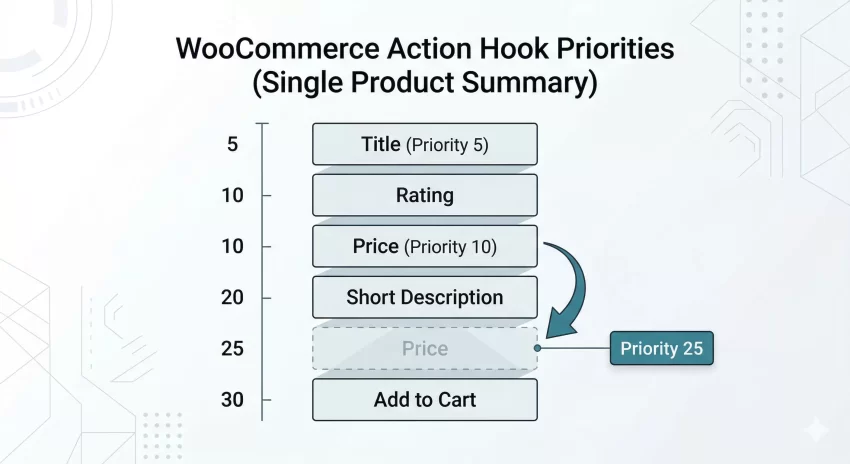
Let’s look at the default execution order defined in the WooCommerce core files. By default, the title is hooked at priority 5. The rating is at priority 10, the price is also at priority 10 (executing immediately after the rating), and the short description (excerpt) is hooked at priority 20. Because 10 comes before 20, the price appears above the description. To create a WooCommerce price below description layout, we need to alter this mathematical sequence. We must assign the price a priority number greater than 20. However, the Add to Cart button is hooked at priority 30, so if we want the price strictly between the description and the cart button, our new priority must fall between 21 and 29.
For Developers
Unregistering the Default Pricing Function
The first programmatic step to achieving our WooCommerce price below description layout is to stop WooCommerce from outputting the price at its default location. If we simply add the price lower down without removing the original instance, we will end up with two prices displaying on the page. We accomplish this removal by utilizing a core WordPress unhooking mechanism. This must be executed carefully, ensuring we target the exact function and priority that WooCommerce originally used.
We will write a custom function to encapsulate our logic. Encapsulating the unhooking and re-hooking processes inside a wrapper function that is triggered during the wp or woocommerce_before_single_product action ensures that all WooCommerce classes and default hooks are fully loaded into memory before we attempt to manipulate them. If you try to run these commands too early in the WordPress lifecycle, your WooCommerce price below description attempt will fail because the default price hook won’t exist yet for you to remove.
Utilizing remove_action Correctly
The tool we use for this task is the remove_action() function. It requires three parameters to work successfully: the name of the hook (woocommerce_single_product_summary), the name of the callback function that WooCommerce uses to render the price (woocommerce_template_single_price), and the exact priority it was originally registered with (10). If any of these three parameters are incorrect, the function will silently fail, and the price will remain in its original position.
function pnet_remove_default_woo_price() {
    // We target the summary hook, the specific price rendering function, and the default priority of 10.
    remove_action( 'woocommerce_single_product_summary', 'woocommerce_template_single_price', 10 );
}
Strict Priority Matching
You might also like: Master Gravity Forms Dynamic Population: An Effortless Guide to Pre-filling Fields
Injecting the Price at the New Location
Now that the original price display has been safely suppressed, we can proceed with the second half of our WooCommerce price below description implementation. We need to re-attach the exact same core WooCommerce rendering function back onto the product summary hook, but this time, we will assign it a higher priority number. As we analyzed earlier, the short description renders at priority 20, and the add-to-cart module renders at priority 30. Therefore, hooking our price at priority 25 is the perfect mathematical sweet spot.
This approach is highly efficient. By reusing the native woocommerce_template_single_price function, we ensure that all dynamic pricing logic—such as sale price strikethroughs, currency formatting, variable product price ranges, and tax suffix strings—remains perfectly intact. We are merely changing *when* the WooCommerce price below description layout executes, not *how* the price is calculated or formatted.
Structuring the Execution Code
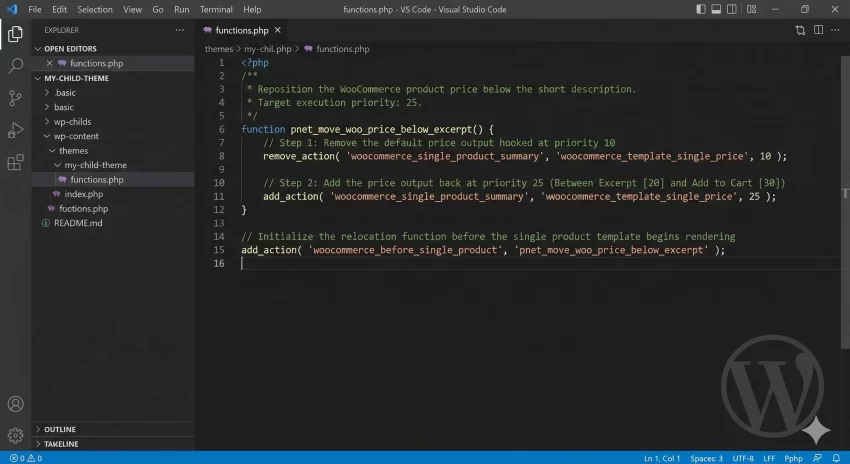
To finalize the WooCommerce price below description setup, we combine both the removal and the addition commands into a single, cohesive wrapper function. We then attach this wrapper function to an early WooCommerce action hook, guaranteeing our modifications take effect before any HTML is sent to the browser. The woocommerce_before_main_content or woocommerce_before_single_product hooks are excellent candidates for this initialization process.
The Complete PHP Implementation Snippet
Below is the complete, production-ready code required to achieve the WooCommerce price below description layout. You should carefully copy this code and paste it at the very bottom of your active child theme’s functions.php file, or within a custom site-specific functionality plugin. Always utilize strict PHP standards.
/**
 * Reposition the WooCommerce product price below the short description.
 * Target execution priority: 25.
 */
function pnet_move_woo_price_below_excerpt() {
    // Step 1: Remove the default price output hooked at priority 10
    remove_action( 'woocommerce_single_product_summary', 'woocommerce_template_single_price', 10 );

    // Step 2: Add the price output back at priority 25 (Between Excerpt [20] and Add to Cart [30])
    add_action( 'woocommerce_single_product_summary', 'woocommerce_template_single_price', 25 );
}

// Initialize the relocation function before the single product template begins rendering
add_action( 'woocommerce_before_single_product', 'pnet_move_woo_price_below_excerpt' );
Performance Optimized
Handling Custom Theme Overrides
While the standard code block provided above works perfectly for default setups like Storefront or generic block themes, the WordPress ecosystem is vast. Many premium themes (such as Flatsome, WoodMart, or Astra) implement their own custom templating engines. In these scenarios, the theme developers might have already altered the default hook priorities or completely replaced the core rendering functions. If you apply our standard WooCommerce price below description code and nothing happens, a theme override is the most likely culprit.
To establish a successful WooCommerce price below description layout in a heavily customized theme environment, you must act like a detective. You need to inspect the theme’s source code to discover the custom priority or function name they used to render the price. This process requires a deeper understanding of the WordPress PHP runtime and global variables.
Debugging the $wp_filter Global
If the standard method fails, you can temporarily print the contents of the $wp_filter global array to your screen. This array contains every function currently attached to every hook. By dumping the contents of $wp_filter['woocommerce_single_product_summary'], you can look for the price-rendering function and see exactly what priority your specific theme assigned to it. Once you find that number, update your remove_action priority accordingly to force the WooCommerce price below description change.
You might also like: Hide Price In WooCommerce: Boost Sales by Requiring Login
Troubleshooting Common Layout Errors
Even with clean code, attempting a WooCommerce price below description modification can sometimes result in unexpected layout shifts or logic errors due to plugin conflicts. In this section, we will address the most frequently encountered roadblocks developers face during this specific customization.
Why is the price displaying twice on my product page?
If you see two prices, it means your add_action executed successfully to create the WooCommerce price below description, but your remove_action failed to remove the original. This almost always happens because your active theme is loading the price at a priority other than 10. You must find your theme’s custom priority and update the 10 in your remove_action statement to match it exactly.
Why did my variable product price range stop updating when selecting variations?
This is a common issue when moving elements via JavaScript instead of PHP, but if it happens with our PHP method, it usually implies a structural HTML wrapper was broken. WooCommerce relies on specific CSS classes (like price) inside the summary div to target via its variations AJAX script. Ensure that you haven’t accidentally hooked the price outside of the div.summary container while setting up your WooCommerce price below description configuration.
Can I use this method to move the price on the shop catalog pages?
No. The code provided in this guide is strictly targeted at the single product page utilizing the woocommerce_single_product_summary hook. If you want to achieve a WooCommerce price below description effect on the archive/shop loop grids, you must target an entirely different hook, specifically woocommerce_after_shop_loop_item_title.
By carefully following the structural hierarchy of WordPress action schedulers, you can effectively manipulate any element on your e-commerce site. Achieving a WooCommerce price below description layout is an excellent exercise in understanding object-oriented hooks and priority management. This layout adjustment not only improves the reading flow for your customers by prioritizing product benefits over cost, but it also demonstrates a professional level of theme customization.
Remember, while third-party page builders offer drag-and-drop solutions, relying on native PHP functions to enforce a WooCommerce price below description layout is infinitely more performant, secure, and resilient to future updates. Always test your customizations on a staging environment first, and enjoy your newly optimized product pages.