WordPress may expose its version in page metadata, feeds, and asset URLs, making basic technology fingerprinting easier. You can Hide WordPress Version Number disclosures by checking each output, removing the standard generator information with a small PHP snippet, and optionally filtering core asset URLs that contain the installed version.
This reduces casual exposure, but it does not secure an outdated installation or guarantee that every scanner will be unable to identify WordPress. Keep core, plugins, and themes updated, and test changes on staging where possible before applying them to a live site.
Prerequisites
Prepare a safe place to make and test the change before editing your live site. The snippets in this guide use standard WordPress functions and are intended for a site where you can inspect the public response after deployment.
- PHP 8.0 or later: Recommended for the examples; confirm your hosting environment is running a supported PHP version.
- A current backup: Save a restorable copy of the site and its database before changing PHP files or activating a plugin.
- A staging site: Test there first when available, particularly if the site uses caching or a CDN.
- Code access: Use a site-specific plugin or the active child theme functions.php file. A site-specific plugin keeps the change in place when the theme is updated.
- Inspection access: Be able to view rendered page source and check the site RSS or Atom feed, ideally while logged out.
- Cache controls: Know how to clear WordPress, hosting, reverse-proxy, and CDN caches if those layers are enabled.
Avoid editing WordPress core or a parent theme: core updates can overwrite changes, and parent-theme updates can remove custom code. Keep a rollback copy of any file you edit.
Step 1: Find Every Version Disclosure
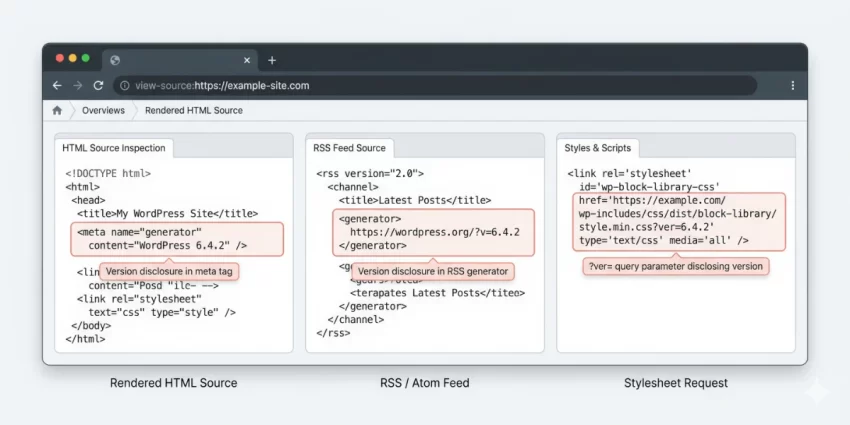
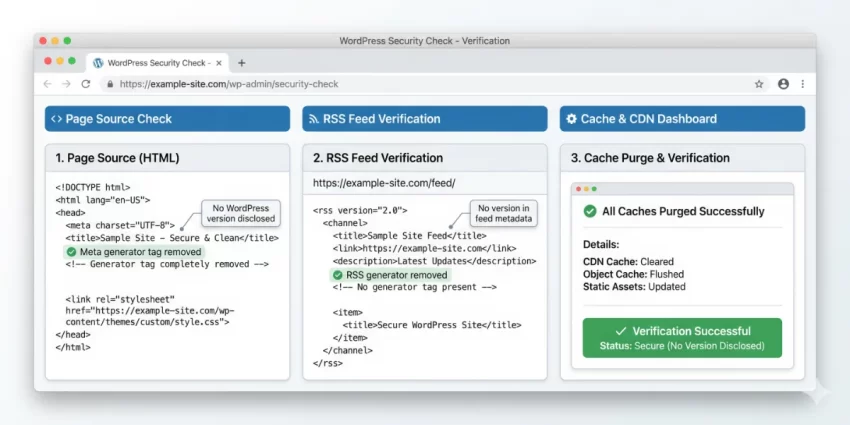
Before changing anything, record where the site currently exposes version information. A common disclosure is a generator meta tag in the HTML document head. Feeds may include a generator value too, while stylesheet and script URLs can carry a version in a ver query parameter. These are separate outputs, so removing one does not necessarily remove the others.
Open a public page while logged out and use the browser’s View Page Source command, then search for generator, WordPress, and ver=. Check the public RSS or Atom feed as well, often available at /feed/, and note any core asset URLs containing a version value. Record the exact findings so you can compare them after applying changes. Do not rely only on the browser inspector: it can present a modified view, and caching may serve older output. Plugin or theme versions can also appear in their own markup or assets; the steps here target WordPress core disclosures, not every product version.
You might also like:
Step 2: Remove Generator Metadata and Feed Version Output
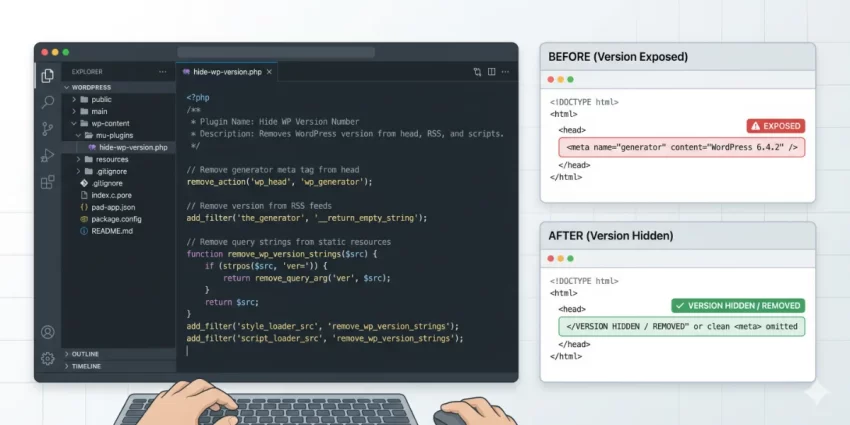
The standard HTML generator meta tag is added through the wp_head action. Removing its default callback targets that tag; filtering the_generator separately clears generator strings used in feeds and other WordPress output. Use both changes so the two disclosure paths are handled.
Add this once to a small site-specific plugin, or to the active child theme functions.php file. A site-specific plugin keeps the change independent of theme updates. Do not edit WordPress core or a parent theme.
function pnet_remove_generator_meta() {
    remove_action('wp_head', 'wp_generator');
}
add_action('init', 'pnet_remove_generator_meta');

function pnet_hide_generator_string($generator, $type) {
    return '';
}
add_filter('the_generator', 'pnet_hide_generator_string', 10, 2);
The official the_generator hook reference describes the filter used here. The callback returns an empty string, while the action removal prevents the standard head callback from printing its meta tag.
You might also like:
Step 2a: Install the Snippet Safely
Use a site-specific plugin to keep this change separate from your theme. On staging, create a PHP file in a new folder under wp-content/plugins/, add the standard plugin header comment at the top, then place the snippet from Step 2 beneath it. Save the file and activate the plugin from the WordPress Plugins screen. Use SFTP or your hosting file manager to create or edit the file, and keep an unchanged copy for rollback.
If you prefer not to create a plugin, add the snippet to the active child theme functions.php file. Do not edit a parent theme, since an update can overwrite the change. Check the file before pasting: plugin files and most functions.php files already start with an opening PHP tag, so do not insert a second <?php tag or paste the code outside the PHP block. Add the callbacks only once; duplicate function declarations can cause a fatal error. Test the change on staging first, then deploy the verified file to production.
Step 2b: Verify Generator Output
Check the two outputs separately so you know which change worked. While logged out, open a public page and use View Page Source rather than relying only on the browser inspector. Search the returned HTML for meta name="generator" and WordPress. The standard WordPress generator meta tag should be absent. If it remains, first confirm the snippet is active and that you are viewing the correct public site; then clear any page or server cache before investigating further.
Next, open the site feed directly, such as https://example.com/feed/, and search its output for a WordPress version string. The generator filter should remove that version. Depending on the feed format or another component, an empty generator element may remain; that is different from a version still being exposed.
Repeat both checks in a private window or a separate logged-out session. If the site uses a host-level cache, reverse proxy, or CDN, purge those layers too, since an old cached response can make a working change appear ineffective. Compare the response again after purging before changing the code.
Did you know: You can significantly boost your site’s security and prevent malicious DDoS amplification attacks when you disable xml-rpc in wordpress using a simple code snippet directly inside your active theme’s functions file?
Step 3: Optionally Remove Matching Core Asset Version Parameters
WordPress core scripts and styles may include a ver query parameter in their URLs. Removing it can reduce casual version exposure, but the parameter also helps browsers and caches recognize updated files. Treat this as optional: the filter below targets only matching core paths and leaves plugin, theme, and third-party asset versions alone.
Add this code once alongside the earlier snippet. It checks the URL path for /wp-includes/ or /wp-admin/, then removes ver only when its value exactly matches the installed WordPress version.
function pnet_remove_matching_core_asset_version($src) {
    $path = wp_parse_url($src, PHP_URL_PATH);

    if (!is_string($path)) {
        return $src;
    }

    $is_core_path = false !== strpos($path, '/wp-includes/')
        || false !== strpos($path, '/wp-admin/');

    if (!$is_core_path) {
        return $src;
    }

    $query = wp_parse_url($src, PHP_URL_QUERY);

    if (!is_string($query) || $query === '') {
        return $src;
    }

    parse_str($query, $query_args);

    if (isset($query_args['ver'])
        && is_string($query_args['ver'])
        && $query_args['ver'] === get_bloginfo('version')) {
        return remove_query_arg('ver', $src);
    }

    return $src;
}

add_filter('script_loader_src', 'pnet_remove_matching_core_asset_version', 10, 1);
add_filter('style_loader_src', 'pnet_remove_matching_core_asset_version', 10, 1);
Step 3a: Add the Targeted Asset Filter
Check the resulting asset URLs on your site after installing the filter. CDN or optimization tools can rewrite paths so they no longer contain the checked directories; in that case, the filter intentionally does not match. Skip this step if your cache strategy depends on versioned URLs or rewritten paths make targeted matching unreliable.
Caching Consideration
Step 3a: Add the Targeted Asset Filter
The callback from Step 3 is registered for both script_loader_src and style_loader_src, so it checks core JavaScript and stylesheet URLs. Keep a single copy of the function and its two filter registrations; pasting the same function twice can trigger a PHP fatal error. First, it parses the URL path and checks for /wp-includes/ or /wp-admin/. URLs outside those core directories are returned unchanged, which avoids stripping version parameters from plugin, theme, and third-party assets.
For a matching path, the callback parses the query string and compares its ver value with the installed WordPress version. It removes that parameter only when the value is a string that exactly matches get_bloginfo('version'). Other version values and unrelated query parameters remain untouched. This narrow check is safer than globally removing every ver parameter, but it still changes how browsers and caches identify updated core files.
After enabling the filter, inspect the rendered page source and confirm that matching core asset URLs no longer contain the installed version. CDN or optimization services may rewrite URLs so the expected directory is absent; the filter will intentionally leave those URLs unchanged. Omit this optional step if rewritten paths make matching unreliable or your cache strategy depends on versioned URLs.
Did you know: You can explore our complete guide on Rollback WordPress Plugin for step-by-step details.
Step 4: Clear Caches and Verify the Final Result
Once the snippets are active, purge the WordPress page cache, hosting or reverse-proxy cache, and CDN cache, if used. Then open a private browser window or use another logged-out session to request a fresh public page. This avoids mistaking an old cached response for a code failure.
- View the page source and search for the WordPress generator meta tag and version strings. Confirm the generator tag is absent.
- Open the RSS or Atom feed and check that its generator output no longer includes the WordPress version.
- If you installed the optional asset filter, inspect core script and stylesheet URLs. Matching core paths should no longer carry a
vervalue equal to the installed version; unrelated asset URLs may still have version parameters. - Test the front end: confirm styles and scripts load, interactive features work, and pages still update as expected after a change.
If a public cached response differs from a fresh staging or uncached response, purge the relevant cache layer again and retest. If the fresh response still shows a disclosure, check that the snippet is active and that the output is generated by the WordPress site you changed. Record the final results so you can repeat these checks after updates or cache configuration changes.
You might also like:
Common Errors
Use these checks to distinguish a code issue from stale output or an asset that is outside the filter scope.
The Generator Tag Still Appears
Confirm the site-specific plugin is active or the code is in the active child theme, then check that the callback was added only once. View the public page source while logged out and clear the WordPress, hosting, and CDN caches before testing again. If a fresh response still contains the tag, check whether another plugin or theme adds generator output, or whether the response is served by a different site or static cache.
A PHP Error Appears After Adding the Snippet
A duplicated opening PHP tag, missing semicolon or brace, or duplicate function declaration can cause a fatal error. Restore the backup or disable the site-specific plugin through your hosting file manager, then correct and test the code on staging. Keep the pnet_ prefix on custom function names and install each callback only once.
The Version Remains in an Asset URL
The optional filter only targets URLs whose paths contain /wp-includes/ or /wp-admin/ and whose ver value exactly matches the installed core version. A CDN may rewrite the path, or the URL may belong to a plugin or theme; identify its source before changing its cache behavior.
Concealment is only a minor reduction in casual exposure. Keep WordPress, plugins, and themes updated, use least-privilege accounts, maintain backups, and apply broader security controls.
The Generator Tag Still Appears
First confirm the change is running on the site you are checking. Make sure the site-specific plugin is active, or that the code is in the active child theme’s functions.php file. Check for a typo in the callback or hook name, and ensure the snippet has not been added to an inactive theme or plugin. If you use both a plugin and theme file, remove any duplicate or conflicting generator code so the result is predictable.
Next, purge the WordPress page cache, hosting or reverse-proxy cache, and CDN cache, then request the page while logged out. Use View Page Source and search for meta name="generator"; do not rely only on the browser inspector. Compare the response with an uncached staging page if available. A cached page can continue showing old markup even after the callback is working.
If the tag remains in a fresh response, confirm the response is generated by the WordPress installation you changed—not a static page, another domain, or a separate cached copy. Then search the active theme and plugins for another callback or custom generator markup. Remove or adjust only the code responsible, and retest the public source after clearing caches again.
A PHP Error Appears After Adding the Snippet
A syntax or placement mistake can trigger a fatal error, sometimes making the public site unavailable. Common causes include adding a second <?php tag inside a file that is already in PHP mode, a missing semicolon or brace, or pasting code outside the PHP block. A function name collision can also occur if a callback was already declared or the snippet was installed more than once.
If you cannot access the WordPress dashboard, use your hosting file manager or SFTP to disable the site-specific plugin: rename its plugin folder so WordPress cannot load it. If the code is in a child theme, restore the saved copy or temporarily switch to a default theme if dashboard access is available. Restore your backup if needed, then check the PHP error log to identify the failing file and line.
Correct the code on staging before reactivating it. Confirm each custom callback uses the pnet_ prefix, appears only once, and is placed inside the existing PHP block. Keep a rollback copy, then test the public page and feed again after deployment.
The Version Remains in an Asset URL
The optional filter only changes URLs whose path contains /wp-includes/ or /wp-admin/, and only when the ver value exactly matches the installed WordPress version. Check the complete URL, including its query string, against that version. A CDN or optimization plugin may rewrite the path, serve assets from a different hostname, or change the query value. If the URL no longer contains the expected core directory, the filter will not match it.
Identify which component owns the remaining asset before changing its version parameter. Core assets commonly use the WordPress directories above; plugin and theme assets often include their own directory names, while third-party services may use unrelated paths. Inspect the URL in page source or the browser Network panel and compare it with the files enqueued by the relevant component.
Do not remove every ver value to make the URL disappear. If the parameter belongs to a plugin, theme, or external asset, changing its cache-busting behavior can leave visitors with stale files. Keep it unless you have identified the source and tested the caching impact.
Conclusion
Begin by checking the actual page source, feed output, and asset URLs so you know which disclosures are present. Removing the standard head callback and filtering generator output addresses common metadata and feed disclosures. The optional asset filter is narrower: it removes a version parameter only from matching core paths when its value equals the installed WordPress version. After deploying changes, clear relevant caches and repeat each check using a fresh, logged-out request.
Keep the asset filter optional. Version parameters can help browsers and caching layers identify updated files, so preserving them may be the better choice for your site. These changes reduce casual exposure; they cannot guarantee that WordPress or its version is undiscoverable, and they do not fix vulnerable software. Keep WordPress, plugins, and themes current, maintain reliable backups, and follow sound access-control and security practices. Used carefully, **Hide WordPress Version Number** techniques are a small hardening measure—not a substitute for ongoing maintenance.