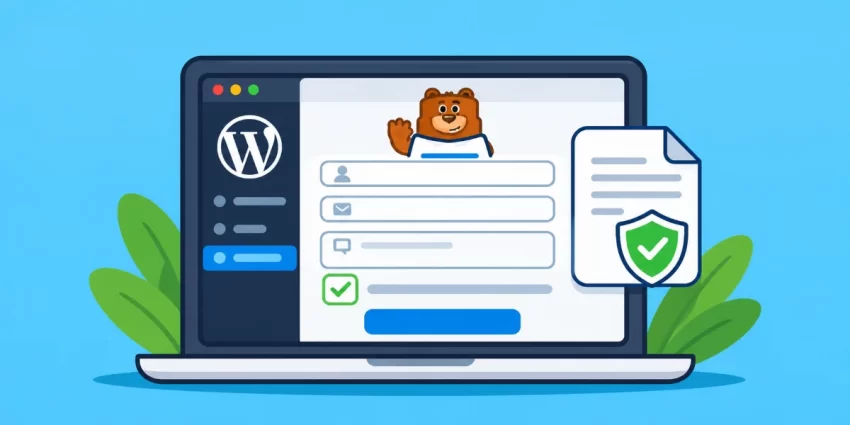
A form can collect important information while leaving visitors unsure whether they actually agreed to your terms. This guide shows you how to configure one required WPForms Checkbox choice, place a clear link to your policy beside it, and optionally verify the submitted choice with a PHP hook scoped to the form and field. The result is a practical WPForms Terms And Conditions setup that makes agreement explicit and helps prevent submissions without consent.
You will use the WPForms builder and, if you want the additional server-side check, a small PHP snippet added safely through a child theme or snippets plugin. The checkbox supports clear consent collection, but it is not a substitute for appropriate legal advice. Before publishing, you will test both unchecked and checked submissions to confirm that the form behaves as intended.
- A WordPress site with WPForms installed and permission to edit the target form.
- A published Terms and Conditions page with a stable URL.
- Access to the target form and its field settings.
- A child theme or snippets plugin for adding PHP safely; do not edit a parent theme file.
- A recent site backup and, if available, a staging site for testing.
- The target form ID and checkbox field ID, which you will identify during the tutorial.
Confirm the consent requirement and identify the form
Start by defining the behavior you need: visitors must make an affirmative choice to agree to the specific Terms and Conditions before submitting the relevant form. The agreement should be unchecked by default, and it should not be combined with marketing consent or another unrelated permission. Decide whether every submission requires consent or whether conditional logic creates paths where the terms field is not shown.
In the WordPress dashboard, open WPForms → All Forms and locate the target form. Record its form ID from the ID column, or open the form and check the number shown in its shortcode, such as [wpforms id="123"]. You will use this identifier later to ensure the optional validation code affects only this form. Record the checkbox field ID after adding that field in the next step.
Back up the site before changing its configuration, and use a staging copy when one is available. Confirm that the policy page is published and that its URL is the one you intend to present to visitors.
Backup Required
Set the consent wording and field identifier
Choose a short label that states exactly what the visitor is agreeing to, such as “I agree to the Terms and Conditions.” Keep the policy link separate from the checkbox wording; you will place it beside the field in the next step. Avoid vague labels such as “I agree,” which do not identify the document, and do not bundle agreement with marketing consent or other optional permissions.
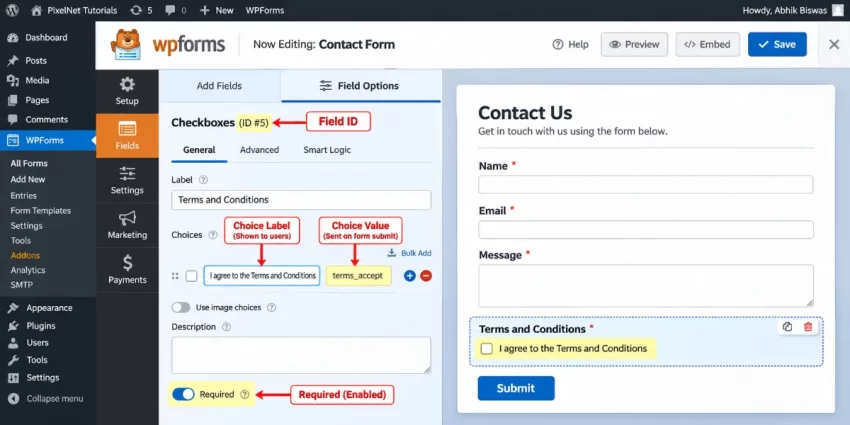
The checkbox must start unchecked so the visitor makes an active choice. After you add the field in WPForms, click it in the builder and record its numeric field ID from the field settings. The PHP validation example will use that ID alongside the form ID, so do not rely on the field label or assume the ID from another form. If you replace the field later, check its ID again before updating the code.
Confirm that the published policy URL is correct and accessible. Review both the label and destination whenever the terms change, so the consent collected continues to refer to the policy visitors can actually read.
Build the WPForms Terms And Conditions checkbox
Open the target form in the WPForms builder and add a Checkbox field. Use one choice only: this field represents a single agreement, not a set of alternatives. In the choice label, enter the clear wording you selected, such as “I agree to the Terms and Conditions.” This creates the visible WPForms Terms And Conditions checkbox visitors will use to provide consent.
In the field settings, enable the option to show or set choice values if it is available, then assign the choice the stable value terms_accept. The label is what visitors read; the choice value is what the later PHP check will compare. Match the value exactly, including capitalization. Turn on Required, and confirm that no default choice is selected. Record the field ID shown in the field settings for the validation step.
Save the form, then preview it. Confirm that the agreement appears as one unchecked option and that the field ID and configured choice value are recorded accurately. If the builder does not offer explicit choice values, make a note of the value WPForms submits so the later validation comparison can be adjusted to match.
Add and position the Terms and Conditions link
In the WPForms builder, add an HTML field immediately before the agreement checkbox. Use it for a brief prompt and a descriptive link to your published policy. A clear label such as “Read the Terms and Conditions” tells visitors what the link opens; avoid displaying a bare URL. Keep the link in the same tab so visitors can return to the form with the browser Back button. The link must not select the checkbox or imply that opening the page counts as consent.
The following PHP helper safely generates the example link markup. Replace the sample URL with your published policy URL. The WPForms HTML field does not execute PHP, so use the helper in a PHP context and put its rendered output—not the PHP code—into the field.
<?php
function pnet_terms_link_markup() {
    $terms_url = 'https://example.com/terms-and-conditions/';

    return sprintf(
        '<p>Please review our terms before continuing: <a href="%s">Read the Terms and Conditions</a>.</p>',
        esc_url($terms_url)
    );
}

echo pnet_terms_link_markup();
Save the form and preview it on desktop and mobile. Confirm the link is visible, opens the correct published page, and is keyboard-accessible, then verify that the checkbox remains unchecked until the visitor actively selects it.
You might also like:
Add a scoped PHP validation check
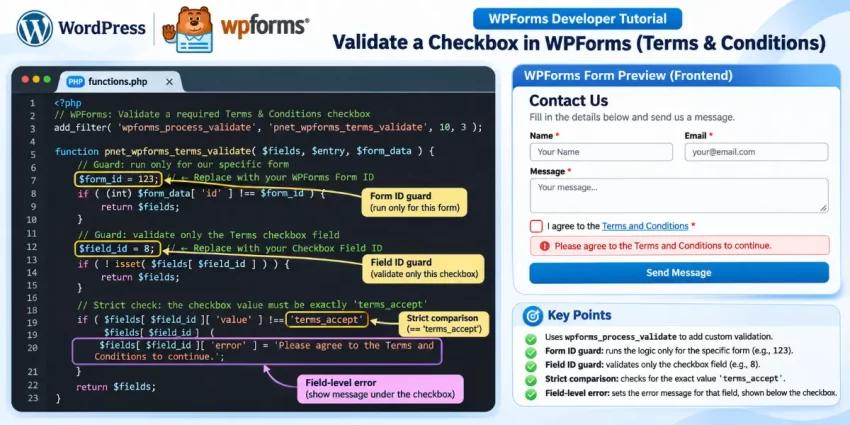
WPForms’ Required setting provides a useful first check. A targeted server-side hook adds another safeguard: it verifies that the intended consent value was submitted for this form and field, without affecting other checkboxes. It does not replace clear wording or correct form setup. For background on validating input, see the WordPress data validation guidance.
Use the actual form and checkbox field IDs in the example below. The value must match the choice value configured in WPForms exactly. Add this once through a snippets plugin or your child theme; do not edit WPForms core files.
Pro Tip
<?php
add_action('wpforms_process_validate_checkbox', 'pnet_validate_terms_checkbox', 10, 3);

function pnet_validate_terms_checkbox($field_id, $field_submit, $form_data) {
    $target_form_id = 123; // Replace with your form ID.
    $target_field_id = 7; // Replace with your checkbox field ID.

    if (!is_array($form_data) || !isset($form_data['id'])) {
        return;
    }

    if ((int) $form_data['id'] !== $target_form_id || (int) $field_id !== $target_field_id) {
        return;
    }

    $submitted_values = (array) $field_submit;

    if (!in_array('terms_accept', $submitted_values, true)) {
        wpforms()->obj('process')->errors[$target_form_id][$target_field_id] = 'Please agree to the Terms and Conditions before submitting.';
    }
}
The pnet_ prefix helps avoid function-name conflicts. Ensure the callback is added only once and that choice values are enabled with terms_accept as the submitted value.
Did you know: If your server is constantly struggling with high resource usage and sluggish page load speeds, you can effectively disable WordPress image hotlinking to instantly block unauthorized domains and reclaim your stolen bandwidth?
Install and adapt the validation snippet
Use this complete version in place of the earlier example; do not activate both copies. Replace 123 and 7 with the actual form and checkbox field IDs. The choice value must be exactly terms_accept, matching the value configured in the WPForms builder.
<?php
add_action('wpforms_process_validate_checkbox', 'pnet_validate_terms_checkbox', 10, 3);

function pnet_validate_terms_checkbox($field_id, $field_submit, $form_data) {
    $target_form_id = 123; // Replace with the target form ID.
    $target_field_id = 7; // Replace with the checkbox field ID.

    if (!is_array($form_data) || !isset($form_data['id'])) {
        return;
    }

    if ((int) $form_data['id'] !== $target_form_id || (int) $field_id !== $target_field_id) {
        return;
    }

    $submitted_values = (array) $field_submit;

    if (!in_array('terms_accept', $submitted_values, true)) {
        wpforms()->obj('process')->errors[$target_form_id][$target_field_id] = 'Please agree to the Terms and Conditions before submitting.';
    }
}
Add the snippet once through your child theme or PHP snippets plugin. If the plugin already supplies the PHP opening tag, remove <?php before saving. Keep the pnet_ callback name unique on your site, and activate the code only after checking both IDs and the submitted choice value. The callback returns without changing validation for other forms or fields.
Verify the checkbox and submission behavior
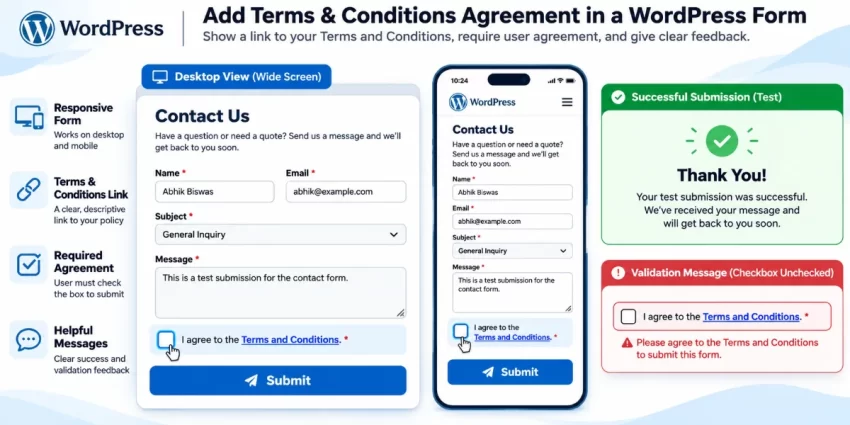
Preview the saved form and check that the terms link is clear and opens the published policy. Confirm the agreement label is easy to understand, the spacing is comfortable, and the checkbox is unchecked by default. Test the form once without selecting it. WPForms should block the submission and display a useful message beside the field.
Next, select the checkbox and submit a valid test entry. Confirm that the submission succeeds and that the entry records the expected choice value. If the form uses conditional logic or multiple pages, test every route where consent is required; make sure the checkbox appears on each applicable path and cannot be bypassed by moving between pages.
Check the form at a narrow mobile width and navigate it using only a keyboard. The terms link and checkbox should be reachable in a sensible order, with a visible focus indicator. After testing, remove test entries and separately verify that notifications or connected integrations behave as expected.
You might also like:

Common Errors
When the agreement checkbox behaves unexpectedly, check the field configuration and the validation snippet separately. Test again after each correction so you can identify what fixed the issue.
The PHP validation hook does not run
Symptom: An unchecked submission gets through, or the validation message never appears. Likely cause: The form or field ID in the snippet does not match the IDs in WPForms, or the snippet is inactive. Fix: Recheck both IDs in the builder, confirm the snippet is active and error-free, and verify the field is a Checkbox field. Check the PHP error log on staging rather than displaying errors to visitors.
A checked choice is still rejected
Symptom: Selecting the agreement still triggers an error. Likely cause: The submitted choice value differs from terms_accept, or explicit choice values are not enabled. Fix: Compare the configured value exactly, including capitalization. Remember that the visible label and submitted value can differ.
Unchecked submissions are accepted
Symptom: The form submits without consent. Likely cause: Required is off, the snippet is inactive, or the callback sets the error against the wrong form or field. Fix: Check those settings and IDs, clear caches, then retest in the current form preview. Do not preselect or hide the checkbox.
A PHP fatal error appears
Likely cause: The callback function is duplicated or misspelled. Disable the snippet, correct the unique pnet_ function name, and activate it only once.
The link is broken or the box starts selected
Check that the HTML field contains the correct URL and that the policy page is published, then preview the form. If the checkbox is preselected, remove its default choice and retest in a fresh browser session.
The PHP validation hook does not run
If an unchecked submission is accepted or the expected validation message never appears, first confirm the code is running and targeting the intended field. In the WPForms builder, check the target form ID and Checkbox field ID, then compare both values with the integers in the snippet. A mismatch makes the callback return without validating that field.
Next, confirm the snippet is active and was added only once. Check for PHP syntax errors and verify that the action name is wpforms_process_validate_checkbox. The target must be a WPForms Checkbox field; a different field type will not trigger this checkbox-specific validation action. If you renamed the callback, make sure the name in add_action() matches the function declaration exactly.
Retest on staging with the current form preview. Review the PHP error log for failures instead of enabling public error display, which can expose sensitive information. If the IDs, field type, and active snippet are all correct, temporarily disable other custom form snippets to identify a conflict, then restore them one at a time.
A checked choice is still rejected
If selecting the checkbox still triggers the validation message, the submitted choice value probably does not exactly match the value checked by the PHP callback. In the WPForms builder, open the Checkbox field and confirm that choice values are enabled and the agreement choice value is terms_accept. Check capitalization and remove any accidental spaces; the comparison is strict.
The visible choice label and submitted value serve different purposes. Visitors might see “I agree to the Terms and Conditions,” while the form submits terms_accept. The callback must compare the submitted value, not the wording shown beside the checkbox.
Submit a test entry with the box selected, then review it in the WPForms Entries screen. Confirm the selected choice is recorded. If the entry view displays only the label and does not confirm the underlying value, use a temporary diagnostic on staging to inspect the submitted field value. Remove that diagnostic afterward, and never leave debugging output visible to visitors. Retest with the exact value configured in the builder.
Unchecked submissions are not blocked
Start with the native field setting: open the form in the WPForms builder, select the agreement Checkbox field, and confirm Required is enabled. Then compare the form ID and field ID in your active validation snippet with the IDs shown in the builder. A mismatch causes the callback to skip the target field, even if the rest of the code is correct.
Check that the callback assigns its message to the correct form and field error indexes: $errors[$form_id][$field_id]. In the implementation above, this is handled through WPForms’ process object. Also confirm the checkbox-specific validation hook is active and that the callback runs for the intended Checkbox field.
Clear page, object, and optimization caches, then submit directly from the current form preview. Test with the box unchecked and confirm a field-level error prevents submission. If the form still accepts it, temporarily disable other custom form snippets on staging to check for conflicts. Do not precheck the agreement or hide the field to work around the problem; either approach undermines clear, intentional consent.
Conclusion
A reliable terms agreement starts with one required WPForms Checkbox choice that is left unchecked by default. Place a clear link to the current, published policy beside it, and use the optional PHP validation hook to check the expected consent value only for the intended form and field. Together, these measures make the agreement clear to visitors and keep validation narrowly scoped.
Before publishing, verify the actual form and field IDs, confirm the choice value matches the code, and test both outcomes: an unchecked submission must be rejected, while a checked submission should succeed. Also review conditional routes, mobile layout, keyboard access, and notifications, then remove test entries when finished.
Whenever the form changes or the terms are updated, review the checkbox wording, policy destination, and consent behavior again. Keep the field unselected until a visitor actively chooses it, and treat the validation snippet as part of your form configuration that needs retesting after changes. With those checks in place, your WPForms Terms And Conditions setup is easier to maintain and audit.